
Add and verify a domain in Apple Business
Overview
To use certain features of Apple Business, Apple needs to verify that your organisation owns the domains you use. For example, if your organisation name is Melard Clothing and you own melardclothing.com, you need to add a TXT record to that domain’s DNS server. In that way, you’re letting Apple know that you own the domain. You can verify more than one domain in Apple Business.
Verifying your domain is also one method you can use to verify your organisation with Apple.
You need to verify your domain to use the following features of Apple Business:
Domain Capture
Federated authentication
Sync user directories
Create Managed Apple Accounts on that domain
Verify with Wallet on the Web
Branded Mail
To use Branded Mail, you also need to verify your mail domains with an MX record. See Intro to Branded Mail.
How do I verify a domain?
To prove you own the custom domain, you need to do one of the following:
Sync custom domains that are already verified from any identify provider (IdP) that works with Apple Business (for example, Google Workspace or Microsoft Entra ID). This allows Apple Business to retrieve all domains that have already been verified for use. After a successful connection, all domains appear as verified in Apple Business.
Manually add a text (TXT) record to a specific file. Because this file controls the domain name, the ability to add a line of text to the file proves the organization owns that domain. Apple supplies this TXT record, which is a series of random letters and numbers unique to that organization. For example:
apple-domain-verification=0RaNdOm1LeTtErS2aNd3NuMbErS4
Important: You have 14 calendar days to complete the manual verification process or you need to start over. Depending on the network configuration, it may take some time for DNS changes to appear. Make sure the person who can write records to your organisation’s DNS entries (for example, an IT or DNS administrator) is notified beforehand, so the task can be completed before the expiration.
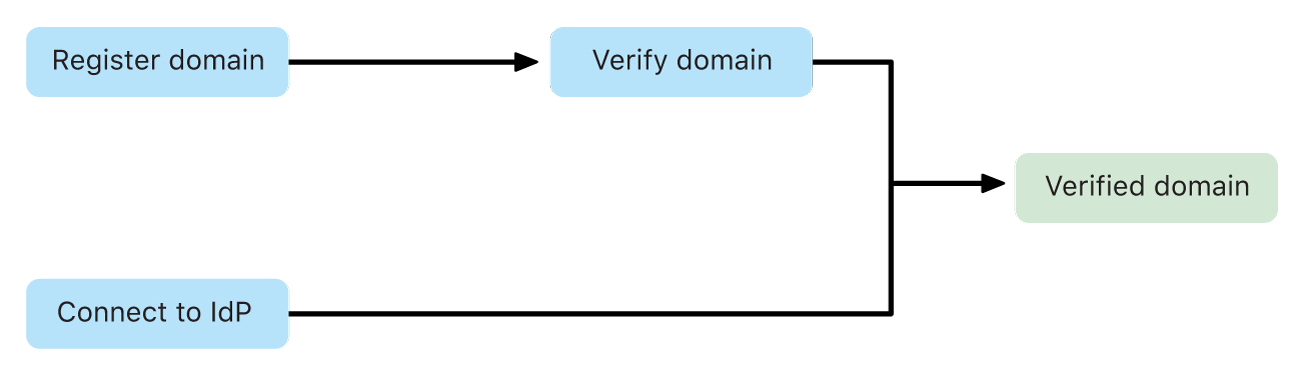
Only domains that haven’t been verified by another organisation can be added. If your domain cannot be verified, additional steps need to be taken to resolve which organisation is associated with a disputed domain name. This is known as a domain conflict.
What are domain conflicts?
There are two types of domain conflicts:
Example 1: A domain that’s registered by another organization.
Example 2: A domain that’s registered by another organization and they’ve added the TXT record to verify they own the domain name.
Note: Add only domains that you own. Adding a domain you don’t own results in you being unable to create Managed Apple Accounts.
Examples | The organization that registered the domain name | Your organization | |||||||||
|---|---|---|---|---|---|---|---|---|---|---|---|
Example 1 | They registered melardclothing.com. | Your organization can choose to send contact information (the name of the person requesting to be contacted, their email address, and the name of the organization) to the organization that registered the domain name. That organization can choose whether to contact your organization to resolve the domain claim. | |||||||||
Example 2 | They registered melardclothing.com and verified it. | Your organisation can’t send anything to their organisation because melardclothing.com is registered and they added the TXT record to verify they own the domain name. Therefore, your organisation can’t use the domain name. | |||||||||
Add and verify a domain
Important: You have 14 calendar days to complete the manual verification process or you need to start over. Depending on the network configuration, it may take some time for DNS changes to appear. Make sure the person who can write records to your organisation’s DNS entries (for example, an IT or DNS administrator) is notified beforehand, so the task can be completed before the expiration.
In Apple Business, sign in with a user whose role has permissions to view, edit and delete the organisation’s domains.
To view roles and permissions, see Intro to roles and permissions.
Select Add
 , select Add Domain, enter the domain you want to use, then select Add Domain.
Choose one of the following:
If you entered a domain that’s registered and verified by another organisation, you need to enter a different domain to continue.
If you entered a domain that’s registered to another organisation but not verified, you can select ‘I agree to share my contact information above’, then select Submit. See What are domain conflicts?.
Select Add domain, then continue with step 5.
Select Verify next to the domain.
A TXT record appears and you receive an email saying that the domain you selected is now attempting to be verified. The TXT record contains a string with random characters at the end. For example:
apple-domain-verification=0RaNdOm1LeTtErS2aNd3NuMbErS4
Select Copy.
If you’re using one of the following services, see their documentation for pasting a TXT record into a server or contact your DNS administrator:
GoDaddy: Add a TXT record.
Microsoft Entra ID: External Domain Name System records for Microsoft 365
Namecheap: How do I add TXT/SPF/DKIM/DMARC records for my domain?
Network Solutions: How Do I Manage DNS and Advanced DNS Records?
Select “Text (TXT) Records or Sender Policy Framework (SPF) Records”.
Shopify: Adding a TXT record
If you have a different domain registrar, contact them for information on how to add a TXT record to your DNS server.
After you’ve added the DNS TXT record successfully, finalize the verification process.
Note: Only domains that haven’t been claimed by another organization can be added. See What are domain conflicts?.
Finalize the verification process
In Apple Business, sign in with a user whose role has permissions to view, edit and delete the organisation’s domains.
To view roles and permissions, see Intro to roles and permissions.
Locate the domain whose TXT record was added, then select Check Now.
If the TXT record has been correctly entered into the DNS server, the shown record and Copy button changes to Verified ownership.
If the TXT record has been incorrectly entered into the DNS server, the Check Now button won’t change.
Depending on why you verified your domain, you may need to keep the TXT record in the zone file:
If you verified your domain to use with a brand feature, such as Branded Mail or Verify with Wallet on the Web, you must keep the TXT record.
If you verified your domain to use federated authentication only, you can remove the TXT record if necessary.