
Manage access to iCloud.com
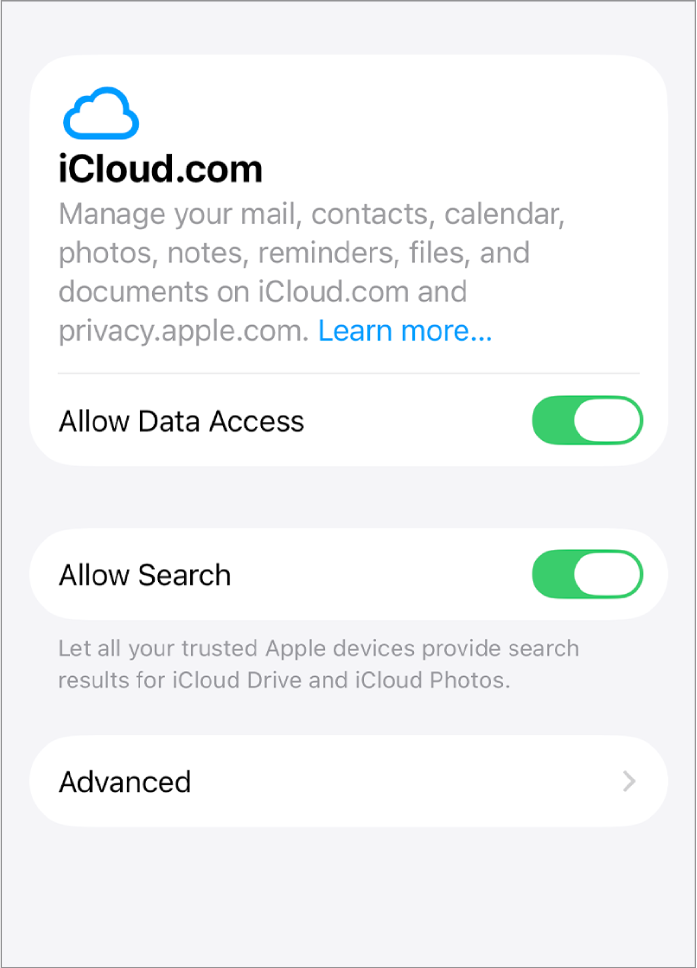
You can control web access to your iCloud data in iCloud settings on your iPhone, iPad, or Mac. When you allow access to your iCloud data on the web, you can manage your mail, contacts, calendars, photos, reminders, files, and documents on iCloud.com and privacy.apple.com. You can also allow your trusted devices to provide local search results to iCloud Photos and iCloud Drive on iCloud.com.
Advanced Data Protection
By default, iCloud keeps your data safe by encrypting it when it’s in transit and storing it in an encrypted format. Your encryption keys are secured in Apple data centers, so Apple can help you recover your data if you lose access to your account. End-to-end encryption is used on 15 data categories—such as Health data and Passwords in your iCloud Keychain.
Advanced Data Protection is an optional setting that provides Apple’s highest level of cloud data security. With Advanced Data Protection, your protected data can be decrypted only on your trusted devices where you’re signed in to your Apple Account. Your information stays secure even in the case of a data breach in the cloud—not even Apple can access your encrypted data. Advanced Data Protection also uses end-to-end encryption on 10 additional data categories—including iCloud Backup, Photos, Notes, and more.
Note: When you turn on Advanced Data Protection, access to your iCloud data on the web at iCloud.com is disabled to ensure that your data is available only on your trusted devices. You can turn web access back on and use one of your trusted devices to allow temporary access to your data on the web.
For detailed information about Advanced Data Protection, see the Apple Support article How to turn on Advanced Data Protection for iCloud.
Allow Data Access and Search on iCloud.com
Do one of the following:
On your iPhone or iPad: Go to the Settings app
 , then tap your name. If you don’t see your name, tap Apple Account, then sign in to your Apple Account. Tap iCloud, then tap iCloud.com.
On your Mac: Choose Apple menu
 > System Settings, then click your name at the top of the sidebar. If you don’t see your name, click “Sign in,” then sign in to your Apple Account. Click iCloud, then click Data Access on iCloud.com.
Do any of the following:
Turn on Allow Data Access.
Turn on Allow Search.
Download and delete your iCloud.com search report
When you use a trusted device to provide search results for iCloud Drive and iCloud Photos on iCloud.com, the device keeps a search report containing search queries from the last 28 days. You can export or delete the search report in iCloud settings.
Note: This feature is available on iOS 26.4, iPadOS 26.4, macOS 26.4, or later.
Do one of the following:
On your iPhone or iPad: Go to the Settings app
, then tap your name. If you don’t see your name, tap Apple Account, then sign in to your Apple Account. Tap iCloud, then tap iCloud.com.On your Mac: Choose Apple menu
> System Settings, then click [your name] at the top of the sidebar. If you don’t see your name, click “Sign in,” then sign in to your Apple Account. Click iCloud, then click Data Access on iCloud.com.
Select Advanced, then do any of the following:
Export a CSV file of recent search queries: Select Export Recent Searches, then choose how you want to export the file.
Clear recent searches provided by your device for iCloud.com: Select Clear Recent Searches, then select Clear.