Logic Pro User Guide for Mac
- Welcome
- What’s new in Logic Pro
-
- What is Logic Pro for Mac?
- Logic Pro project basics
- Undo and redo edits
- Download additional sound packs
- How to get help
-
- Tracks overview
-
- Create tracks
- Create tracks using drag and drop
- Create tracks using existing channel strips
- Assign tracks to different channel strips
- Choose the default region type for software instrument tracks
- Select tracks
- Duplicate tracks
- Rename tracks
- Change track icons
- Change track colors
- Reorder tracks
- Zoom tracks
- Replace or double drum sounds
- Control timing with the groove track
- Use selection-based processing
- Edit track parameters
-
- Overview
-
- Before recording software instruments
- Play software instruments
- Record software instruments
- Record additional software instrument takes
- Overdub software instrument recordings
- Spot erase software instrument recordings
- Use Note Repeat
- Replace software instrument recordings
- Record to multiple software instrument tracks
- Record multiple MIDI devices to multiple tracks
- Record software instruments and audio simultaneously
- Use step input recording techniques
- Record MIDI messages from another music app
- Route MIDI internally to software instrument tracks
- Use the metronome
-
- Arranging overview
-
- Regions overview
- Select regions
- Select parts of regions
- Cut, copy, and paste regions
- Move regions
- Add or remove gaps
- Delay region playback
- Loop regions
- Repeat regions
- Resize regions
- Mute and solo regions
- Time stretch regions
- Reverse audio regions
- Split regions
- Demix MIDI regions
- Join regions
- Create regions in the Tracks area
- Change the gain of audio regions in the Tracks area
- Normalize audio regions in the Tracks area
- Create aliases of MIDI regions
- Convert repeated MIDI regions to loops
- Change the color of regions
- Convert a MIDI region into a pattern region in Logic Pro for Mac
- Replace a MIDI region with a Session Player region in Logic Pro for Mac
- Convert audio regions to samples for a sampler instrument
- Rename regions
- Delete regions
-
- Chords overview
- Add and delete chords
- Select chords
- Cut, copy, and paste chords
- Move and resize chords
- Loop chords on the Chord track
- Transpose chords
- Edit chords
- Work with chord groups
- Use chord progressions
- Change the chord rhythm
- Choose which chords a Session Player region follows
- Analyze the key signature of a range of chords
- Analyze the chords in audio or MIDI regions in Logic Pro for Mac
- Extract vocal and instrumental stems with Stem Splitter
- Create groove templates
-
- Overview
-
- Add notes
- Select notes
- Snap items to the grid
- Move notes
- Copy notes
- Change the pitch of notes
- Resize notes
- Edit note velocity
- Quantize the timing of notes
- Quantize the pitch of notes
- Change note articulations
- Lock the position of events
- Mute notes
- Change note color
- View note labels
- Delete notes
- Time stretch notes
- View multiple MIDI regions
- Split chords
- Automation/MIDI area in the Piano Roll Editor
- Open other editors
-
- Session Players overview
- The Session Player Editor
- Choose a Session Player type and style
- Chords and Session Players
- Choose Session Player presets
- Regenerate a Session Player performance
- Follow rhythm of chords and other tracks
- Work with Drummer multi-channel kits
- Convert Session Player regions into MIDI or pattern regions
-
- Logic Pro for Mac advanced editors overview
-
- Audio File Editor overview
- Play audio files in the Audio File Editor
- Navigate audio files in the Audio File Editor
-
- Audio File Editor edit commands
- Edit audio files with transient markers
- Use the Audio File Editor Pencil tool
- Trim or silence audio files
- Remove DC offset
- Set audio file levels
- Normalize audio files
- Fade audio files
- Reverse audio and invert phase
- Audio File Editor Loop commands
- Undo Audio File Editor edits
- Backup audio files
- Use an external sample editor
-
- Mixing overview
- Set channel strip input format
- Set channel strip pan or balance positions
- Mute and solo channel strips
- Reorder channel strips in the Mixer
-
- Plug-ins overview
- Add, remove, move, and copy plug-ins
- Search for plug-ins in the Mixer
- Insert a plug-in on a track using drag and drop
- Activate plug-ins on inactive channel strips
- Use the Channel EQ
- Work in the plug-in window
- Work with plug-in settings
- Work with plug-in latencies
- Work with Audio Units in Logic Pro for Mac
- Use MPE with software instruments
- Use the Plug-in Manager
- Work with channel strip settings
- Surround panning
- Use the I/O Labels window
- Undo and redo Mixer and plug-in adjustments
-
- Smart Controls overview
- Show Smart Controls for master effects
- Choose a Smart Control layout
- Automatic MIDI controller assignment
- Map screen controls automatically
- Map screen controls
- Edit mapping parameters
- Use parameter mapping graphs
- Open the plug-in window for a screen control
- Rename a screen control
- Use articulation IDs to change articulations
- Assign hardware controls to screen controls
- Compare Smart Control edits with saved settings
- Use the Arpeggiator
- Automate screen control movements
-
- Live Loops overview
- Start and stop cells
- Work with Live Loops cells
- Change loop settings for cells
- How the Live Loops grid and Tracks area interact
- Edit cells
- Edit scenes
- Work in the Cell Editor
- Bounce cells
- Record a Live Loops performance
- Change Live Loops grid settings
- Control Live Loops with other devices
-
- Global changes overview
- Control transposition with the Pitch Source parameter
-
- Tempo overview
-
- Smart Tempo overview
- Use free tempo recording
- Choose the Project Tempo mode
- Choose the Smart Tempo setting
- Use Smart Tempo with multitrack audio
- Work in the Smart Tempo Editor
- Improve the tempo analysis using hints
- Correct tempo analysis results using beat markers
- Protect Smart Tempo edits by locking a range
- Match audio recordings to the project tempo
- Match the project tempo to an audio region
- Use audio file tempo information
- Sync audio to a video hit point
- Record tempo changes
- Use the Tempo Interpreter
- Use the tempo fader
- Control project volume
-
- Overview
- Add notes to a score
-
- Part box overview
- View score symbols
- Select score symbols
- Add notes and rests
- Add notes and symbols to multiple regions
- Add key and time signature changes
- Change the clef sign
- Add dynamic marks, slurs, and crescendi
- Change note heads
- Add symbols to notes
- Add trills, ornaments, and tremolo symbols
- Add sustain pedal markings
- Add chord symbols
- Add chord grids and tablature symbols
- Add bar lines, repeats, and coda signs
- Add page and line break symbols
-
- Select notes
- Move and copy notes
- Change note pitch, duration, and velocity
- Change note articulations
- Quantize the timing of notes
- Restrict note input to the current key
- Control how ties are displayed
- Add and edit tuplets
- Override display quantization using tuplets
- Add grace notes and independent notes
- Delete notes
- Use automation in the Score Editor
-
- Staff styles overview
- Assign staff styles to tracks
- Staff Style window
- Create and duplicate staff styles
- Edit staff styles
- Edit staff, voice, and assign parameters
- Add and delete staffs or voices in the Staff Style window in Logic Pro for Mac
- Copy staffs or voices in the Staff Style window in Logic Pro for Mac
- Copy staff styles between projects
- Delete staff styles
- Assign notes to voices and staffs
- Display polyphonic parts on separate staffs
- Change the staff assignment of score symbols
- Beam notes across staffs
- Use mapped staff styles for drum notation
- Predefined staff styles
- Share a score
-
-
- Key commands overview
- Browse, import, and save key commands
- Assign key commands
- Copy and print key commands
-
- Global Commands
- Global Control Surfaces Commands
- Various Windows
- Windows Showing Audio Files
- Main Window Tracks and Various Editors
- Various Editors
- Views Showing Time Ruler
- Views Showing Automation
- Main Window Tracks
- Live Loops Grid
- Mixer
- MIDI Environment
- Piano Roll
- Score Editor
- Event Editor
- Step Editor
- Step Sequencer
- Project Audio
- Audio File Editor
- Smart Tempo Editor
- Library
- Sampler
- Drum Machine Designer
- Step Input Keyboard
- Smart Controls
- Tool Menu
- Control Surface Install Window
-
- Logic Pro projects
- Various windows
- Controller Assignments window
- Control bar
- Tracks area
- Global tracks
- Automation
- Live Loops grid
- Mixer
- MIDI Environment
- Piano Roll Editor
- Score Editor
- Event List
- Step Editor
- Step Sequencer
- Flex Time
- Audio File Editor
- Smart Tempo Editor
- Surround Panner
- Channel EQ
- Space Designer
- Sampler
- Touch Bar shortcuts
-
-
- Working with your control surface
- Connect control surfaces
- Add a control surface to Logic Pro for Mac
- Automatic assignment for USB MIDI controllers
- Grouping control surfaces
- Control Surfaces settings overview
- Modal dialog display
- Tips for using your control surface
- Supported control surfaces
- Software and firmware for Logic Pro for Mac
-
-
- Environment overview
- Common object parameters
- Customize the Environment
-
-
- Fader objects overview
- Use fader objects
- Play back fader movements
- Work with object groups
- Fader styles
- Fader functions: MIDI events
- Fader functions: range, value as
- Fader functions: filter
- Vector fader
- Special faders overview
- Cable switchers
- Meta event faders
- SysEx faders
- Work with SysEx messages
- Special functions
- Ornament objects
- MMC record buttons
- Keyboard objects
- Monitor objects
- Channel splitter object
- Physical input objects
- Physical input objects
- MIDI click objects
-
-
- Use MIDI plug-ins
-
- Arpeggiator overview
- Arpeggiator control parameters
- Note order parameters overview
- Note order variations
- Note order inversions
- Arpeggiator pattern parameters overview
- Use Live mode
- Use Grid mode
- Arpeggiator options parameters
- Arpeggiator keyboard parameters
- Use keyboard parameters
- Assign controllers
- Modifier controls
- Note Repeater controls
- Randomizer controls
-
- Use Scripter
- Use the Script Editor
- Scripter API overview
- MIDI processing functions overview
- HandleMIDI function
- ProcessMIDI function
- GetParameter function
- SetParameter function
- ParameterChanged function
- Reset function
- JavaScript objects overview
- Use the JavaScript Event object
- Use the JavaScript TimingInfo object
- Use the Trace object
- Use the MIDI event beatPos property
- Use the JavaScript MIDI object
- Create Scripter controls
- Transposer controls
- Record MIDI to Track
-
-
- Alchemy overview
- Alchemy interface overview
- Alchemy Name bar
- Alchemy file locations
-
- Alchemy source overview
- Source master controls
- Import browser
- Source subpage controls
- Source filter controls
- Source filter use tips
- Source elements overview
- Additive element controls
- Additive element effects
- Spectral element controls
- Spectral element effects
- Pitch correction controls
- Formant filter controls
- Granular element controls
- Sampler element controls
- VA element controls
- Wide unison mode
- Source modulations
- Morph controls
- Alchemy master voice section
- Alchemy Extended parameters
-
- ES2 overview
- ES2 interface overview
- ES2 integrated effects processor controls
- Use ES2 in Surround mode
- Extended parameters
-
-
- Sample Alchemy overview
- Interface overview
- Add source material
- Edit mode
- Play modes
- Source overview
- Synthesis modes
- Granular controls
- Additive effects
- Additive effect controls
- Spectral effect
- Spectral effect controls
- Filter module
- Lowpass, bandpass, and highpass filters
- Comb PM filter
- Downsampler filter
- FM filter
- Envelope generators
- Mod Matrix
- Modulation routing
- Motion mode
- Trim mode
- More menu
-
- Sculpture overview
- Sculpture interface
- Global parameters
- Amplitude envelope parameters
- Use the Waveshaper
- Filter parameters
- Output parameters
- Use surround range and diversity
- Define MIDI controllers
- Extended parameters
-
- Studio Piano
-
- Ultrabeat overview
- Ultrabeat interface
- Synthesizer section overview
- Filter section controls
- Distortion circuit controls
- Glossary
- Copyright and trademarks
Edit a Synth Keyboard Player performance in Logic Pro for Mac
You can use the Synth Keyboard Player styles in Logic Pro to create authentic electronic synth performances in a variety of styles.
In addition to the common settings available for all Session Players, the Synth Keyboard Player styles come with settings unique to each Synth Keyboard Player. They appear in the Session Player Editor when a Synth Keyboard Player style is used for the selected Session Player region.
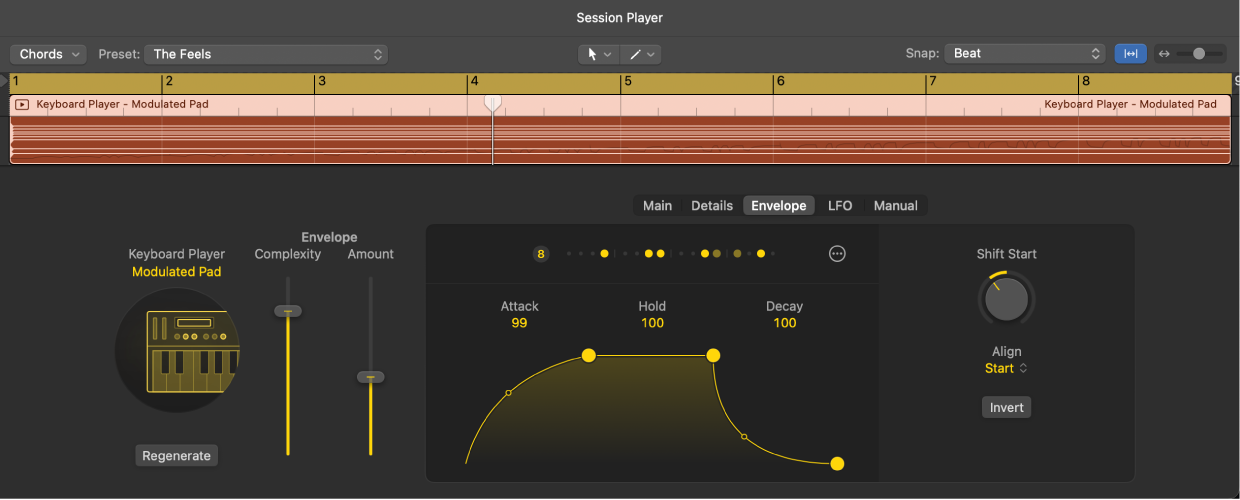
The Synth Keyboard Player styles are Simple Pad, Modulated Pad, and Rhythmic Chords.
Change additional note settings for Simple Pad and Modulated Pad
In Logic Pro, click the Main button in the Session Player Editor, then change either of the following settings:
To sustain notes of the same pitch that are common across multiple chords in the progression: Choose an option from the Tie Notes pop-up menu.
To shift the start and end of each note so that it’s ahead of or behind the beat: Drag the Note Start knob vertically.
To change the length of notes: Drag the Note Length knob vertically.
Add phrase variations to Modulated Pad and Rhythmic Chords
In Logic Pro, you can use additional settings with the Synth Keyboard Player styles to add variations to each repeated phrase of the performance.
In the Session Player Editor, click the Details button, then do any of the following:
For Modulated Pad:
To adjust rhythmic variations in the envelope pattern: Drag the Phrase Variation value.
For Rhythmic Chords:
To adjust the probability of rhythmic variations over time: Drag the Rhythm value.
To adjust the variation of fills over time: Drag the Fills value.
Create a strum effect with Modulated Pad and Rhythmic Chords
For the Modulated Pad and Rhythmic Chords styles, you can delay the start of individual notes within a chord, creating a “strummed” effect similar to a guitar or other stringed instrument. Positive values arpeggiate from low to high notes and negative values arpeggiate from high to low notes.
In Logic Pro, click the Details button in the Session Player Editor, then drag vertically on the Strum knob.
Set the velocity of notes for Modulated Pad
For the Modulated Pad style, you can set the velocity of notes in the Session Player region.
In Logic Pro, click the Details button in the Session Player Editor, then drag vertically on the Velocity knob.
Edit the envelope generator for Modulated Pad
Unlike the other Session Player styles, the Modulated Pad has its own dedicated envelope generator. Additionally, the Patterns button for the Modulated Pad is located in Envelope view. The Modulated Pad’s rhythm is derived from how the envelope generator, the LFO, and the pattern accents shape the sound of the sustained chords into pulses, swells, or something in between. See Change Synth Player LFO settings and Choose a rhythmic pattern.
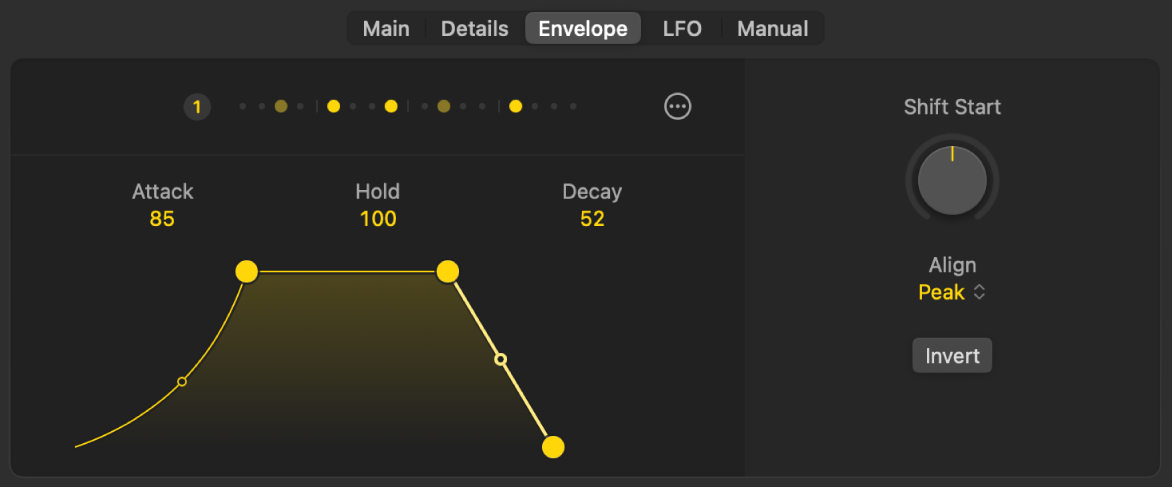
In Logic Pro, click the Envelope button in the Session Player Editor, then do any of the following:
Set how long it takes for the sound to reach its peak: Change the value for Attack.
Set how long the sound is sustained: Change the value for Hold.
Set how quickly the sound’s volume falls: Change the value for Decay.
Add a curve to the attack or decay: Drag the small nodes (hollow circles) on the lines for attack or decay.
You can also change the envelope values by dragging the yellow nodes or segments.
Set the envelope start position for Modulated Pad
You can use the Shift Start and Align parameters to move the start of the envelope.
In Logic Pro, click the Envelope button in the Session Player Editor, then change either of the following settings:
Shift Start: Change the value to move the envelope to the left or right in small increments.
Align: Choose one of the following from the Align pop-up menu:
Start on Step: Aligns the start of the envelope with the step.
Peak on Step: Aligns the peak of the envelope with the step.
Invert: Turn on to invert the envelope shape.
Change the envelope length mode for Modulated Pad
The length mode for the envelope in the Modulated Pad style determines how the envelope is scaled in the space between envelope accents.
In the Logic Pro Session Player Editor for Modulated Pad, click the Envelope button, click the More button
 , then choose any of the following settings from the Length pop-up menu:
Relative: The envelope is scaled between the accents.
Absolute Scaled: An absolute length value is set between accents as long as there's enough space available. If not, the envelope is scaled like the relative setting.
Absolute Clipped: An absolute length value is set between accents as long as there's enough space available. If not, the envelope is clipped at the end.
Absolute / Fixed AD: The attack and decay values are fixed; only the hold value is scaled as long as there's enough space available. If not, the attack and decay are scaled down.
Change the MIDI CC target and offset for Modulated Pad
In the Logic Pro Session Player Editor, for Modulated Pad, you can change the MIDI CC target and create an offset for the envelope.
Click the Envelope button, click the More button
, then do either of the following:Choose a new MIDI CC target: Change the CC number in the CC Target pop-up menu.
Shift the envelope up or down: Change the Offset value.
Adjust the phrasing and note length for Rhythmic Chords
You can choose a phrasing option for Rhythmic Chords to have the player play staccato notes, different combinations of long notes and short notes, or all long notes. Then you can fine-tune the length of the notes.
In the Logic Pro Session Player Editor for Rhythmic Chords, click the Details button, then change either of the following:
Phrasing: Choose an option from the Phrasing pop-up menu.
Note Length: Drag the Note Length knob vertically to change the length of the notes.