



Use Siri on your Apple TV
Siri can help you search movies and TV shows, control what you're playing, and much more.

Featured topics
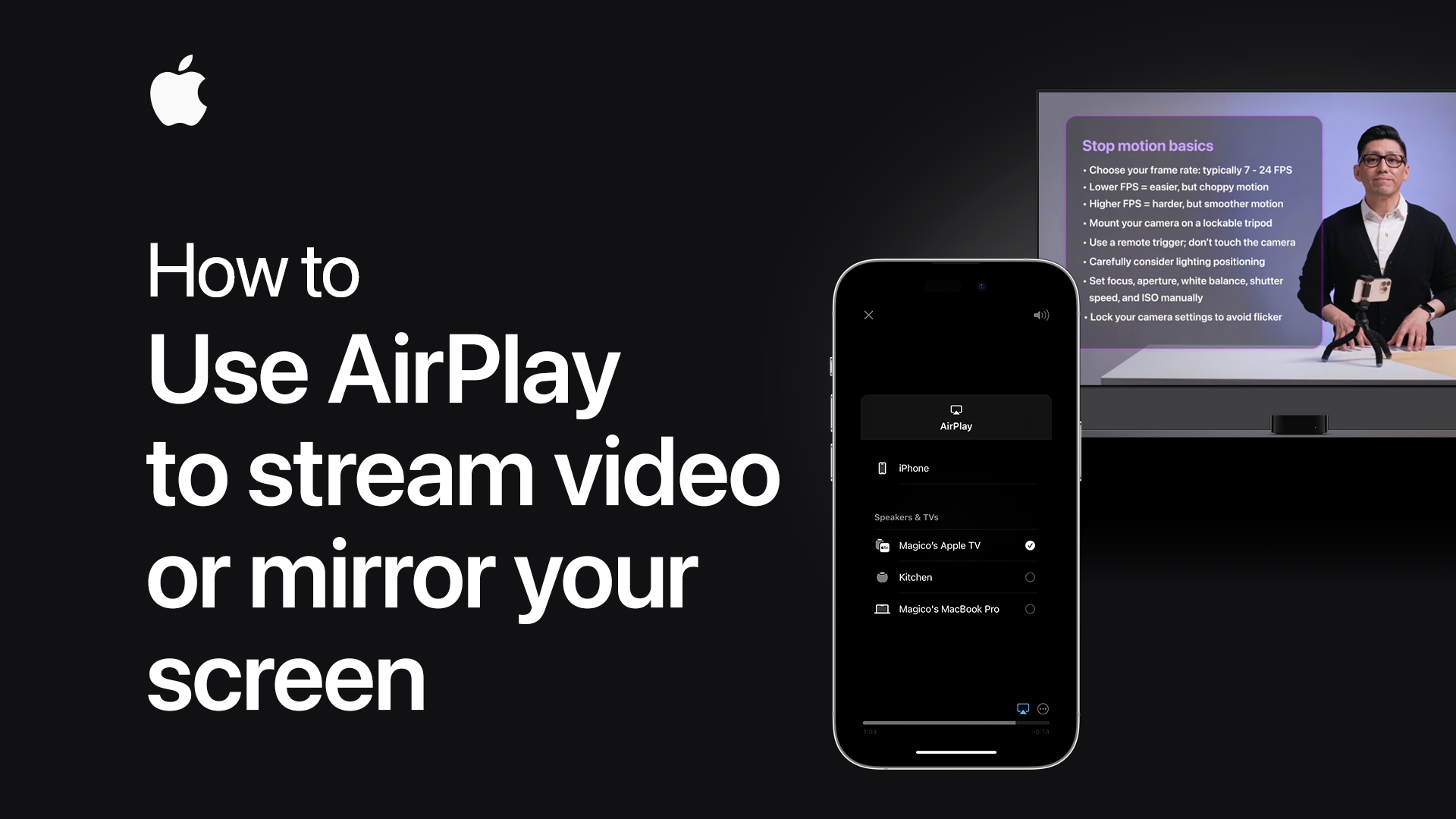
Wirelessly stream content from your iPhone, iPad, or iPod touch with AirPlay
Stream media from your iOS device to your Apple TV, or display what’s on your iOS screen on your Apple TV.
Start streaming to your Apple TVUse your HDTV as a display for your Mac with AirPlay
If you have an Apple TV, you can use your HDTV as a Mac display.
Use your HDTV as a displayGet help with AirPlay on your iPhone, iPad, or iPod touch
If you can't mirror or stream content from your iOS device to your Apple TV or other AirPlay enabled device, learn what to do.
Get help with AirPlayAbout the App Store on your Apple TV (4th generation)
Sign in to the App Store on your Apple TV to download apps for entertainment, gaming, travel, shopping, and more.
About the App StoreAbout renting movies from the iTunes Store
Learn how to find, rent, and watch movies on your iPhone, iPad, iPod touch, Apple TV, Mac and PC.
Renting moviesUse your Siri Remote or Apple TV Remote with Apple TV (4th generation)
Learn how to find menus, play content, and more.
Use your remoteCharge your Siri Remote or Apple TV Remote
Learn how to charge your Siri Remote or Apple TV Remote.*
Charge your remote
Get help with the remote for your Apple TV
If your remote isn't working as expected, learn what to do.
Get helpUse Home Sharing to share iTunes content with other devices
Home Sharing lets you share and stream content from your computer’s iTunes library to other computers, iOS devices, and Apple TVs.
Play iTunes content from your computerGet help with Home Sharing
Follow these steps if you need some help with Home Sharing.
Get help with Home SharingPut your Apple TV in sleep mode
Since there isn't a power button, you can't turn off your Apple TV. Instead, use Sleep mode.
Put your Apple TV in sleep modeHow to restart your Apple TV
Restart your Apple TV from the Settings menu or with your remote.
How to restart your Apple TV
Restore your Apple TV to its factory settings
Use these steps to erase your Apple TV, restoring it to the factory settings and removing all information.
Restore your Apple TVGet help connecting to Wi-Fi on your Apple TV
If you can't connect to Wi-Fi on your Apple TV or your device won't play your content, follow these steps.
Get help connecting to Wi-FiGet help playing or streaming content on your Apple TV
Follow these steps if you need help playing a game, listening to music, or streaming content.
Get help playing or streaming contentGet help with audio, video, or power on Apple TV
Follow these steps if you your Apple TV doesn’t turn on or if you need help with the audio or video.
Get help with audio, video, or powerSearch for more topics
Use Sleep mode on Apple TV
Press and hold the Home button (TV icon) on your remote, then select Sleep Now. This also works to turn off most televisions.

Resources

Apple TV Community
Contact Apple Support
Help me with Apple TV
Answer a few questions and we’ll recommend a solution for you.