
Set up iCloud Mail on all your devices
After you create a primary iCloud Mail address, you can use iCloud Mail on iCloud.com and on your iPhone, iPad, iPod touch, Mac, and Windows computer. For an overview of what you can do with iCloud, see Send and receive iCloud Mail on all your devices and keep Mail settings up to date. If you have an iCloud+ subscription, you can also set up a custom email domain to personalize iCloud Mail.
Note: Make sure you’re signed in with the same Apple ID on each device. If you have devices where you’re not signed in with your Apple ID or that have iCloud Mail turned off, you won’t be able to send or receive email from your iCloud Mail address on those devices. If you have devices that have iCloud Drive turned off, your Mail settings won’t stay up to date on those devices.
Set up iCloud Mail on your iPhone, iPad, or iPod touch
On your iPhone, iPad, or iPod touch, go to Settings > [your name] > iCloud.
If you want to send and receive iCloud Mail on your device, do one of the following:
iOS 16, iPadOS 16, or later: Tap Mail, then turn on “Use on this [device].”
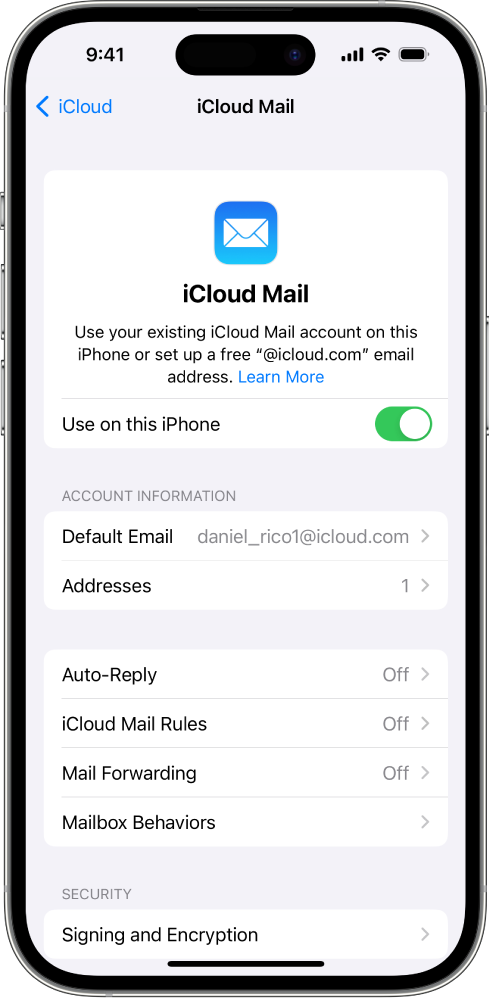
iOS 15, iPadOS 15, or earlier: Turn on iCloud Mail (or Mail).
If you want to keep Mail settings up to date across your devices, turn on iCloud Drive. The following settings stay up to date:
The order of your mailboxes (for all iOS and iPadOS devices)
Email address suggestions (for all iOS, iPadOS, and macOS devices)
VIPs (for all iOS, iPadOS, and macOS devices)
To view your iCloud Mail, open the Mail app. Tap a mailbox or folder in the iCloud section.
For more information on how to use Mail on your iPhone, iPad, or iPod touch, see any of the following:
iPhone User Guide: Send email in Mail on iPhone and Organize email in mailboxes on iPhone
iPad User Guide: Send email in Mail on iPad and Organize email in mailboxes on iPad
iPod touch User Guide (iOS 15 or earlier): Send email in Mail on iPod touch and Organize email in mailboxes on iPod touch
Set up iCloud Mail on your Mac
On your Mac, do one of the following:
macOS 13.3 or later: Choose Apple menu
 > System Settings, click [your name] at the top of the sidebar, click iCloud, click iCloud Mail, then turn on Sync this Mac.
macOS 13 to 13.2: Choose Apple menu
> System Settings, click [your name] at the top of the sidebar, click iCloud, click iCloud Mail, then click Turn On.macOS 12 or earlier: Choose Apple menu
> System Preferences, click Apple ID, click iCloud, then select iCloud Mail (or Mail).
If you want to keep Mail settings up to date across your devices, select or turn on Mail in iCloud Drive. The following settings stay up to date:
Blocked senders (for all macOS devices)
Email address suggestions (for all iOS, iPadOS, and macOS devices)
Flag names (for all macOS devices)
Mail rules (for all macOS devices)
Signatures (for all macOS devices)
Smart Mailboxes (for all macOS devices)
VIPs (for all iOS, iPadOS, and macOS devices)
To view your iCloud Mail, open the Mail app. Click a mailbox or folder in the iCloud section.
For more information on how to use Mail on your Mac, see the Mail User Guide for Mac.
Set up iCloud Mail on your Windows computer
See Set up iCloud Calendars and Contacts in Outlook on your Windows computer in the iCloud for Windows User Guide.
Use iCloud Mail on iCloud.com
You can access your iCloud Mail from a web browser on a phone, tablet, or computer.
Go to icloud.com/mail and sign in with your Apple ID.
For more information on how to use iCloud Mail on iCloud.com, see any of the following:
On a phone: Use iCloud Mail on iCloud.com
On a tablet: Use iCloud Mail on iCloud.com
On a computer: Use iCloud Mail on iCloud.com
See the Apple Support article iCloud Mail server settings for other email client apps to set up your iCloud Mail in other email apps.