
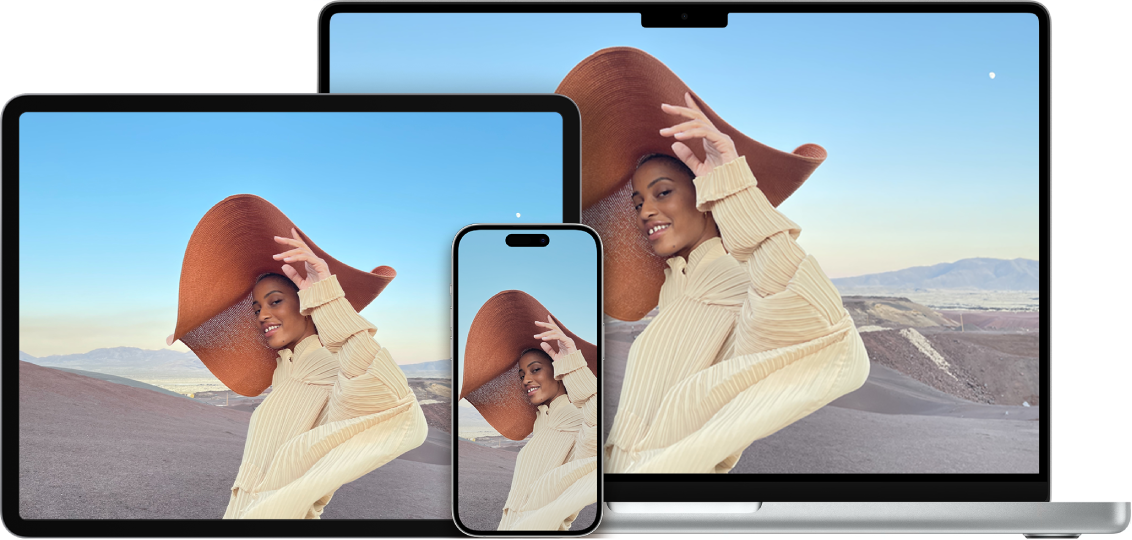
What is iCloud?
iCloud is the service from Apple that securely stores your personal information, keeps it up to date on all your devices, and makes it easy to share your photos, files, and more with friends and family.
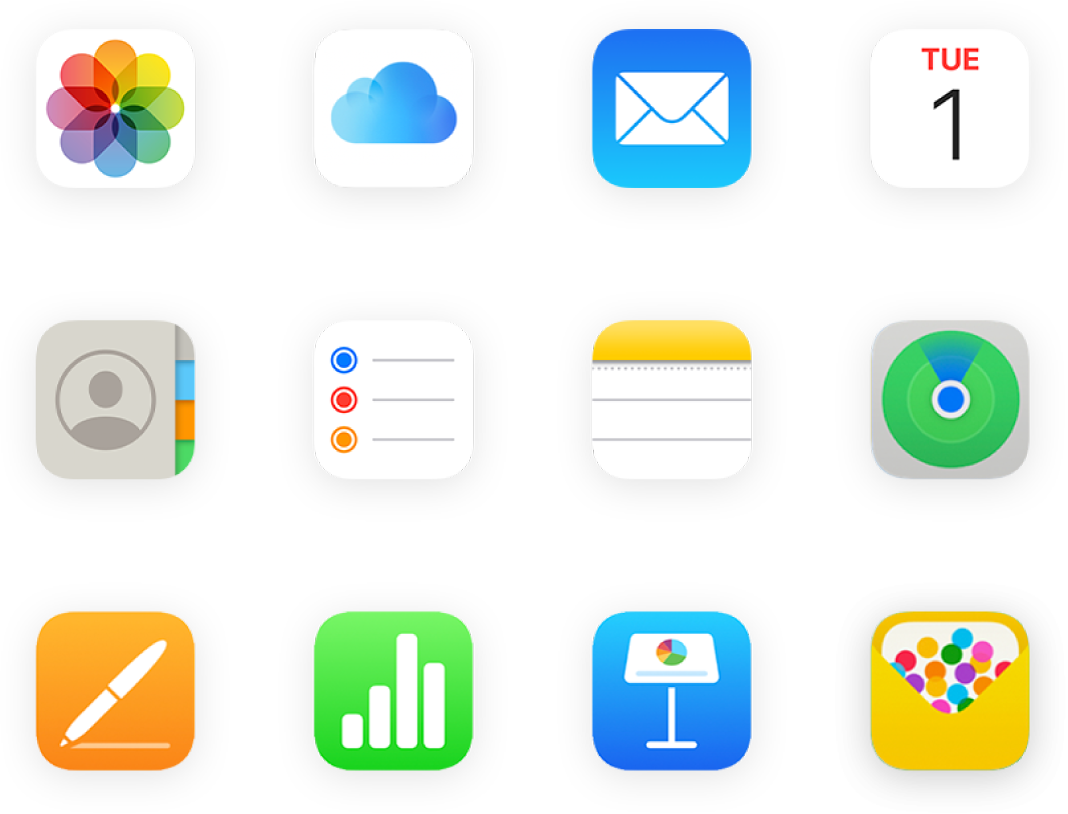
Use iCloud with your favorite apps
See the same photos and videos everywhere. Keep your files up to date on all your devices. Store data from your favorite apps and see it anywhere iCloud is turned on.

Get more storage and features with iCloud+
When you upgrade to iCloud+, you get more iCloud storage for your photos and files and access to features like iCloud Private Relay and Hide My Email.
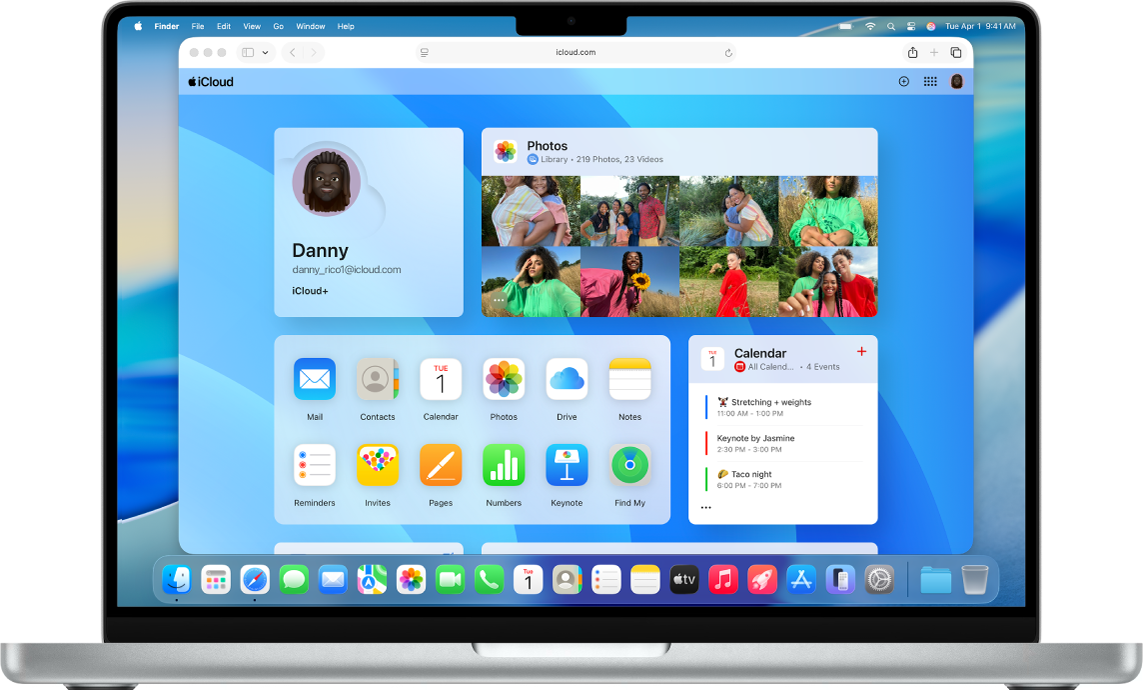
Use iCloud on the web
See your mail, photos, files, and more on iCloud.com. They’re safe, up to date, and available wherever you are.
To explore the iCloud User Guide, select Table of Contents at the top of the page, or enter a word or phrase in the search field.
If you need more help, visit the iCloud Support website.
iCloud User Guide
- Welcome
-
-
- Sign in and use iCloud.com
- Customize and use the homepage tiles
- Apple Invites
- Keynote
- Numbers
- Pages
-
- Photos on iCloud.com overview
- View your photos and videos
- Browse photos or videos by date
- Hide your photos and videos
- Upload and download photos
- Add or edit a title, caption, or other metadata
- Organize photos and videos
- Add photos and videos to Favorites
- Play a slideshow of photos
- Delete and recover photos and videos
- Recover files and information
- Use iCloud on your Windows device
- Get more help with iCloud
- Legal notices and acknowledgements
- Copyright and trademarks