
Optimize your Wi-Fi networks for Apple devices
Name your Wi-Fi networks
Depending on your organization, you might want to create multiple service set identifiers (SSIDs) for different purposes, like a network for contract workers or a guest network.
Keep in mind these best practices for identifying your network or networks:
Avoid creating excessive service set identifiers (SSIDs): When planning network names, consider using a single SSID for all devices with similar features. Each SSID enabled on a network adds to management traffic overhead and decreases available airtime for data. Three or fewer SSIDs are recommended for best performance on networks prior to Wi-Fi 6. Wi-Fi 6 and newer networks using the multi-BSSID feature can mitigate the management overhead used by three or more SSIDs. A role based access control system, available in many wireless LAN implementations, may be used to help keep the number of SSIDs down while giving users access to desired networks.
Avoid using “hidden” SSIDs: Hidden networks are Wi-Fi networks that don’t broadcast their SSID. Hidden networks are sometimes incorrectly referred to as closed because the SSID is omitted in the beacon frame. Nonhidden networks are sometimes referred to as broadcast networks because the SSID name is broadcast in the beacon frame. Because users tend to move around with their Apple devices, hidden SSIDs often delay network association time and hinder roaming performance. Further, hiding the SSID brings no security benefit as attackers can simply learn the SSID from other management traffic such as probe requests and responses. Hidden SSIDs can even cause a device to use more battery power over time than a broadcast SSID, thereby shortening the device’s battery life.
Get proper Wi-Fi coverage
Note: This content focuses on Wi-Fi network design in North America. Restrictions and requirements for network design may differ in other countries or regions.
The physical layout of your school or offices, and how people interact in those spaces, are critical to how you design your network. For example, in a small business, users may move around the building throughout the day, meeting in conference rooms or in offices. In this scenario, network access comes from:
Low-bandwidth activities (for example, checking mail and calendars and browsing the internet)
High-bandwidth activities (for example, using voice or video-conferencing collaboration tools like FaceTime, WebEx, or Cisco Jabber)
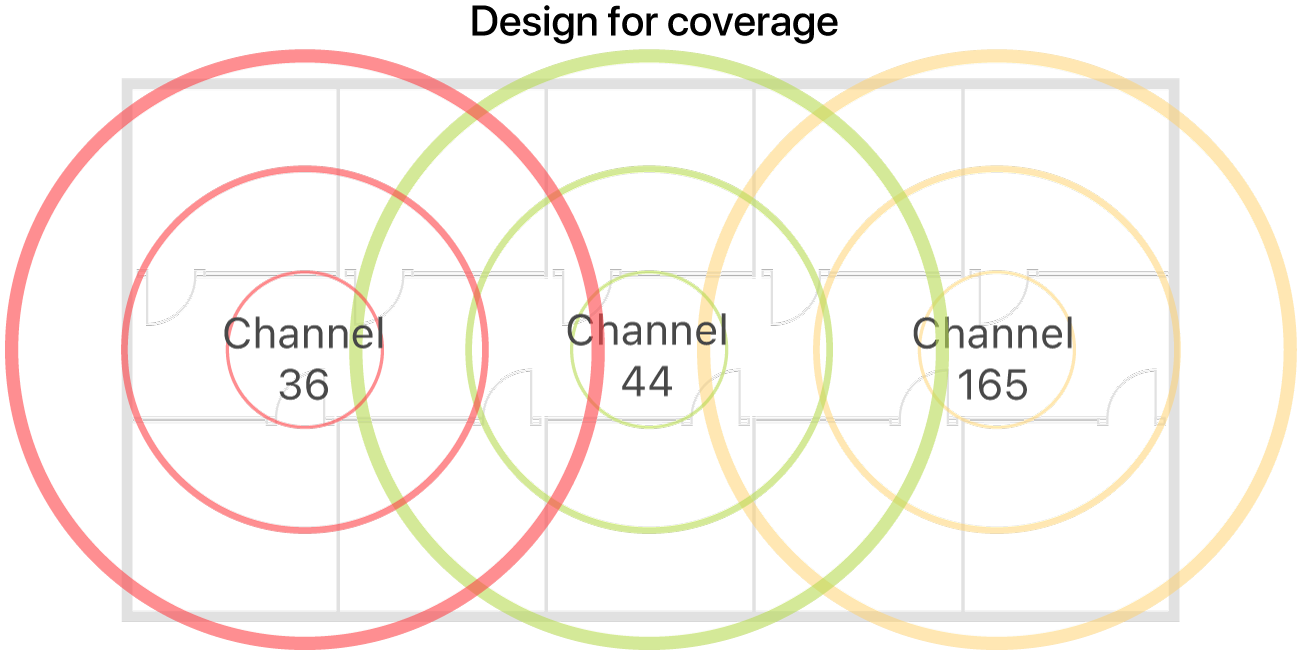
When users engage in high-bandwidth activities, Wi-Fi coverage is the highest priority. A Wi-Fi design for this type of environment could include a small number of access points (APs) on each floor to provide coverage for the offices, but you might also consider additional access points for areas where large numbers of employees gather, such as conference rooms. Access points should provide adequate capacity for high-bandwidth activities by ensuring proper placement and output power. The number of available channels is also important, so you need to consider the frequency ranges of Wi-Fi networks. There are three options:
6 GHz: There are at least seven 160 MHz non-overlapping channels available for use in North America and a varying number of channels available in other countries. Smaller channel width designs allow for more channel reuse at the cost of lower channel bandwidth. For example, there are fourteen 80 MHz channels, twenty-nine 40 MHz channels, or fifty-nine 20 MHz channels available in North America. Apple devices capable of 6 GHz use can join networks with up to 160 MHz wide channels. If available, 6 GHz channels provide a potentially less used frequency space which may lead to better performance in dense deployments.
Note: WPA3 security is required for 6 GHz use.
5 GHz: At least eight nonoverlapping channels are always available, though the number varies among vendors and from country to country. Because microwave ovens, cordless phones, and many other devices share the same frequencies as the 2.4 GHz band, the 5 GHz band is much better suited for Wi-Fi usage. Because 5 GHz signals don’t penetrate walls and other barriers as well as 2.4 GHz signals do, which results in a smaller coverage area, 5 GHz networks are optimal for a high density of devices in an enclosed space, such as a classroom or meeting room.
2.4 GHz: There are 11 channels available for use in North America. Many of these channels overlap with each other, which can introduce interference. To avoid cochannel and adjacent channel interference in your network, use channels 1, 6, and 11, which don’t overlap.
When designing your networks, you should review how Apple devices scan for a better connection:
Know the roam trigger threshold for Apple devices: The roam trigger threshold is the signal level (measured in decibel-milliwatts) at which a client begins scanning to find roam candidate BSSIDs for the current wireless network’s name (ESSID). Mac computers use -75 dBm and iPhone and iPad devices use -70 dBm as the roam trigger threshold. For example, if you design 5 GHz cells with a -67 dBm overlap, devices remain connected to the current basic service set identifier (BSSID) longer than you expect. On an iPhone or iPad, the decision to roam takes into account the signal strength of the gaining BSSID requiring 12 dB better signal if the device isn’t currently transmitting data, and 8 dB better if the device is transmitting data. On a Mac, the gaining BSS needs to be 12 dB better regardless of whether or not the device is transmitting data or is idle.
Know how iPhone and iPad devices see cell boundaries: The antennas on a laptop computer are much larger and more powerful than those on a smartphone or tablet, so iPhone and iPad devices see different cell boundaries than expected. It’s always best to measure using the target device.
Get proper Wi-Fi capacity
You should consider the expected usage pattern of the Apple devices as part of your Wi-Fi network design.
Most modern enterprise-class access points (APs) can handle up to 50 Wi-Fi clients. The experience for each user depends on the available wireless bandwidth on the channel the device is using, and on the number of devices sharing that bandwidth. As more devices use the same channel, the relative network speed for those devices decreases.
For example, consider a school with 1100 students and 30 teachers in a two-story building. Every student has an iPad, and every teacher has a MacBook Pro and an iPad. Each classroom holds approximately 36 students, and classrooms are next to each other. Throughout the day, students conduct research on the internet, watch educational videos, and copy files to and from a file server on the local area network (LAN).
This scenario would require a fairly complex Wi-Fi design. Accommodating the large number of devices in each classroom might require one access point per classroom. For the common areas, the number of access points should be driven by the density of Wi-Fi devices in those spaces. It’s common to disable 2.4 GHz radios on some access points to minimize co-channel contention.
Tip: Perform a preinstallation site survey to determine the exact number of access points needed and where those access points should be mounted. A site survey should also determine the proper power settings for each access point radio. After installation of the Wi-Fi network is complete, perform a postinstallation site survey to confirm the Wi-Fi environment. For example, for a network designed to support a large number of people in a building, it’s best to validate the design with people in the building because people absorb radio frequency (RF) signals. If classroom doors are closed when the network is in use, the door should be closed when you validate the design.
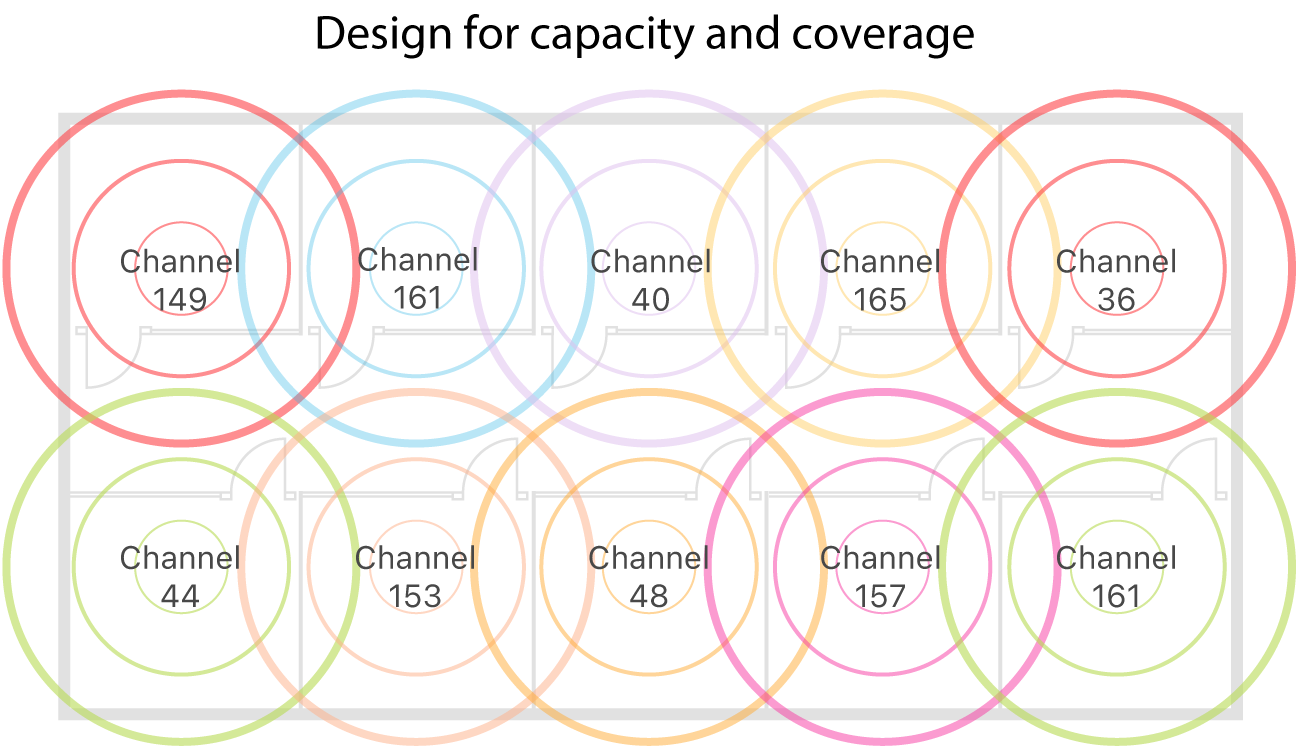
Hardware and multicast
Access points and other hardware devoted to the Wi-Fi infrastructure should have the same capacity and enabled features to avoid an inconsistent Wi-Fi experience for users. For example, an 802.11be network should be configured consistently across all access points instead of having some access points configured for 802.11ax on the same network name.
The Bonjour zero-configuration networking architecture provides support for publishing and discovering services on a local area or wide area network. Bonjour should be enabled on your network whenever access to Apple apps and services such as Classroom, AirPlay, and AirPrint are wanted. If Bonjour is misconfigured or blocked, services are not discoverable using this method.