iCloud User Guide
- Welcome
-
- Sign in and use iCloud.com
- Customize and use the homepage tiles
- Apple Invites
- Keynote
- Numbers
- Pages
-
- Photos on iCloud.com overview
- View your photos and videos
- Find your photos or videos
- Hide your photos and videos
- Upload and download photos
- Add star ratings, captions, and keywords
- Organize photos and videos
- Add photos and videos to Favorites
- Play a slideshow of photos
- Delete and recover photos and videos
- Recover files and information
- Use iCloud on your Windows device
- Get more help with iCloud
- Legal notices and acknowledgements
- Copyright and trademarks

Find your photos and videos on iCloud.com
On iCloud.com, you can search for photos and videos in your photo library. You can also view photos and videos in your library, sorted by when they were taken. If you want to quickly view older photos, you can jump to a specific month and year.
Tip: You can find photos in the Photos app by searching for associated text, a keyword, or a date. See Find photos by text, content, or date in the Photos User Guide for Mac, and “Search for photos and videos” in the user guides for iPhone and iPad.
Search for photos and videos on iCloud.com
With iOS 26.4, iPadOS 26.4, macOS 26.4, or later, you can have a trusted device provide search results for your library in Photos on iCloud.com. Your searches are encrypted and no search history is kept on Apple servers by using on-device processing. When you type in the search field, you see suggestions of dates, people, provided by your iPhone, iPad, or Mac.
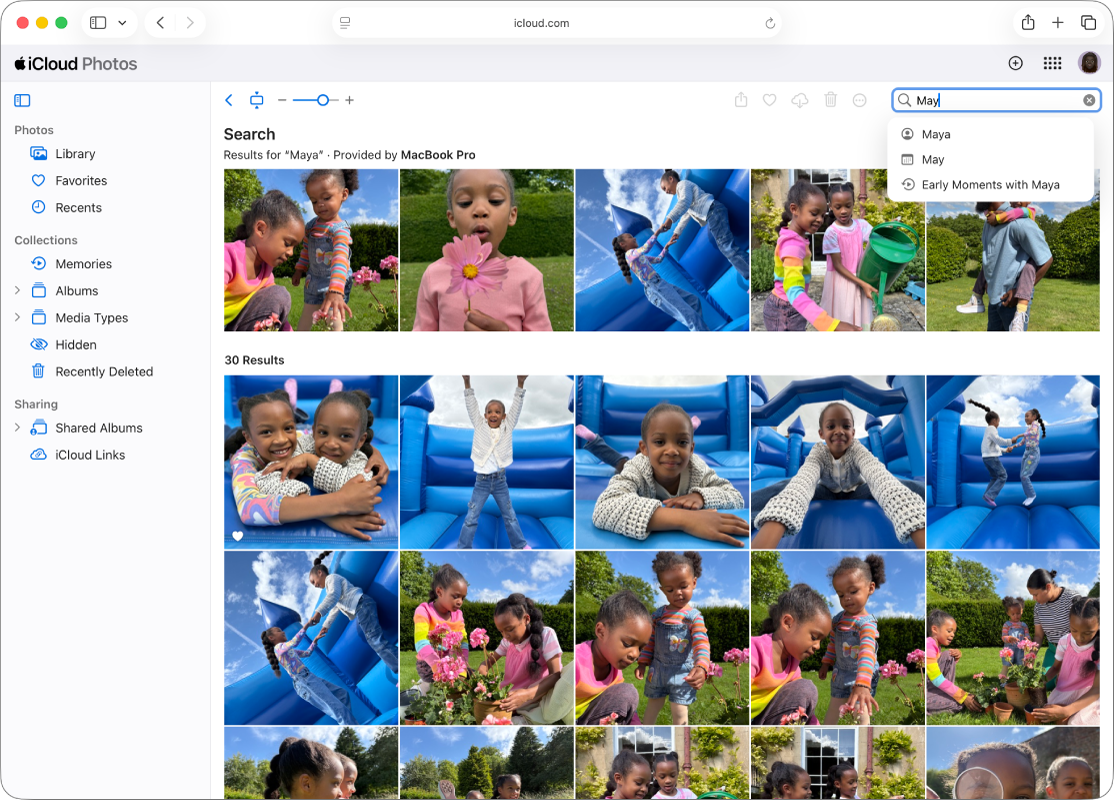
Go to icloud.com/photos, then sign in to your Apple Account (if necessary).
Select Library in the sidebar.
Type what you’re looking for in the search field, such as:
Date (month or year)
Place (city or state)
Business names (museums, for example)
Category (beach or sunset, for example)
Events (sports games or concerts, for example)
Text (an email address or phone number, for example)
Captions
Select one of the suggestions or press Return.
Select
 to clear the search.
Note: If you haven’t turned on Allow Search on iCloud.com, you’re prompted to enable search using your trusted device. Select Continue, open the notification that appears on your device, then select Allow.
Browse your library by month and year
You can quickly go to a month and year in your personal library, your shared library, or both at the same time. See Switch between your personal library and shared library.
Go to icloud.com/photos, then sign in to your Apple Account (if necessary).
Select Library in the sidebar.
Select
 , choose a year, then choose a month.
Show other photos or videos in your library
You can’t browse your Favorites, Recents, or other albums by date. However, you can quickly find a photo or video in your library, which is sorted by when each photo was taken.
Go to icloud.com/photos, then sign in to your Apple Account (if necessary).
Select Recents or Favorites in the sidebar.
Select the photo or video you want to find.
Select
 , then choose Show in Library.