Logic Pro User Guide for iPad
- Welcome
- What’s new in Logic Pro for iPad
-
- What is Logic Pro?
- Working areas
- Work with the menu bar
- Work with function buttons
- Work with numeric values
- Undo and redo edits in Logic Pro for iPad
-
- Intro to tracks
- Create tracks
- Create tracks using drag and drop
- Choose the default region type for a software instrument track
- Select tracks
- Duplicate tracks
- Reorder tracks
- Rename tracks
- Change track icons
- Change track colors
- Use the tuner on an audio track
- Show the output track in the Tracks area
- Delete tracks
- Edit track parameters
- How to get help
-
- Intro to recording
-
- Before recording software instruments
- Record software instruments
- Record additional software instrument takes
- Record to multiple software instrument tracks
- Record multiple MIDI devices to multiple tracks
- Record software instruments and audio simultaneously
- Merge software instrument recordings
- Spot erase software instrument recordings
- Replace software instrument recordings
- Route MIDI internally to software instrument tracks
- Record with Low Latency Monitoring mode
- Use the metronome
- Use the count-in
-
- Intro to arranging
-
- Intro to regions
- Select regions
- Cut, copy, and paste regions
- Move regions
- Remove gaps between regions
- Delay region playback
- Trim regions
- Loop regions
- Repeat regions
- Mute regions
- Split and join regions
- Stretch regions
- Separate a MIDI region by note pitch
- Bounce regions in place
- Change the gain of audio regions
- Normalize audio regions in the Tracks area in Logic Pro for iPad
- Create regions in the Tracks area
- Convert a MIDI region to a Session Player region or a pattern region
- Replace a MIDI region with a Session Player region in Logic Pro for iPad
- Rename regions
- Change the color of regions
- Delete regions
-
- Intro to chords
- Add and delete chords
- Select chords
- Cut, copy, and paste chords
- Move and resize chords
- Loop chords on the Chord track
- Color chords on the Chord track
- Edit chords
- Work with chord groups
- Use chord progressions
- Change the chord rhythm
- Choose which chords a Session Player region follows
- Analyze the key signature of a range of chords
- Analyze the chords in an audio or MIDI region with Chord ID
- Create fades on audio regions
- Extract vocal and instrumental stems with Stem Splitter
- Access mixing functions using the Fader
-
- Intro to editing regions and cells
-
-
- Piano Roll Editor overview
- Select notes
- Add notes
- Delete notes
- Mute notes
- Trim notes
- Move notes
- Copy notes
- Repeat notes
- Shorten overlaps
- Force legato
- Lock note position
- Transpose notes
- Change note velocity
- Change release velocity
- Change MIDI channel
- Set articulation IDs
- Quantize timing
- Quantize pitch
- Edit Live Loops in the Cell Editor
-
- Intro to Step Sequencer
- Use Step Sequencer with Drum Machine Designer
- Chords and pitch in Step Sequencer
- Record Step Sequencer patterns live
- Step record Step Sequencer patterns
- Load and save patterns
- Modify pattern playback
- Edit steps
- Edit rows
- Edit Step Sequencer pattern, row, and step settings in the inspector
- Customize Step Sequencer
-
- Intro to mixing
-
- Channel strip types
- Channel strip controls
- Peak level display and clipping
- Set channel strip volume
- Set channel strip input format
- Set the output for a channel strip
- Set channel strip pan position
- Mute and solo channel strips
- Reorder channel strips
- Replace a patch on a channel strip using drag and drop
- Work with plug-ins in the Mixer
- Search for plug-ins in the Mixer
-
-
- Effect plug-ins overview
-
- Instrument plug-ins overview
-
- ES2 overview
-
- Modulation overview
- Use the Mod Pad
-
- Vector Envelope overview
- Use Vector Envelope points
- Use Vector Envelope solo and sustain points
- Set Vector Envelope segment times
- Vector Envelope XY pad controls
- Vector Envelope Actions menu
- Vector Envelope loop controls
- Vector Envelope point transition shapes
- Vector Envelope release phase behavior
- Use Vector Envelope time scaling
- Modulation source reference
- Via modulation source reference
- Use macro controls
-
- Sample Alchemy overview
- Interface overview
- Add source material
- Save a preset
- Edit mode
- Play modes
- Source overview
- Synthesis modes
- Granular controls
- Additive effects
- Additive effect controls
- Spectral effect
- Spectral effect controls
- Filter module
- Low, bandpass, and highpass filters
- Comb PM filter
- Downsampler filter
- FM filter
- Envelope generators
- Mod Matrix
- Modulation routing
- Motion mode
- Trim mode
- More menu
- Sampler
- Studio Piano
- Copyright and trademarks
Change Synth Player LFO settings in Logic Pro for iPad
In Logic Pro, each Synth Player style, with the exception of Simple Pad, has a low frequency oscillator (LFO) that you can use to modulate parameters. By default, the LFO for the Synth Players uses MIDI CC 74, which is assigned to the cutoff filter for synths included with Logic Pro. If you want to use the LFO to modulate another parameter, you can change the MIDI CC target. You can also apply the LFO to velocity and note length.
You can shape the waveform of the LFO in different ways and change how a modulated parameter moves over time.
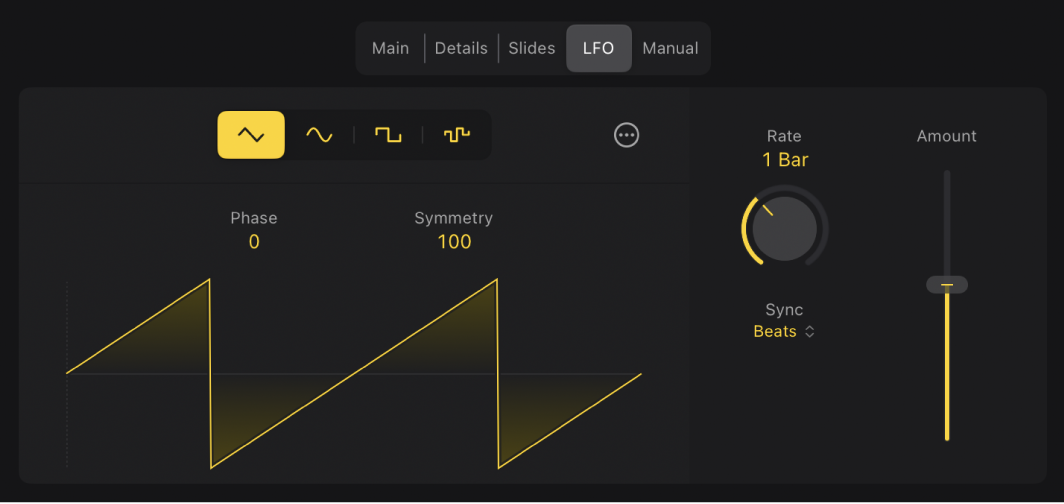
Change the shape of the LFO waveform
In the Logic Pro Session Player Editor, tap the LFO button for the Synth Player you’re using, then do any of the following:
Change the amplitude of the LFO: Drag the Amount slider.
Change the waveform: Tap one of the Waveform buttons. You can choose from Triangle, Sine, Square, or Random.
Change the starting point of the LFO waveform: Drag the Phase value.
Change the shape of the LFO waveform: Drag the Symmetry value. Depending on the chosen waveform, this shapes the waveform in the following ways:
Triangle: Shapes the triangle waveform into an upward-sawtooth or downward-sawtooth waveform. A symmetry value of 0 results in a perfect triangle waveform.
Sine: Changes the angle of the waveform, resulting in a sawtooth-like waveform with peaks that lean left or right. A symmetry value of 0 results in a perfect sine waveform.
Square: Symmetry acts as a pulse width control. A symmetry value of 0 results in a perfect square waveform.
Add curve to the LFO: Tap the More button
 , then change the Curve value.
Add S-shaped curves to the LFO: Tap the More button, then tap the S Curve switch. This has no effect when the Curve value is set to 0.
Shift the LFO curve up or down: Tap the More button, then change the Offset value.
Change the LFO rate and sync source
In the Logic Pro Session Player Editor, you can change the LFO rate; scale the LFO to chords, beats, or regions; or set the rate to a random or fixed frequency.
Tap the LFO button for the Synth Player you’re using, then do any of the following:
Change the rate of the LFO: Drag the Rate knob vertically. The units used with the Rate knob depend on the Sync setting.
Change the sync source of the LFO rate: Choose one of the options in the Sync pop-up menu:
Region: The LFO rate is scaled to the length of the region.
Chord: The LFO rate is scaled to the length of each chord.
Beats: The LFO modulates in sync with the beat.
Free: The LFO modulates at a frequency set by the Rate knob.
Random: The LFO rate is scaled randomly.
Apply the LFO to other parameters
In the Logic Pro Session Player Editor, tap the LFO button for the Synth Player you are using, then do either of the following:
Apply the LFO to note velocity or note length: Tap the More button
, then change either the “To Velocity” value or the “To Note Length” value.Note: The “To Velocity” and “To Note Length” values aren’t available for the Modulated Pad and Simple Pad styles.
Change the MIDI CC for the LFO: Tap the More button, then choose a new CC number in the CC Target pop-up menu.
Download this guide: PDF