
Erase a device in Find Devices on iCloud.com
If your iPhone, iPad, iPod touch, Mac, or Apple Watch is lost or stolen, you can erase it in Find Devices on iCloud.com.
To sign in to Find Devices, go to icloud.com/find.
What happens when you erase a device in Find Devices?
A confirmation email is sent to your Apple ID email address.
Activation Lock remains on to protect it. Your Apple ID and password are required to reactivate the device.
If you erase a device that has iOS 15, iPadOS 15, or later installed, you can use Find Devices to locate or play a sound on the device. Otherwise, you won’t be able to locate or play a sound on it. You may still be able to locate your Mac or Apple Watch if it’s near a previously used Wi-Fi network.
Remotely erase your device or a family member’s device
In Find Devices on iCloud.com, select the device in the All Devices list on the left.
If you’ve already selected a device, you can click All Devices to return to the list and select a new device.
Click Erase This Device.
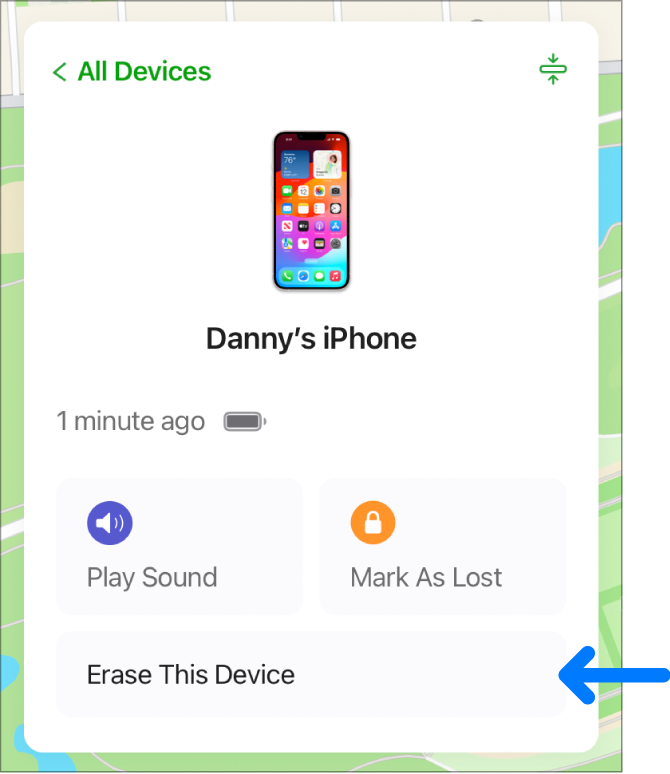
Follow the onscreen instructions.
Tip: If you’re asked to enter a phone number or message, you may want to indicate that the device is lost or how to contact you. The number and message appear on the device’s Lock Screen.
If your device is online, the remote erase begins after you follow the onscreen instructions. If your device is offline, the remote erase begins the next time it’s online.
For more information about trusted devices and verification codes, see the Apple Support article Two-factor authentication for Apple ID.
Cancel an erase
If your device is offline, the remote erase happens the next time it’s online. If you find the device before it’s erased, you can cancel the request.
In Find Devices on iCloud.com, select the device in the All Devices list on the left.
If you’ve already selected a device, you can click All Devices to return to the list and select a new device.
Click Stop Erase Request, then enter your Apple ID password.
You can also use Find My on any device that’s signed in with the same Apple ID. See Use Find My to locate people, devices, and items.
If Find My isn’t set up on your missing device, see the Apple Support article Find your lost iPhone or iPad with Find My.
Note: If you don’t expect to find your iPhone, iPad (Wi-Fi + Cellular models), or Apple Watch (Wi-Fi + Cellular models), contact your wireless service provider to suspend service so you aren’t responsible for phone calls or other charges.