Charger la batterie du MacBook Neo
La batterie se recharge chaque fois que votre MacBook Neo est branché sur une source d’alimentation.
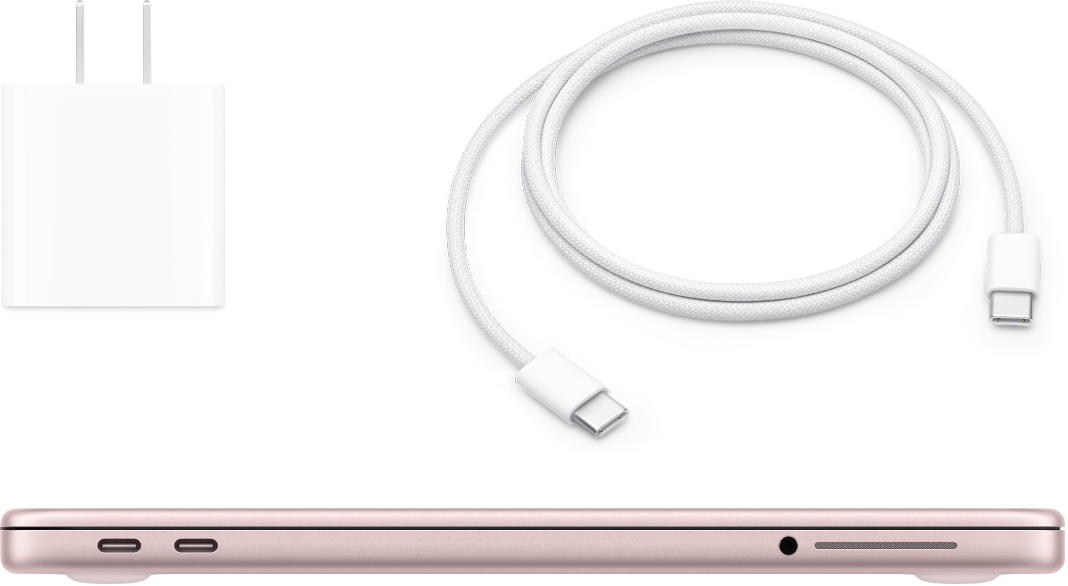
Brancher l’adaptateur secteur et le câble
Pour recharger la batterie du MacBook Neo, branchez le câble de charge USB-C fourni sur l’un des ports USB-C. Branchez le câble sur votre adaptateur secteur 20 W ou un autre adaptateur secteur compatible, puis branchez l’adaptateur secteur sur une prise de courant.
Pour en savoir plus, consultez la rubrique Adaptateur secteur et câble pour MacBook Neo.
Surveiller le niveau de la batterie et consulter son utilisation
 Ajouter l’icône de batterie à la barre des menus Affichez rapidement des informations sur votre batterie, comme son état de charge ou son pourcentage actuel. Accédez à Réglages Système, cliquez sur « Barre des menus » dans la barre latérale (vous devrez peut-être faire défiler la page vers le bas), puis sélectionnez Batterie. |  Afficher l’utilisation de la batterie Accédez aux réglages Batterie pour consulter l’utilisation de votre batterie au cours des 24 dernières heures ou des 10 derniers jours. Pour ouvrir les réglages Batterie, accédez à Réglages Système, puis cliquez sur Batterie dans la barre latérale (vous devrez peut-être faire défiler la page vers le bas). |
Optimiser la recharge, réduire la consommation d’énergie et économiser de l’énergie
Lorsque vous activez « Recharge optimisée de la batterie », votre MacBook Neo apprend votre routine de recharge quotidienne, ce qui réduit l’usure de la batterie et améliore sa durée de vie. Vous pouvez également économiser de la batterie de différentes manières, par exemple en activant le mode économie d’énergie ou en réduisant la luminosité de l’affichage.
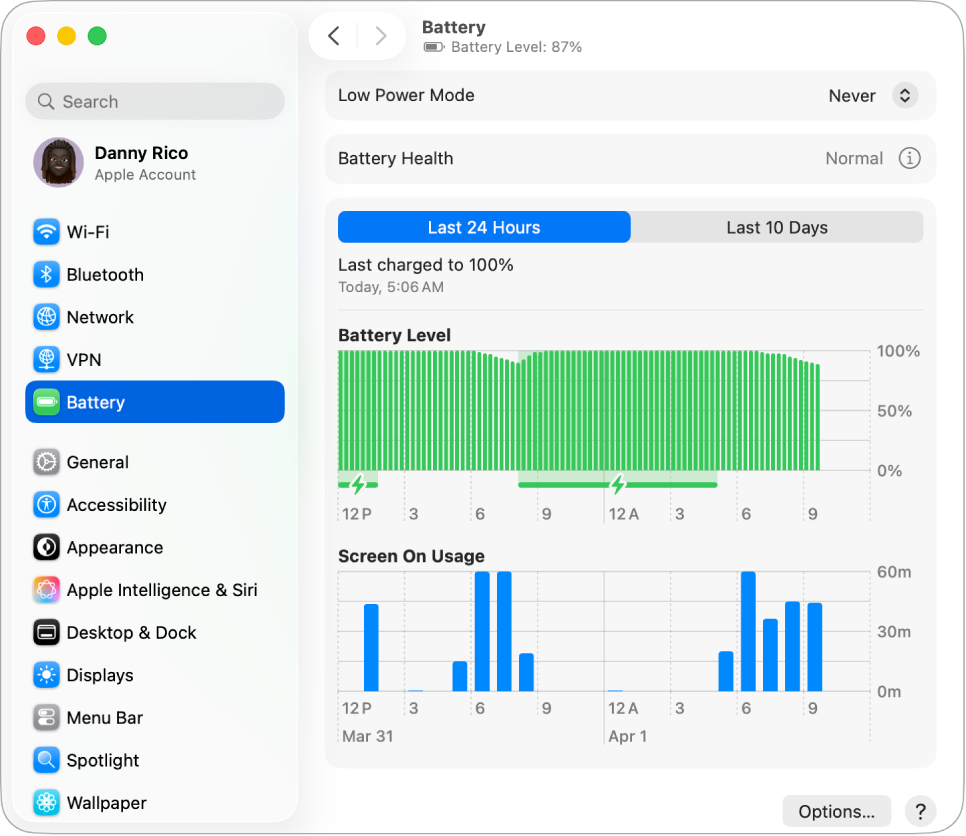
 Recharge optimisée de la batterie Cette fonctionnalité retarde la recharge de la batterie au-delà de 80 % si elle prévoit que vous laisserez votre appareil branché pendant une durée prolongée, et cherche à terminer la recharge avant que vous ne débranchiez votre appareil. Dans les réglages Batterie, cliquez sur |  Utiliser le mode économie d’énergie Choisissez cette option lors de vos déplacements ou lorsque vous n’avez pas de source d’alimentation à proximité pendant une longue durée. Dans les réglages Batterie, choisissez une option dans le menu local « Mode économie d’énergie ». |
 Personnaliser les réglages avancés Obscurcissez l’écran lorsque votre MacBook Neo fonctionne sur batterie, empêchez la suspension d’activité automatique et activez l’option « Réactiver lors des accès réseau ». Dans les réglages Batterie, cliquez sur Options, puis choisissez les options à activer. |  Autres moyens de réduire la consommation d’énergie Vous pouvez économiser de la batterie en effectuant des tâches simples comme réduire la luminosité de l’affichage, fermer des apps et déconnecter les périphériques que vous n’utilisez pas. |

Adaptateur secteur et câble pour MacBook Neo
Pour recharger votre MacBook Neo, vous avez besoin de deux accessoires : un câble et un adaptateur secteur.
Accessoire | Description | ||||||||||
|---|---|---|---|---|---|---|---|---|---|---|---|
 | Adaptateur secteur USB-C 20 W | ||||||||||
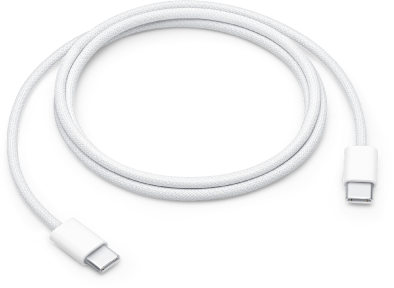 | Câble de charge USB-C Branchez une extrémité du câble de charge USB-C sur l’un des ports USB-C de votre MacBook Neo et l’autre extrémité sur l’adaptateur secteur. | ||||||||||
Vous voulez en savoir plus ?
Pour surveiller la batterie de votre Mac ou vérifier son état, consultez les rubriques Surveiller la batterie d’un Mac portable et Vérifier l’état de la batterie d’un Mac portable.
Si lʼétat de votre batterie indique « Réparation recommandée », consultez lʼarticle Si vous voyez Réparation recommandée sur votre Mac de lʼassistance Apple.
Pour les problèmes de recharge avec votre adaptateur secteur, consultez les articles Si votre adaptateur secteur USB-C ne recharge pas votre ordinateur portable Mac et Si l’état de la batterie de votre Mac est « Aucune recharge en cours » de l’assistance Apple.
Pour en savoir plus sur la batterie interne rechargeable de votre MacBook Neo et pour obtenir des astuces de performances et d’économie, consultez la page Batteries au lithium-ion Apple.