
Safety Check for an iPhone with iOS 16 or later
Safety Check—a feature available through the Settings app on iPhone with iOS 16 or later—enables you to quickly review, update, and stop sharing your information with individual people and apps. In Safety Check you can:
Review who has access to your information, including your location.
Use Emergency Reset to immediately stop sharing all information.
Review and change devices connected to your Apple Account.
Reset system privacy permissions for apps.
Change your iPhone passcode or Apple Account password.
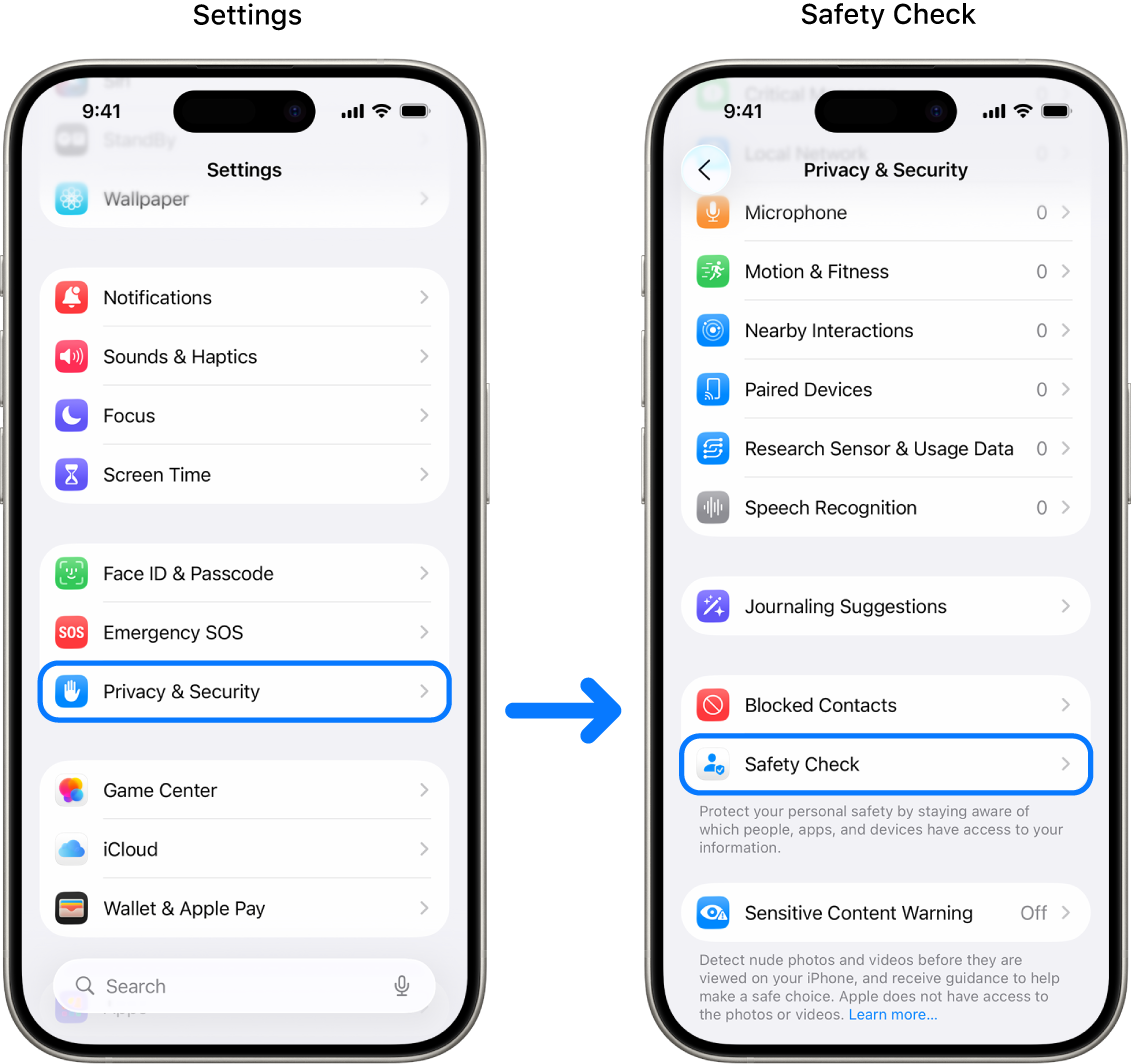
To access Safety Check, go to Settings  > Privacy & Security > Safety Check.
What do I need to use Safety Check?
iPhone with iOS 16 or later.
Tip: To find the software version of your iPhone, go to Settings
> General, then tap About.An Apple Account that uses two-factor authentication.
Signed-in to your Apple Account. Go to Settings
> [Your Name] on your iPhone.
Alternative: Checklists
If you’re using a different device (iPad or Mac) or having trouble using Safety Check, you can adjust sharing and access manually using the following checklists:
Safety considerations before you begin
 IMPORTANT: Plan for your safety.
Before making changes or deleting information, consider potential impacts to your safety and privacy.
Quick Exit helps you quickly protect your privacy. Tap Quick Exit to immediately close the Settings app and return to the Home Screen (top-right corner on all screens in Safety Check). Any changes you made before using Quick Exit are saved.
To restart sharing with someone after using Safety Check, open the app or service you’d like to share information from and share that content again. Some apps or services notify you that you’ve resumed sharing information.
If your iPhone has Screen Time restrictions turned on or has a mobile device management (MDM) profile installed, you can still use Safety Check, but some options may not be available.
If you have Stolen Device Protection turned on, Safety Check may work a little differently. To learn more about Stolen Device Protection, see the Apple Support article About Stolen Device Protection for iPhone.
Find out how: To view a task below, select the plus button  next to its title.
Step 1: Open Safety Check
On your iPhone, go to Settings > Privacy & Security > Safety Check. (You may need to scroll down.)
Step 2: Choose an option
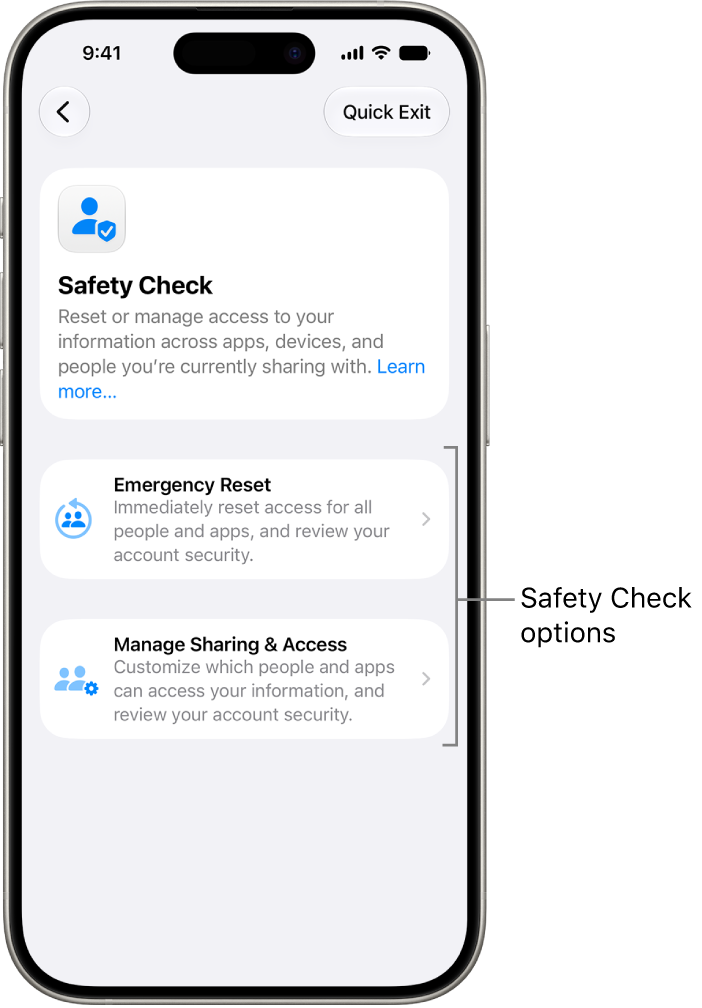
Safety Check offers two ways to manage sharing, access, and account security:
Emergency Reset: Immediate and universal reset of sharing for all people and apps.
Manage Sharing & Access: Review and customize sharing and access for individual people and apps.
For specific details about what can be changed in Safety Check, see the Safety Check FAQ.
Emergency Reset (option one)
Use Emergency Reset to:
Quickly stop sharing with all people and apps (see the Safety Check FAQ for specifics).
Review your emergency contacts.
Review devices connected to your Apple Account.
Review phone numbers used to verify your identity.
Change your Apple Account password and review device and account security.
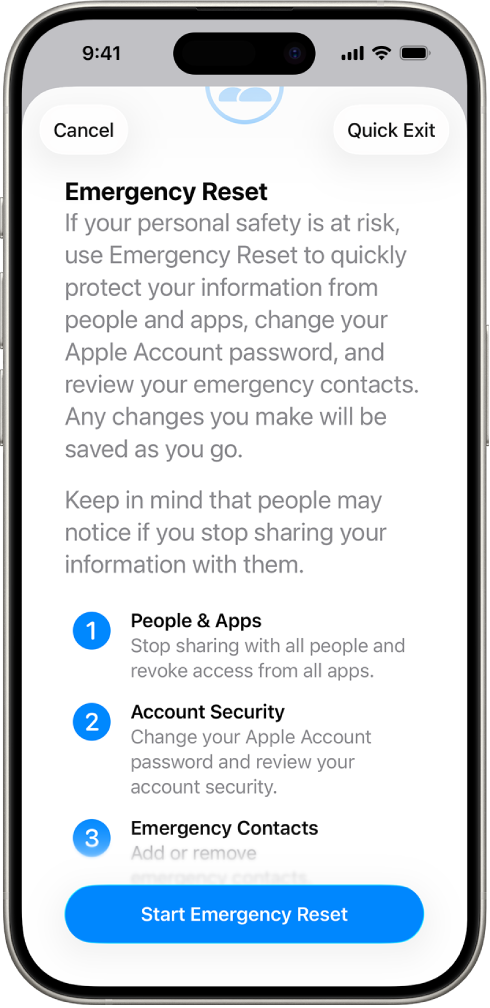
Tap Emergency Reset, then follow the onscreen instructions. Progress is saved as you go.
Note: If you have Stolen Device Protection turned on, Safety Check may work a little differently. To learn more about Stolen Device Protection, see the Apple Support article About Stolen Device Protection for iPhone.
Manage Sharing & Access (option two)
The Manage Sharing & Access option helps you review and manage information you’re sharing with people, the information that apps have access to, and update your device and Apple Account security. Follow these five steps:
Tap Manage Sharing & Access. (Your changes are saved as you go.)
To review and stop sharing information with other people, either:
Tap People: Select people in the list, review the information shared with people, then decide which information you want to stop sharing with selected people.
Tap Information: Select apps in the list, review the information shared with people, then decide which information you want to stop sharing with selected people. If certain Apple apps have been deleted, such as Fitness or Notes, you may need to redownload them to see what information you shared.
To review and stop sharing information with other apps, either:
Tap Apps: Select apps in the list, review the information shared with them, then decide which information you want to stop sharing with the selected apps.
Tap Information: Select the information being shared in the list, review the information shared with apps, then decide which information you want to stop sharing with the selected apps.
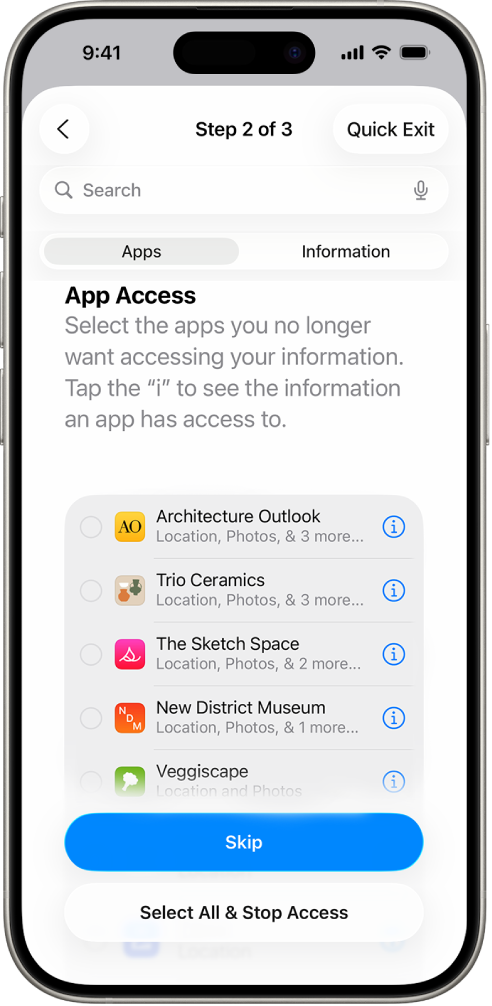
Tap Continue, then do any of the following:
Review and remove devices connected to your Apple Account.
Review and update phone numbers used to verify your identity.
Update your Apple Account password.
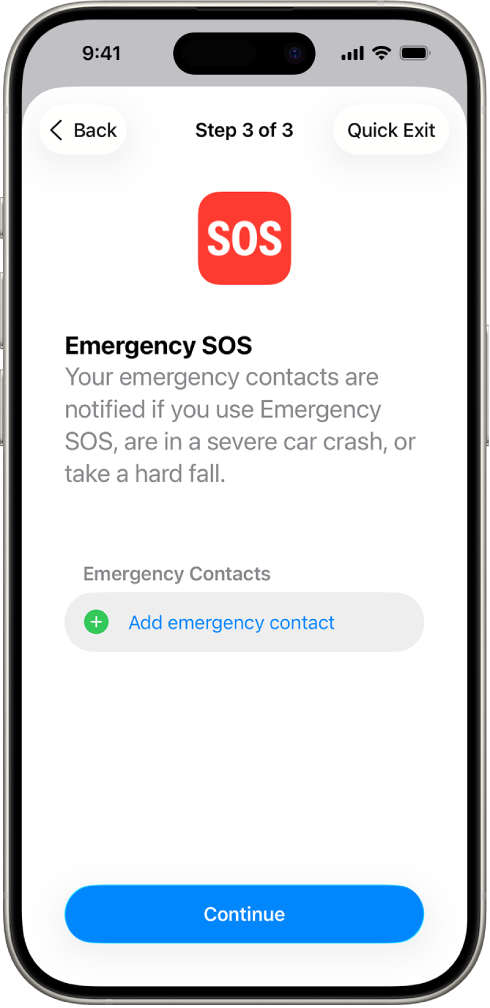
Add or update your emergency contacts.
Update your device passcode, or your Face ID or Touch ID information.
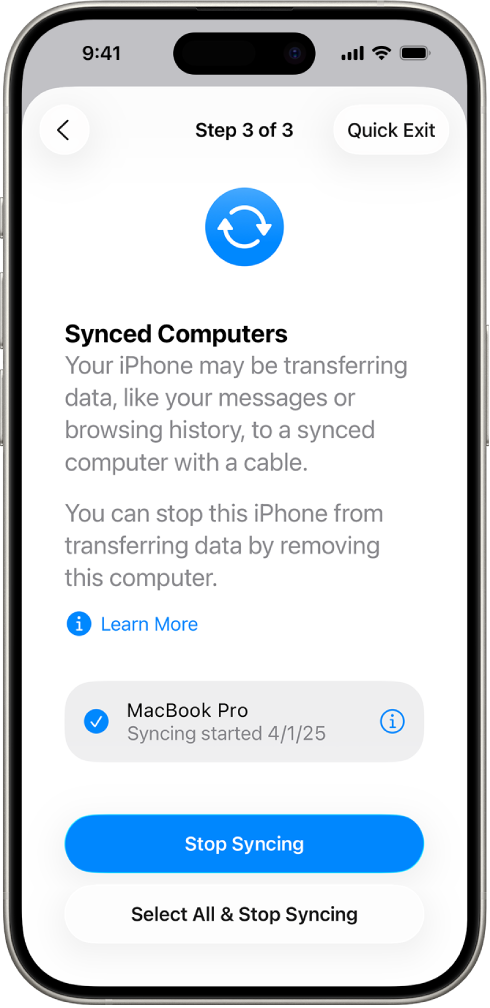
If you have synced computers, you can review and remove them (iOS 17 or later only).
If you have computers with iPhone Mirroring set up, you can review and remove them (iOS 18 or later only).
If you have iCloud+ and haven’t yet turned on Private Relay, you can do so now (iOS 17 or later only).
If iPhone Handoff is set up on your device, you can remove a connected device.
For more information on iPhone Handoff see the Apple Support article Using iPhone Handoff.
If your device is being accessed through Device Hub for developers, you can review recent sessions where your device was accessed and unpair your device.
For more information on Device Hub, see Manage Device Hub access on your iPhone.
Tap Done.
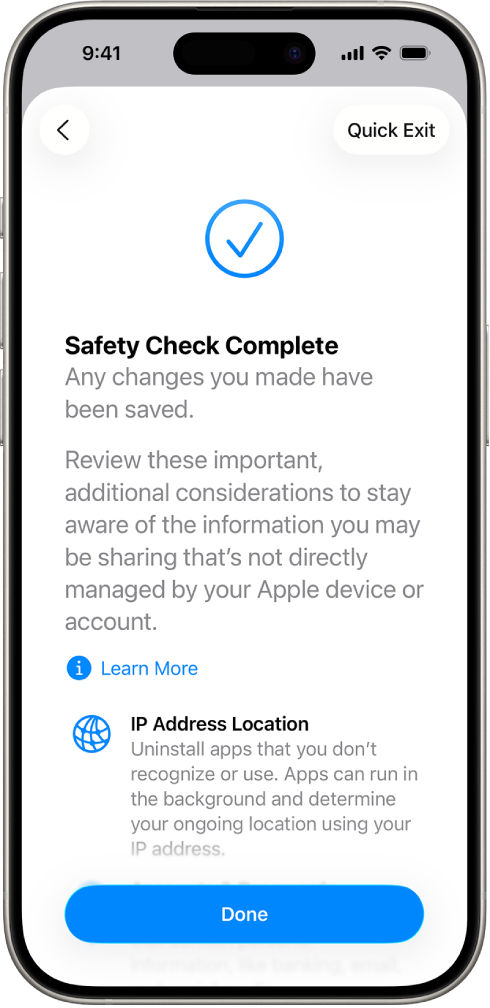
When you’ve finished, go to the next task to verify that you’ve stopped sharing.
IMPORTANT: Review additional steps to learn about tips for protecting your private information beyond Safety Check.
Step 3: Verify your changes
After using Safety Check, you can confirm any changes you made to your sharing options using these 4 steps.
Tap the Back button (or you can quit and reopen Safety Check).
Verify that your intended changes have been made relating to the information you’re sharing with people.
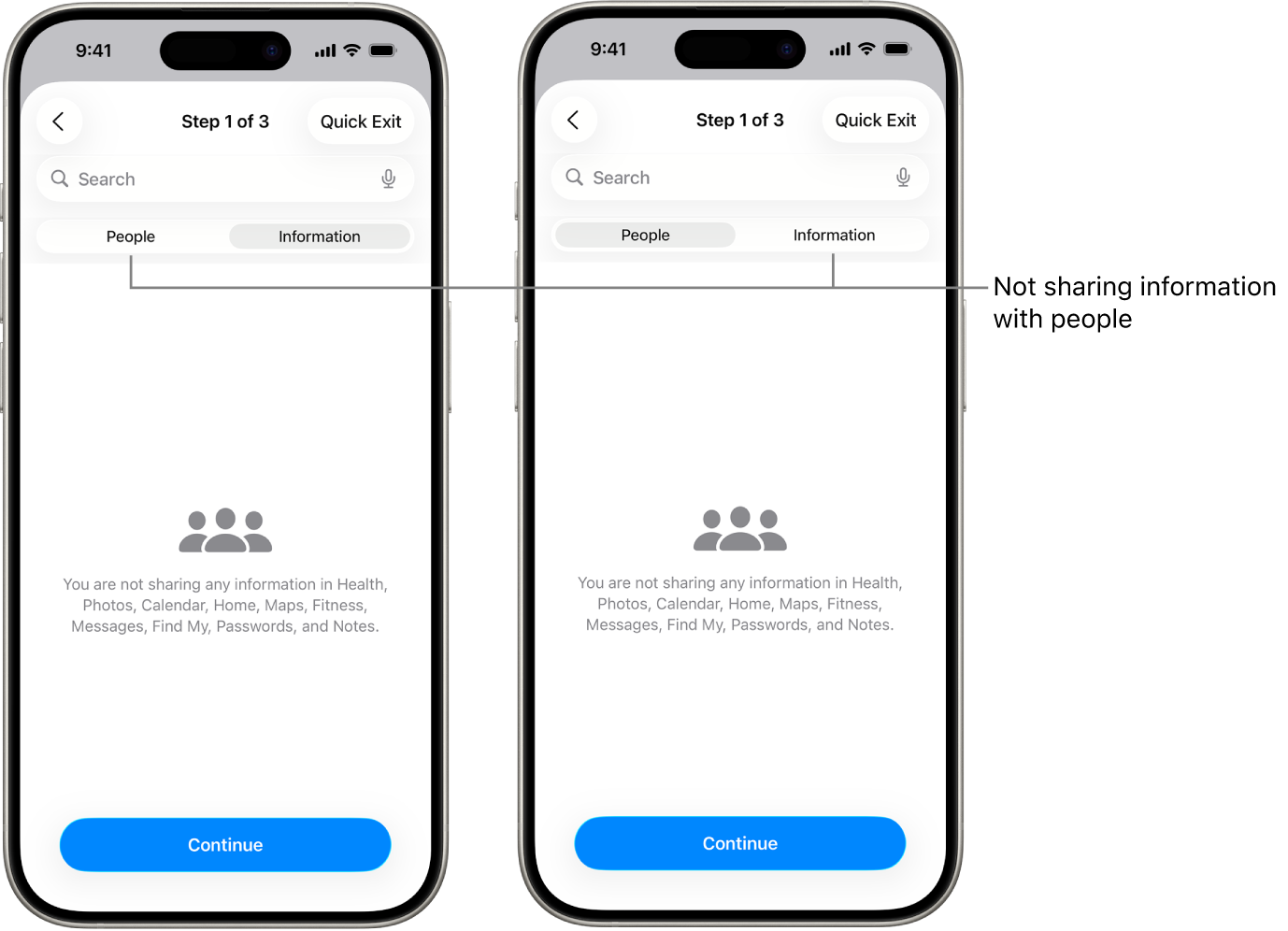
Verify that your intended changes have been made relating to the information you’re sharing with apps.
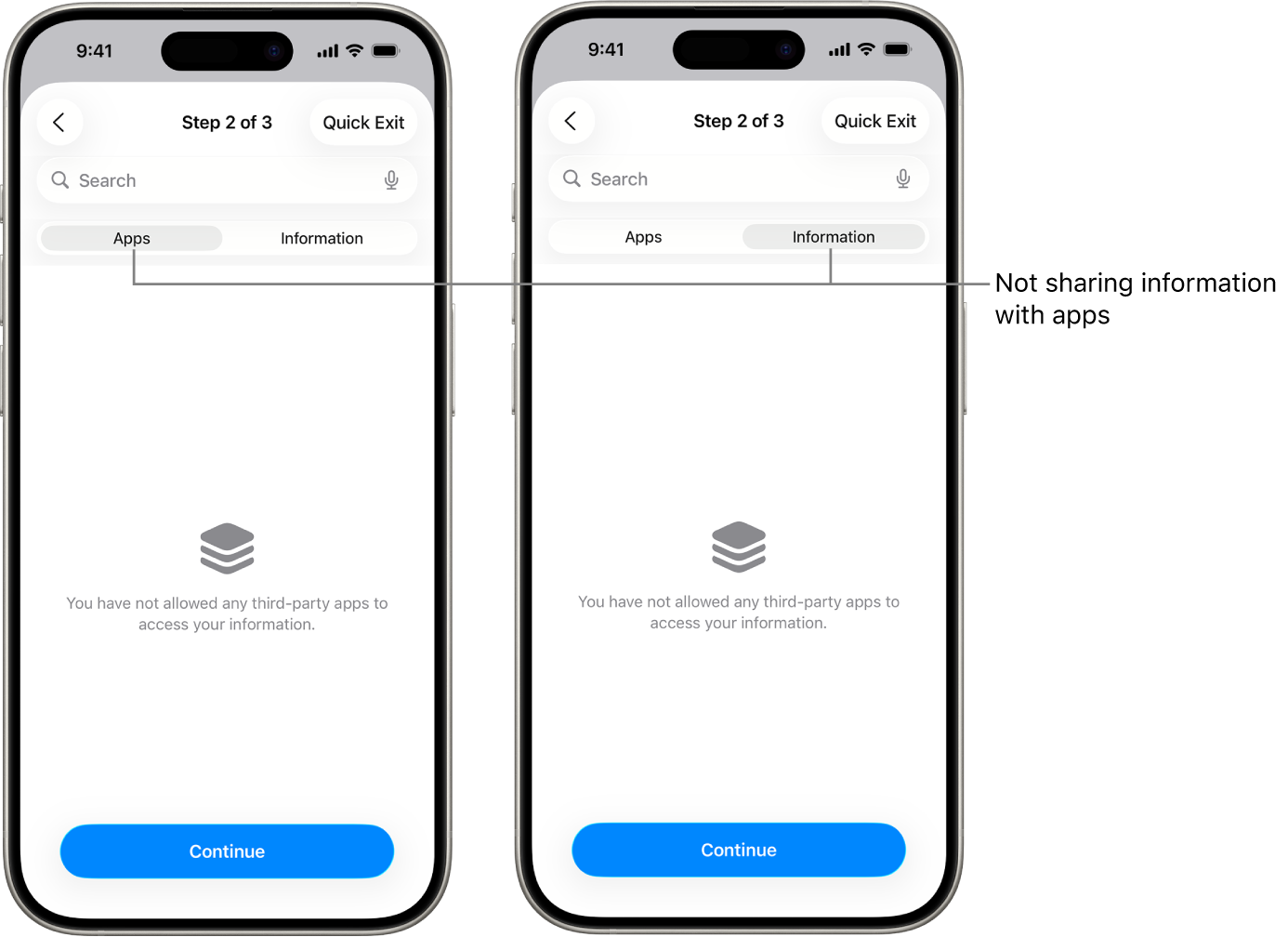
Verify any account changes you made to:
Devices connected to your Apple Account.
Phone numbers used to verify your identity.
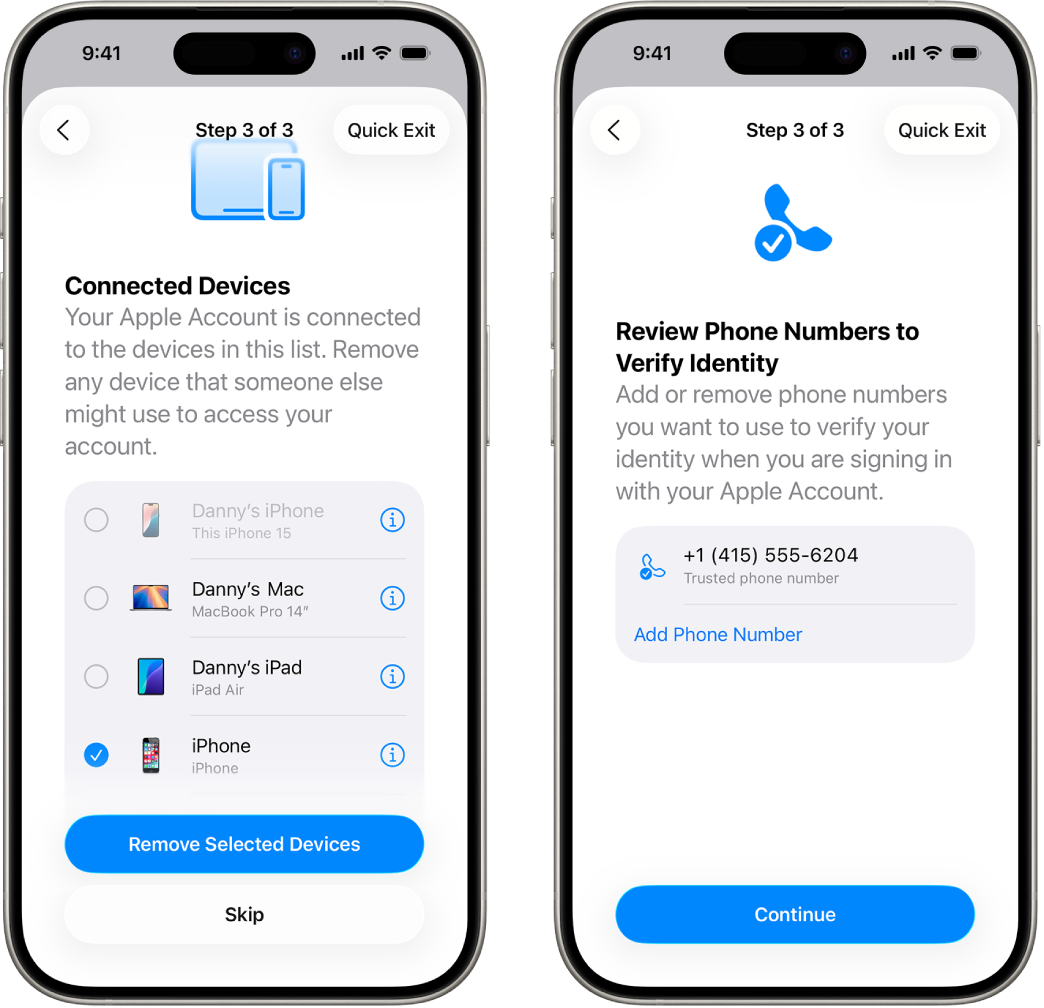
Emergency contacts you added or changed.
Synced computers you removed.
Beyond Safety Check
Safety Check can’t review or change some types of shared information, including:
Non-Apple accounts and passwords.
Social media sharing.
Devices where you’re signed in to a different Apple Account.
An iPad or Mac with information sharing settings turned on for other apps.