Modifying this control will update this page automatically
Apple TV 4K User Guide
- Welcome
- What’s new in tvOS 27
-
-
- Stream audio and video to Apple TV 4K
- Use HomePod or AirPlay-enabled speakers with Apple TV 4K
- Use AirPods or Beats with Apple TV 4K
- Connect Bluetooth devices
- Use your iPhone, iPad, or Apple Watch as a remote
- Manage incoming iPhone calls
- Use your iPhone or iPad as a keyboard
- Use your iPhone or iPad as a camera
- Use Siri on other devices to control Apple TV 4K
-
- Sing
-
- Fitness app at a glance
- Connect your Apple Watch or iPhone
- Subscribe to Apple Fitness+
- Start working out in the For You screen
- View workout details and control playback
- Browse or search for workouts
- Save workouts for later
- Combine workouts with Stacks
- View and manage Fitness+ plans
- Work out together using SharePlay
- App Store
- Search
- Copyright and trademarks
Force quit an app on Apple TV 4K
If an app isn’t working right, you can force it to quit and then open it again from the Home Screen.
On the remote, press
 twice quickly.
 Windows representing each of the open apps appear in a row on the screen.
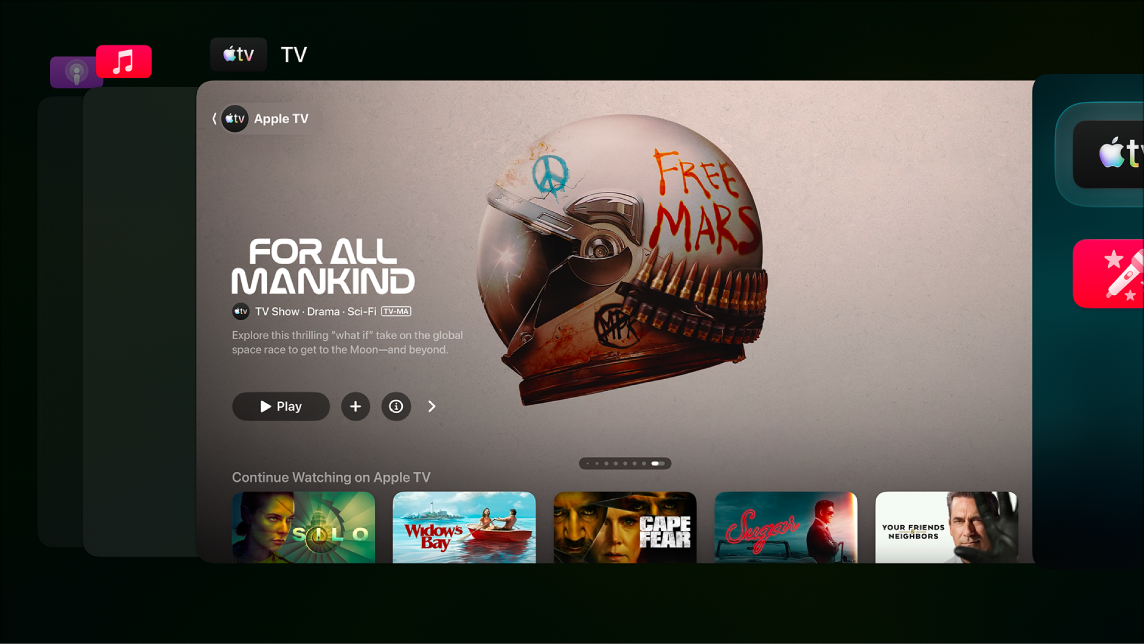
Stream For All Mankind on the Apple TV app with a subscription Navigate to the app you want to quit, then swipe up on the clickpad or touch surface.
To leave app-switching view without quitting an app, press
 or
or  on your remote.
Thanks for your feedback.