Final Cut Pro User Guide for iPad
- Welcome
- What’s new
-
- Intro to editing
- Select items in the timeline
- Arrange clips in the timeline
- Use roles to organize clips
- Add storylines
- Edit in Position mode
- Make precise edits with the jog wheel
- Undo and redo edits
- Disable and enable clips
- Change clip speed
- Edit to the beat
- Detect and restore edits
- Create a video montage with Montage Maker
- Export or share
- Copyright and trademarks
Detach audio from a video clip in Final Cut Pro for iPad
By default, Final Cut Pro for iPad imports audio and video from the same source media into one clip. You can separate audio from a video clip in the timeline so you can move, trim, or edit it independently. For example, you might want to use just the audio portion of dialogue or interview clips to layer under titles or B-roll, or use the natural audio of a landscape shot to create an ambient sound edit.
Go to the Final Cut Pro app on your iPad.
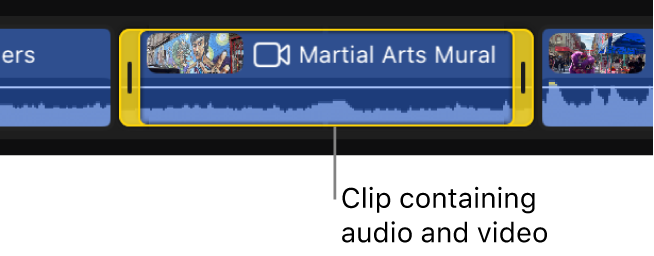
Open a project, then select one or more clips in the timeline that contain both audio and video.
Do one of the following:
Touch and hold the selection, then tap Detach Audio.
Tap Clip in the menu bar, then choose Detach Audio (or press Control-Shift-S on a connected or paired keyboard).
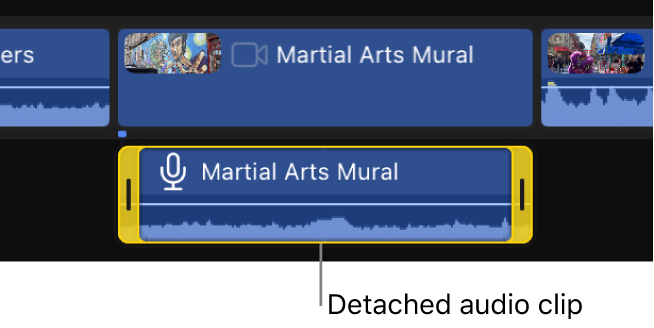
A new audio clip appears as a connected clip beneath the video clip.