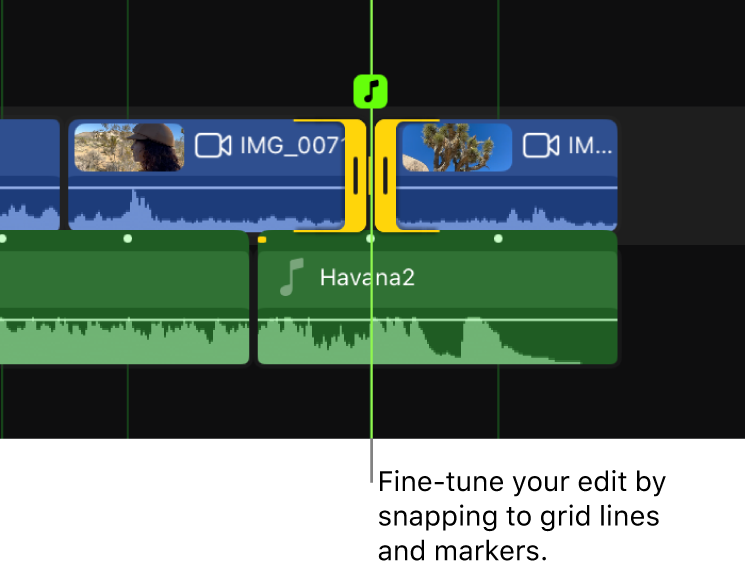
Edit to the beat in Final Cut Pro for iPad
You can use Beat Detection to edit video to the beat of a music clip, avoiding time-consuming manual edits. Beat Detection intelligently analyzes music clips and displays a beat grid, letting you quickly and easily align edits with song parts, bars, and beats. When snapping is turned on, edit points snap to grid lines and markers.
You can also use Beat Detection to trim a music clip to match the duration of a video edit, without leaving perceptible breaks in the music.

Note: To ensure the most musically accurate beat grid, choose a music clip with a 4/4 time signature.
About song parts, bars, and beats
Depending on how much you zoom in or out in the timeline, Final Cut Pro displays different types of grid lines and markers for song parts, bars, and beats.
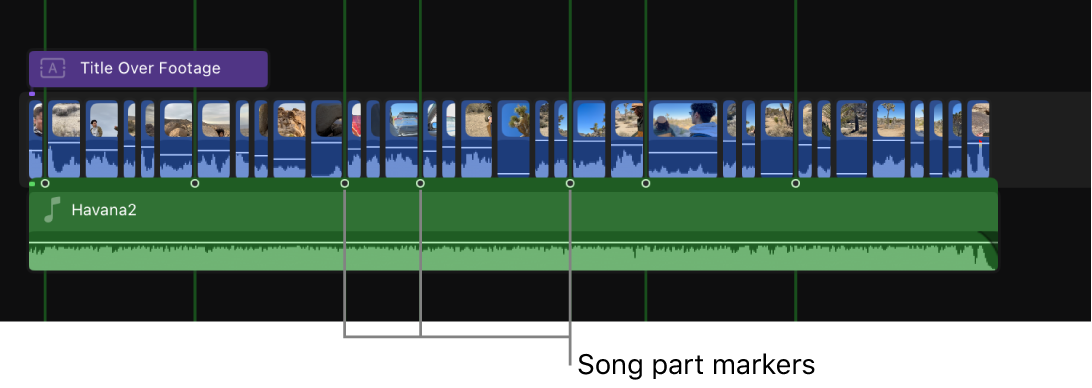
Song parts: Song parts are big musical transitions or structural changes in a song. Song part markers identify significant changes in the music and represent impactful musical moments to align edits with. When the timeline is very zoomed out, Final Cut Pro identifies song parts with hollow dots on music clips and thicker green lines in the beat grid.
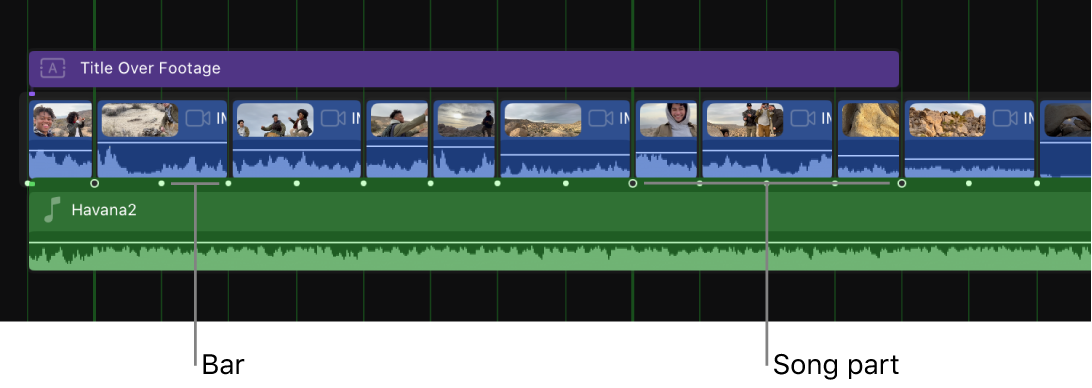
Bars: Bars (also called measures) are groups of beats, divided according to the song’s time signature. In Final Cut Pro, bars appear as bright green dots on music clips and thinner green lines in the beat grid (when the timeline is partially zoomed in).
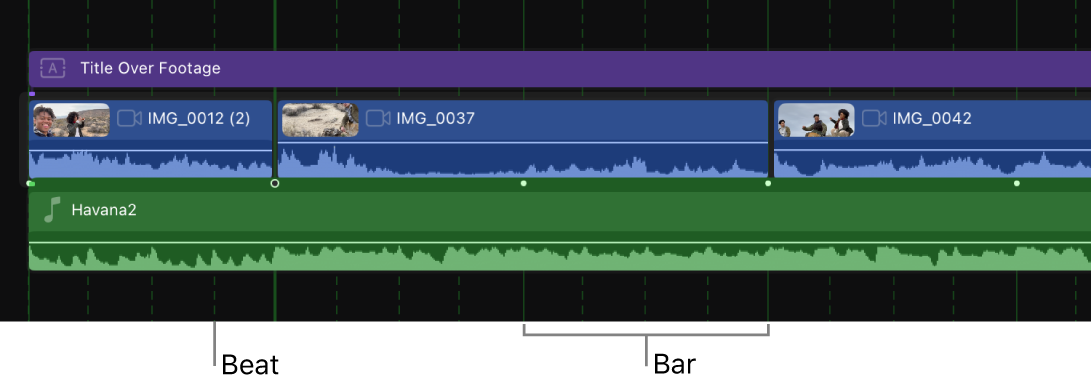
Beats: Beats are the basic unit of time in music. They are the steady pulse that you tap your foot to in a song. In Final Cut Pro, beats are represented as dashed green lines in the beat grid.


Turn on Beat Detection
You can turn on Beat Detection for music clips in the timeline.
Go to the Final Cut Pro app on your iPad.
Open a project that includes a music clip that you want to edit to.
Do one of the following:
Touch and hold a selected music clip, then tap Enable Beat Detection.
Tap Clip in the menu bar, then choose Enable/Disable Clip Beat Grid, or press Option-B on a connected or paired keyboard.
Tap Inspect in the lower-left corner of the screen to open the inspector, then turn on Beat Detection.
Final Cut Pro analyzes the selected clip or clips and displays a beat grid in the timeline. Depending on the zoom level, song parts, bars, and beats are shown in the timeline. See About song parts, bars, and beats, above.
Tip: To quickly show or hide the beat grid after you turn on Beat Detection, tap
 at the top of the timeline.
Edit video to the beat of a music clip
Go to the Final Cut Pro app on your iPad.
Open a project that includes a music clip that you want to edit to.
To turn on Beat Detection, touch and hold a selected music clip, then tap Enable Beat Detection.
See Turn on Beat Detection, above. Final Cut Pro analyzes the selected clip or clips and displays a beat grid in the timeline.
Zoom in and out of the timeline to view song parts, bars, and beats in the beat grid.
See About song parts, bars, and beats, above.
Tip: To easily align items with the beat grid, tap
 at the top of the timeline to turn on snapping. If snapping is turned off, clip edit points, the playhead, and the skimmer won’t snap to the beat grid, but the beat grid remains visible and can be used as a guide.
Make edits by aligning edit points with lines and markers in the grid.
When snapping is turned on, the playhead and clip start and end points snap to items in the grid. The music note icon changes depending on whether you snap to a song part, bar, or beat.
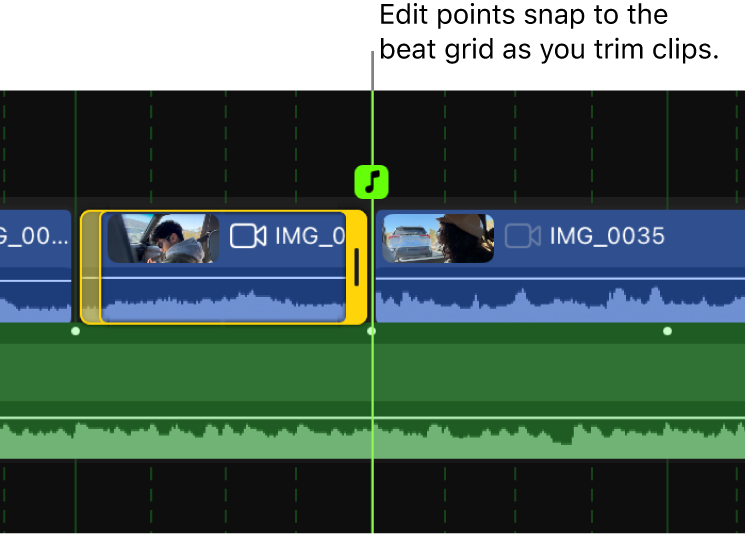
These are just some of the types of edits you can make using Beat Detection:
Edit music to the beat
You can use Beat Detection to quickly edit a song to match the duration of a video edit, avoiding perceptible breaks. In the example below, the music clip is 2 minutes long, but the video edit is only 30 seconds long. You can use Beat Detection to seamlessly cut down the music clip to 30 seconds while retaining the all-important final sting from the end.
Note: You don’t need to use Beat Detection to edit music tracks that come with Final Cut Pro for iPad because they dynamically adjust to fit the length of your project. See Add soundtracks. Instead, use Beat Detection to edit standard audio clips that you import into Final Cut Pro.
Go to the Final Cut Pro app on your iPad.
Open a project that includes the music clip that you want to trim.
To turn on Beat Detection, touch and hold the music clip, then tap Enable Beat Detection.
See Turn on Beat Detection, above. Final Cut Pro analyzes the selected clip and displays a beat grid in the timeline.
Zoom in and out of the timeline to view song parts, bars, and beats in the beat grid.
See About song parts, bars, and beats, above.
Tip: To easily align items with the beat grid, tap
at the top of the timeline to turn on snapping. If snapping is turned off, clip edit points, the playhead, and the skimmer won’t snap to the beat grid, but the beat grid remains visible and can be used as a guide.Remove unwanted sections of the music clip by cutting on song parts, bars, or beats.
In the example below, a range is selected between two beat grid lines, and then the selection is removed by tapping
 .
.Tip: You can also make cuts in the clip at beat grid lines and then delete the unwanted section.
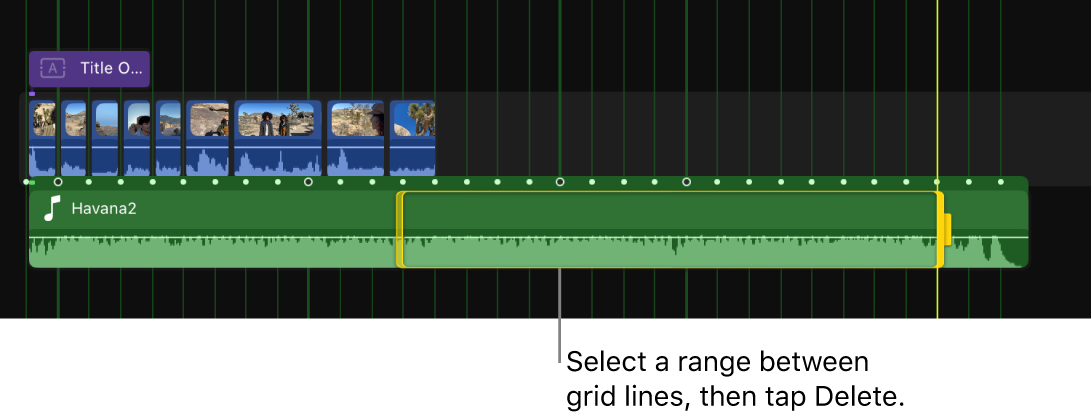
The deleted range is replaced by a gap clip.
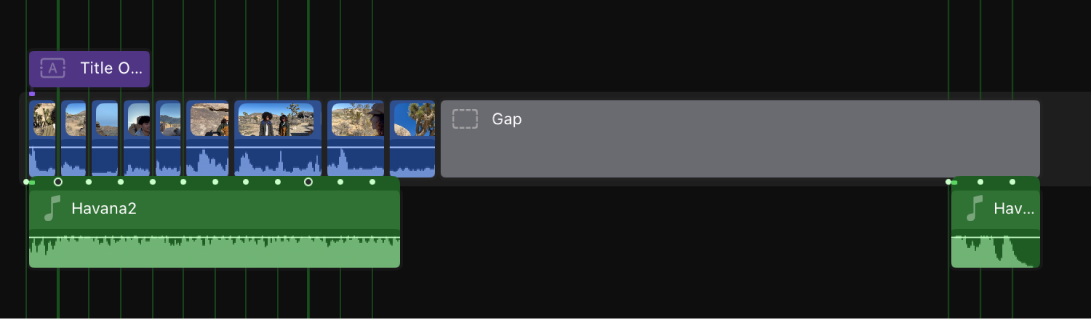
To close the gap left by the deleted segment, drag the end segment of the song so that it snaps to the first segment.
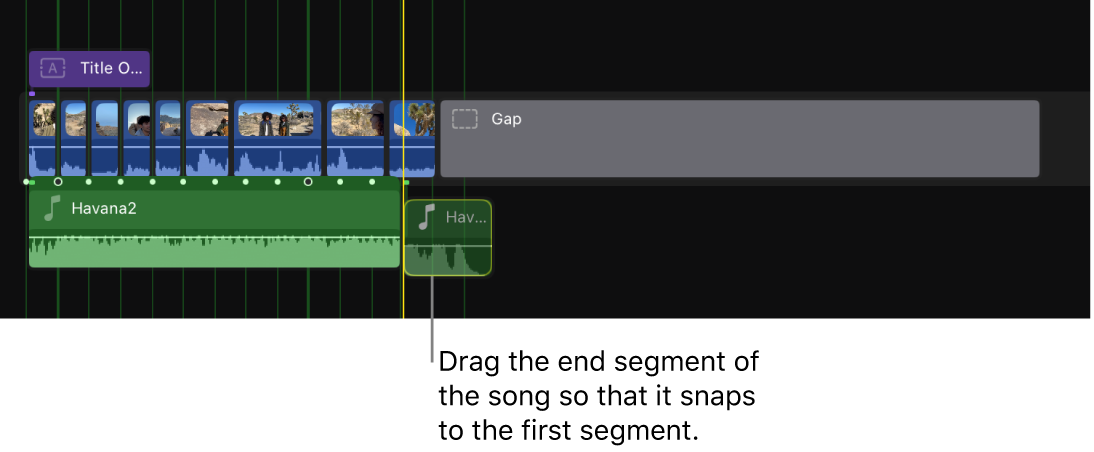
Fine-tune your edit by adjusting clip start and end points so that they align with grid lines and markers.
See Extend or shorten timeline clips.
When snapping is turned on, the playhead and clip edit points snap to items in the grid.