Apple Vision Pro User Guide
- Welcome
-
- Change notification settings and device sounds
- Set the date, time, language and region
- Change your device name
- Change the appearance of text and windows
- Unlock your iPhone with Apple Vision Pro
- See your keyboard, gaming controller or iPhone while immersed
- See people around you while immersed
- Use Apple Vision Pro in Travel Mode
- Refresh apps in the background
- Set content restrictions in Screen Time
- Let others use your Apple Vision Pro
-
- Apple Music Classical
- Books
- Calendar
- Capture
- Clock
- Encounter Dinosaurs
- Home
- Maps
- Mindfulness
- News
- Numbers
- Pages
- Podcasts
- Reminders
- Shazam
- Shortcuts
- Spatial Gallery
- Stocks
- Tips
- Voice Memos
-
- Get started with Apple Intelligence
- Create original images with Image Playground
- Create your own emoji with Genmoji
- Use Image Wand
- Use Writing Tools to write, improve and summarise content
- Use ChatGPT with Apple Intelligence
- Summarise notifications and reduce interruptions
- Apple Intelligence and privacy
- Turn off and restrict access to Apple Intelligence features
-
- Get started with accessibility features
- Turn on features with the Accessibility Shortcut
- Change Siri accessibility features
-
- Use AssistiveTouch
- Perform actions with sounds
- Perform actions with your eyes
- Perform actions with your voice
- Perform actions with face gestures
- Use Look to Drive
- Adjust settings for the Digital Crown
- Look up to open Control Centre
- Use a pointer to navigate
- Control your device with an external keyboard
- Adjust AirPods settings
- Use Guided Access
- Copyright and trademarks
Get started with Pages on Apple Vision Pro
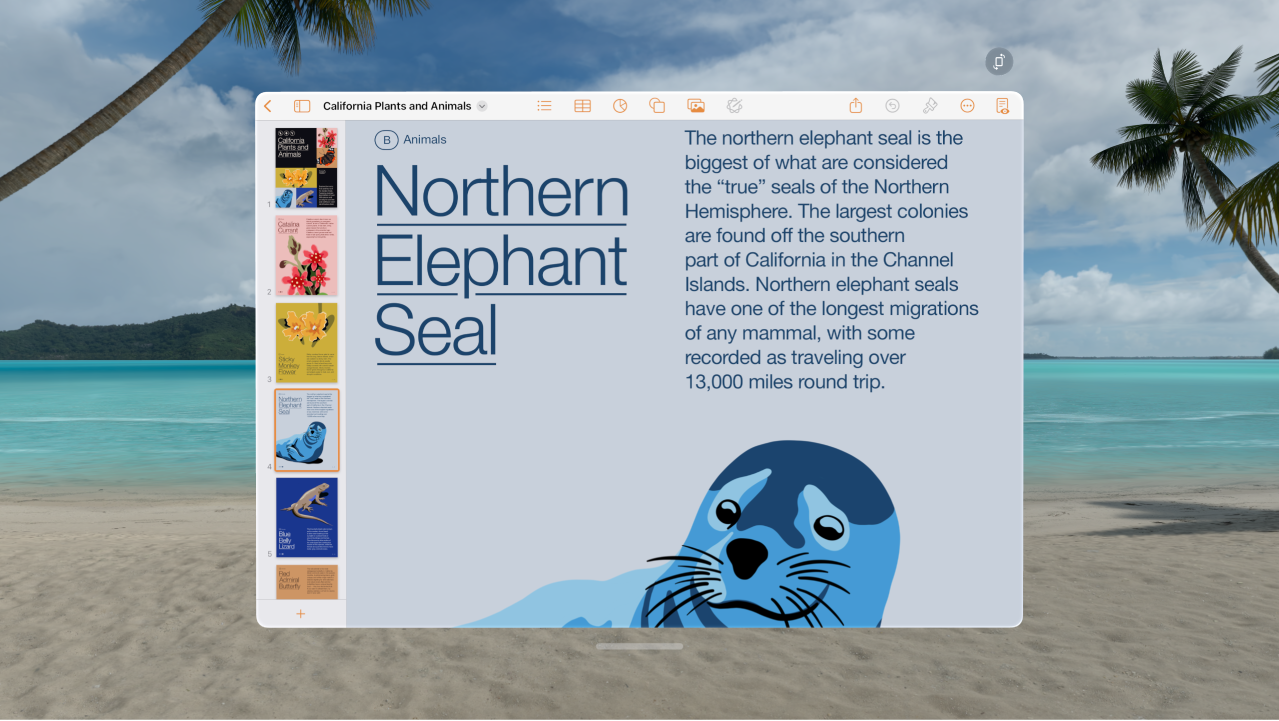
Pages  is an iPad app you can install from the App Store
  on Apple Vision Pro. You can use Pages to create any kind of document you want, from a simple word-processing document that’s mainly text, to a page layout document with graphics, interesting font treatments and more.
To learn more about using the Pages app on your Apple Vision Pro, see the Pages for iPad User Guide.
Tips and tricks for Pages on Apple Vision Pro
To move the insertion point to another place in your text, pinch and drag the insertion point.
If you can’t edit the document, make sure you tap Edit in the upper-right corner.
Note: If you only have permission to view a shared document, you can’t edit it.
It may be easier to refine a text selection or move the insertion point if you zoom in on the canvas.
You can connect your Magic Keyboard, Magic Mouse or Magic Trackpad if you prefer to type or navigate with a physical keyboard or trackpad. See Connect keyboards, headphones and other Bluetooth accessories to Apple Vision Pro.