
Intro to content caching
Overview
Content caching is a service in macOS that speeds up downloading of software distributed by Apple and content that users store in iCloud by saving content that local Apple devices have already downloaded. The saved content is stored in a content cache on a Mac and is available for other devices to retrieve without going out over the internet.
You can use content caching on networks that use network address translation (NAT) for the content cache and all devices and private IP addresses (as noted in RFC 1918). You can optionally use it for devices tethered to a Mac (for example, when provisioning many devices at once using Apple Configurator).
Apple devices automatically detect and contact a nearby content cache without any configuration by using a lookup service that maps client private and public IP addresses to configurations registered with Apple from Mac computers with content caching turned on.
Content caching options
A content cache can be configured to cache one or both of the following:
Shared content like software updates or apps. For more information, see the Apple Support article Content types supported by the caching service.
iCloud content of users such as photos or documents. To ensure the security and privacy of each user’s data, iCloud content caching only stores encrypted blobs of data as they are being exchanged between the client and the iCloud service. Content caching isn’t involved in the actual encryption process. For more information on iCloud encryption, see iCloud encryption in Apple Platform Security. Caching iCloud content is particularly useful for deployments using Shared iPad and Managed Apple Accounts as it speeds up signing into a Shared iPad and accessing iCloud content.
How content caching works
After you turn on content caching on a Mac, the Mac keeps a copy of supported content that devices (called clients) on the local network download. Content can also be downloaded from the cache by iPhone and iPad devices if they’re tethered to a Mac.
For example, when the first client on your network downloads a software update, it sends a request for that content to the content cache. If the content cache doesn’t have the content available yet, it downloads it from Apple, stores it locally, and simultaneously streams it to the requesting client. When the next client on the network downloads the update, the update is copied from the content cache rather than from Apple.
Because the local network is normally much faster than the internet, the second client (and all subsequent clients) downloads updates much faster.
By default, content caching serves all subnets using the same public IP address. Use the settings below to adjust the default configuration for your network:
Option | Description | ||||||||||
|---|---|---|---|---|---|---|---|---|---|---|---|
Cache content for | Select an option that describes which devices this Mac will cache content for:
| ||||||||||
My local networks | Select an option that describes your network:
| ||||||||||
DNS configuration | This is used to generate configuration for a DNS TXT record and is available only if you select “use custom public IP addresses” for the “My local networks” option. | ||||||||||
How subnets and caches interact
If your network has multiple subnets that share the same public IP address, all subnets can take advantage of a single content cache. When your network has more than one content cache, the content caches automatically become peers.
If your network uses more than a single IP address, content caches and clients may use different IP addresses to connect to the internet. Use DNS TXT records to provide the necessary information to your clients. See Use DNS TXT records to publish content across multiple public IP addresses.
Where cached content resides
The default location for cached content is the startup volume. You can choose an alternate location and specify how much of the volume is used by content caching. When the storage space for the cached content reaches the maximum you specified, or when the available space on the volume runs low, the content cache deletes content that hasn’t been used recently to make space for the next request.
How a content cache registers
When content caching is turned on, it downloads and verifies a signed configuration bundle from the configuration service using HTTP on port 80. The configuration includes the URL of the Content Caching registration service that the content cache uses to register. For more information on the used hosts, see Use Apple products on enterprise networks.
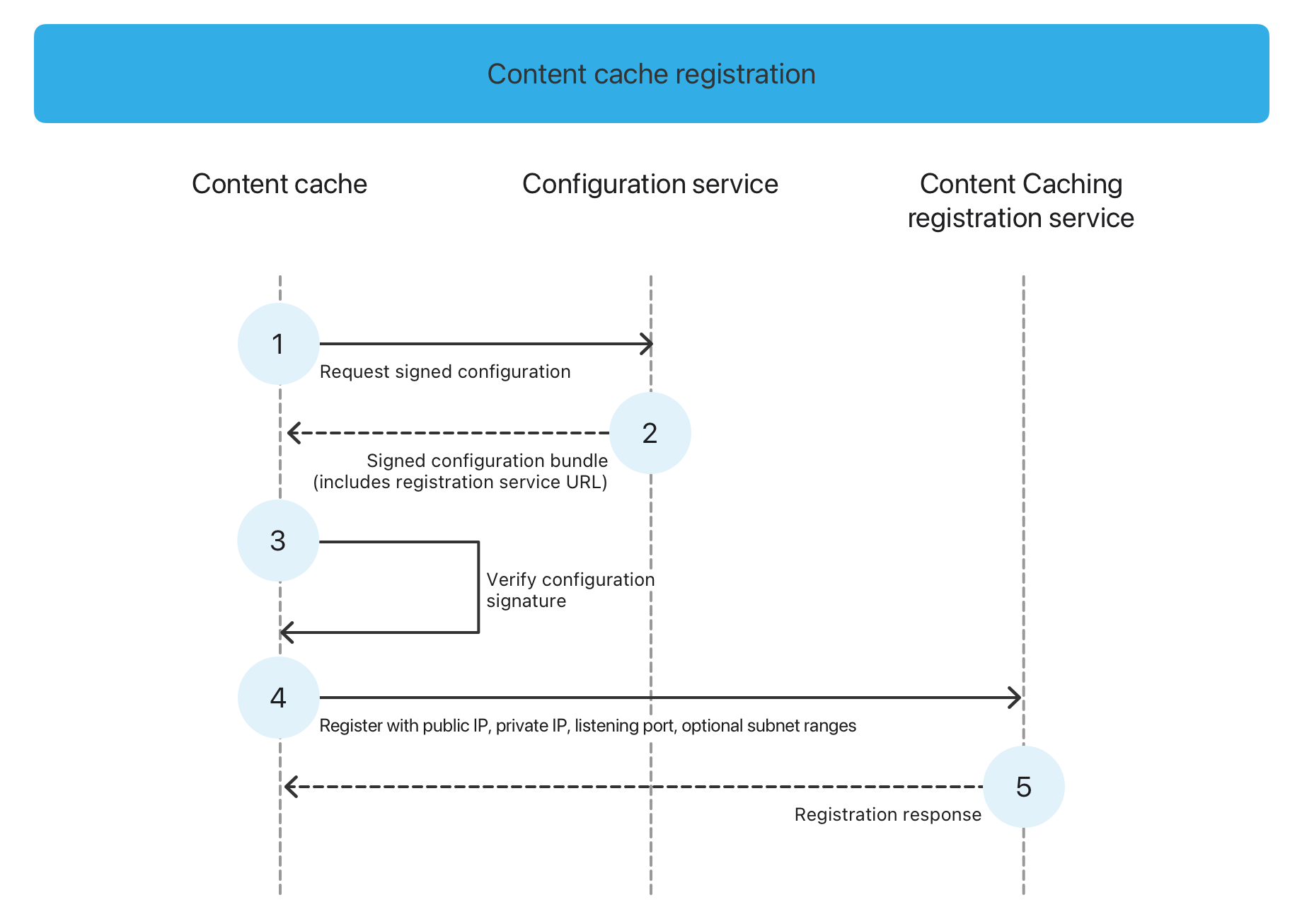
When performing the registration, the content cache includes its private IP, the port it listens on, and optionally any subnet ranges that it is open to serving. The Content Caching registration service observes the public IP address and adds it to the record. The registration response provides the content cache information like the public IP address as seen by the Content Caching Server registration server, a list of peers, and a heartbeat interval.
A Mac acting as a content cache registers a single IPv4 address of the primary network interface with Apple, and client devices reach it at that address. In dual-stack networks—where devices have both IPv4 and IPv6 addresses—the content cache uses its IPv4 address, and client devices use IPv4 to reach it.
The Content Caching Server registration service considers a content cache as unregistered if it doesn’t check in within the heartbeat interval plus about five minutes. The content cache updates its registration every hour or when its network configuration changes.
How a client discovers a content cache
When a client starts up or when it changes networks, the client sends a request to the Apple hosted Content Caching Locator service, providing its private IP address. The Content Caching Locator service combines it with the observed public IP address of the client to determine preferred content caches. The service then checks if a content caching service has registered with the same public IP and would serve the private network the client is located in.
If one or more matches are found, the Content Caching Locator service returns a ranked list of available content caches potentially available to the client.
To handle networks that connect to the internet with multiple public IP addresses, clients query their configured DNS service to determine additional public IPs and use this list when requesting available content caches from the Content Caching Locator service. For more information, see Use DNS TXT records to publish content across multiple public IP addresses.
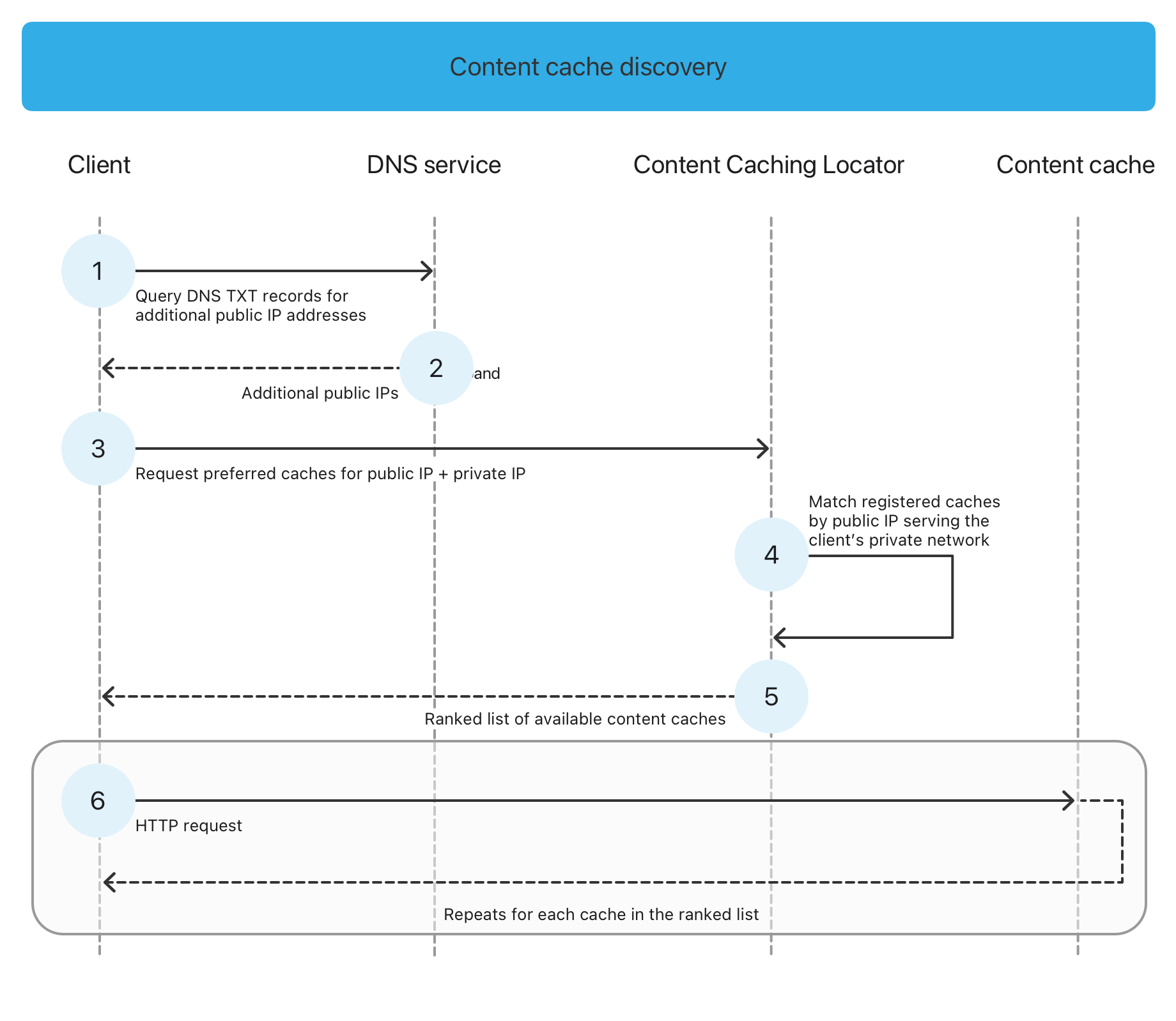
After the client has received a list of available content caches, it sends an HTTP request to each content cache to determine reachability. If the reachability test fails, for example, because the content cache doesn’t serve the subnet of the client, the client flags the content cache as unavailable.
This discovery process is repeated every hour to keep the list of content caches up to date or when the client connects to a different network. If no content cache was found, the negative response is held for 24 hours or until the device is restarted.
How a client connects to a content cache
If a client needs to download content, it selects one of the reachable content caches and requests the content over HTTP, preferring a favored content cache specified in the DNS TXT record. If no favored content cache is specified, it selects a random one from the ones with the lowest rank.
Clients remember the selection for a while rather than checking again each time. If that content cache stops responding, the client marks it unavailable and uses another of the content caches at the same rank.
If no content cache at that rank is available, the client downloads the content from Apple.
Restrict content caching
If a Mac is enrolled in a device management service, you can use a restriction to keep the user from turning on content caching. This prevents the Mac from downloading and storing software that Apple distributes and content that users store in iCloud. For example, you can use the restriction to avoid consumption of storage space on user devices or putting additional traffic on wireless networks. It can also be used to prevent activation of the content caching service on Mac computers not providing the necessary requirements, as it may affect your clients.
For unmanaged clients content caching you can restrict access by blocking lcdn-locator.apple.com for all clients on the network except for the content caches provisioned by the organization.