Adjust zoom and focus in Final Cut Camera
In Final Cut Camera, switch lenses or use Ramp Zoom to change the focal length, and use automatic and manual focus.
Change the zoom level
In Final Cut Camera, the current zoom level is indicated by the lens focal length buttons. Each button represents a different lens on your particular device model (for example, 13 mm, 24 mm, 48 mm, 100 mm, or 200 mm).
Go to the Final Cut Camera app
 on your iPhone or iPad.
In the camera screen, do one of the following:
Switch between lenses: Tap a lens button to switch between lenses (24 mm to 13 mm, for example). You can’t switch between lenses during recording.
Drag the Ramp Zoom dial: In the camera screen, tap
 , swipe the bottom of the controls until the Zoom controls appear, then drag the dial to change the zoom level. You can control the rate of zoom by the distance you drag.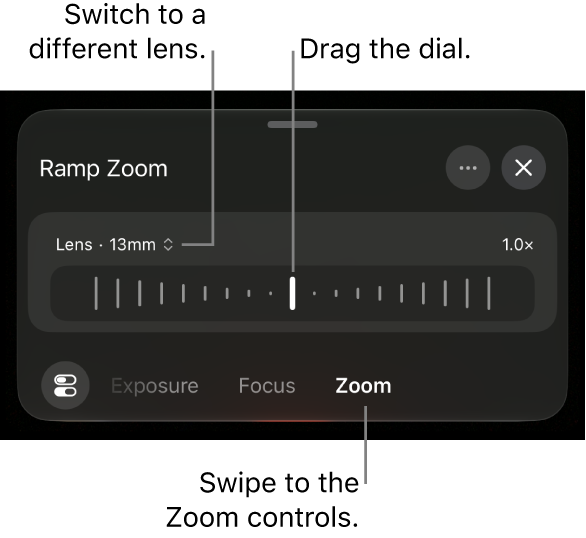
Tap
 to the right of Lens to switch to a different lens. Unlike the zoom controls in Camera on iPhone or iPad, the Ramp Zoom dial in Final Cut Camera is constrained to one lens at a time for smooth zooming.
When you’re done, tap
 or swipe down to close the controls.
Use the pinch gesture: In the viewfinder, pinch open to zoom in, or pinch closed to zoom out.
Note: The Ramp Zoom dial and the pinch gesture use digital zoom. To eliminate the reduced resolution sometimes associated with digital zoom, you can turn it off. In the camera screen, tap
 , tap Preferences, then turn off Allow Digital Zoom. When digital zoom is turned off, the only way to change the focal length is by tapping a lens button to switch between lenses.
The camera maintains the zoom level until you change it or close the camera.
Change the focus
When recording with the rear camera on your device, you can manually focus on particular subjects.
Changing the focus for the front-facing camera is available on supported iPhone models.
Tip: Turn on focus peaking for maximum precision in your focus adjustments. See Turn on the focus peaking overlay.
Go to the Final Cut Camera app
on your iPhone or iPad.By default, the camera is set to autofocus and focuses on the nearest subject. The camera recognizes people, animals, and many common objects.
Do one of the following:
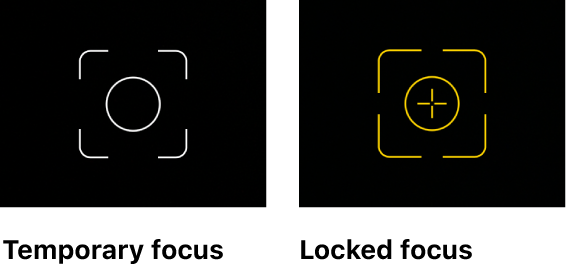
Focus using a subject: Tap a subject in the camera’s viewfinder. The camera focuses (and sets exposure) based on that subject’s current location. A white onscreen indicator appears where you tapped. If the camera loses focus, it reverts to the default autofocus (and autoexposure) in the center of the viewfinder.
Lock focus and exposure: Touch and hold a subject in the camera’s viewfinder to lock focus and exposure. A yellow onscreen indicator appears where you touched. To unlock, tap anywhere on the screen.
Focus manually: In the camera screen, tap
, swipe the bottom of the controls until the Focus controls appear, then drag the dial to set a focal length. To reset the focus, tap Manual, then tap Automatic.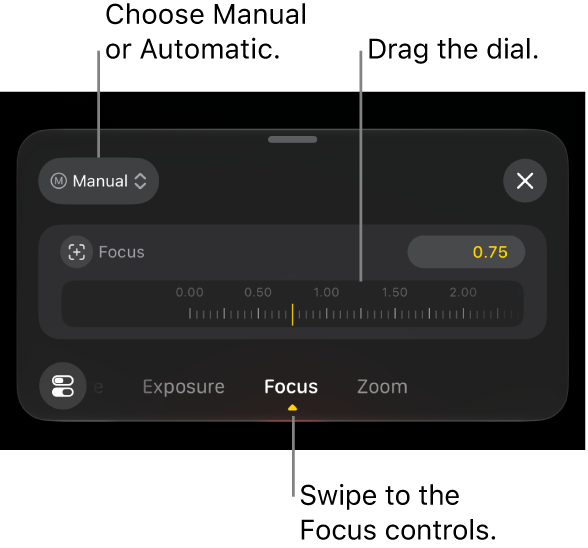
When you focus manually, the camera maintains your focus setting until you switch to autofocus or close the camera. If you touch and hold a different subject while a manual focus setting is active, the camera locks the exposure to the new subject, and a yellow onscreen indicator appears where you touched.
Tip: To lock the current autofocus setting, tap Automatic, then tap Manual.
When you’re done, tap
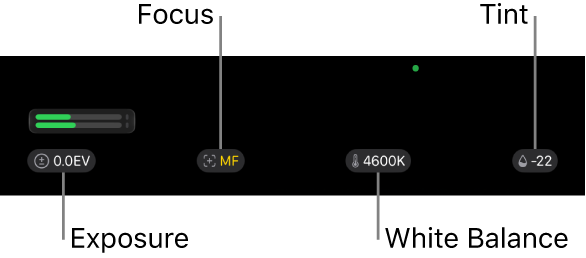
or swipe down to close the controls.The current setting appears at the top of the camera screen. Yellow indicators reflect manual adjustments. Tap any setting to open the corresponding controls.