Set the video format in Final Cut Camera
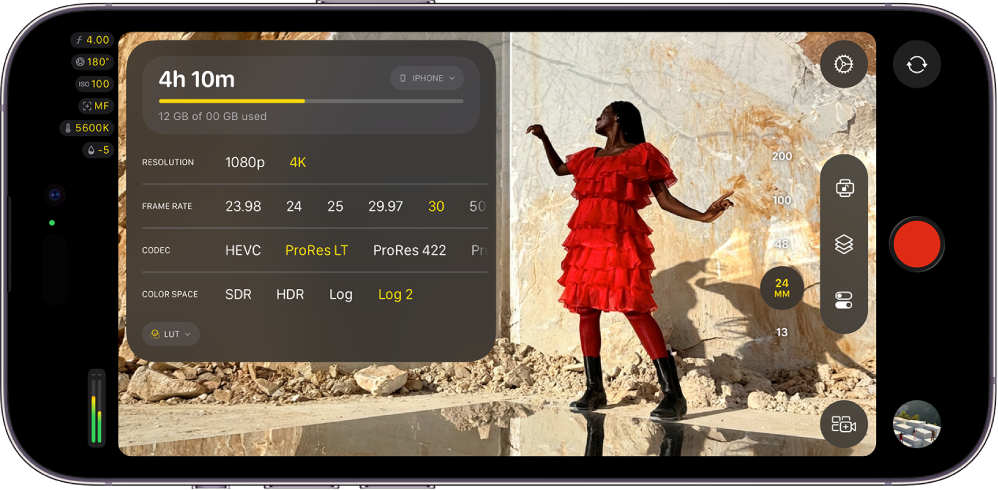
When you record video in Final Cut Camera, you can choose a codec (such as HEVC, Apple ProRes, or Apple ProRes RAW) and easily customize your resolution (frame size), frame rate, color space, and more.
Set the resolution, frame rate, codec, and color space
You can choose between standard, log, and RAW video formats, depending on your project requirements, workflow, and the output quality you want. See About standard, log, and RAW video.
Go to the Final Cut Camera app
 on your iPhone or iPad.
In the camera screen, tap the recording details at the top of the screen.
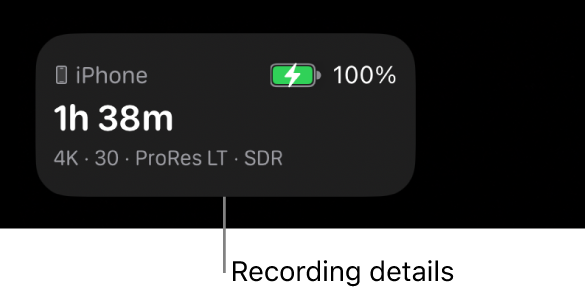
The format settings appear.
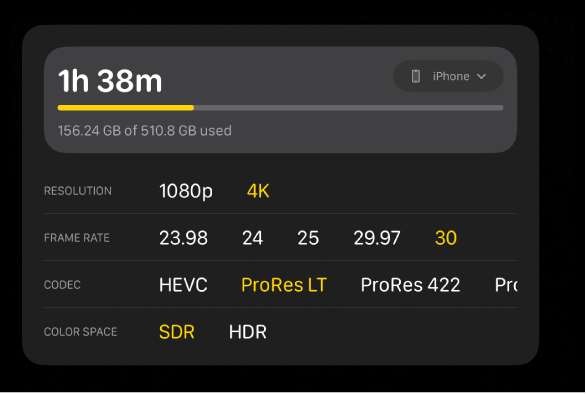
Do any of the following:
Set the resolution (frame size): Tap an option next to Resolution (the options vary depending on the codec).
Note: When you set the codec to Apple ProRes RAW, the resolution is automatically set to Open Gate (4224 x 3024). See Record Apple ProRes RAW.
Set the frame rate: Tap an option next to Frame Rate. Frame rates up to 240 fps are available on certain devices and at certain resolutions.
Set the codec: Tap an option next to Codec (you may need to swipe to reveal all the options):
HEVC: HEVC (H.265) allows for high quality at relatively small file sizes. One minute of recording in 4K at 30 fps may use more than 175 MB of storage.
ProRes LT: ProRes 422 LT is a more highly compressed codec than ProRes 422, with roughly 70 percent of the data rate and 30 percent smaller file sizes. One minute of recording in 4K at 30 fps may use more than 3.1 GB of storage.
ProRes 422: ProRes 422 is a high-quality compressed codec offering nearly all the benefits of ProRes 422 HQ, but at 66 percent of the data rate. One minute of recording in 4K at 30 fps may use more than 4.4 GB of storage.
ProRes 422 HQ: The ProRes 422 HQ codec allows for higher-quality filming, editing, and playback, which can result in larger file sizes. One minute of recording in 4K at 30 fps may use more than 6.6 GB of storage.
ProRes RAW: The ProRes RAW codec captures RAW sensor data, letting you adjust camera settings in Final Cut Pro with maximum flexibility. One minute of full-sensor ProRes RAW recording at 30 fps may use more than 10 GB of storage.
ProRes RAW HQ: The ProRes RAW HQ codec can provide higher image quality than ProRes RAW. One minute of full-sensor ProRes RAW HQ recording at 30 fps may use more than 15 GB of storage.
Note: Recording in Apple ProRes or Apple ProRes RAW requires supported iPhone models. To record in Apple ProRes RAW, see Record Apple ProRes RAW.
Set the color space: Tap an option next to Color Space:
SDR (Rec. 709): A broadly supported standard-dynamic-range (SDR) format commonly used for high-definition (HD) TV.
HDR (HLG): A high-dynamic-range (HDR) format that captures more levels of brightness than SDR video.
Apple Log: Apple Log preserves highlight and shadow detail by using a logarithmic transfer function to capture a wider dynamic range. This option creates a flat, desaturated image for color grading in log-based workflows. Recording Apple Log requires iPhone 15 Pro or later.
Apple Log 2: Apple Log 2 preserves highlight and shadow detail but with a wider color gamut than Apple Log, providing greater flexibility and precision for video capture and color grading. This option creates a flat, desaturated image for color grading in log-based workflows. Recording Apple Log 2 requires iPhone 17 Pro or later.
When you choose the Apple Log or Apple Log 2 option, you can turn on Preview with LUT in Final Cut Camera settings to see your log media with the vibrancy of the original scene. See Preview log media, below.
If you set the codec to Apple ProRes RAW, the color space setting is no longer available. See Record Apple ProRes RAW.
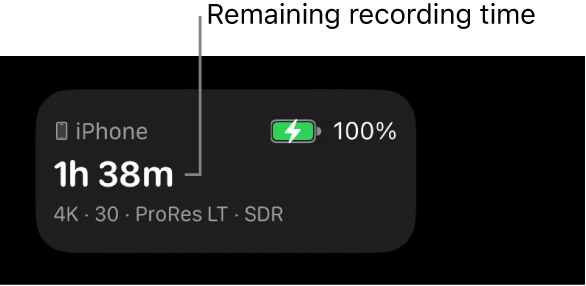
As you make your selections, Final Cut Camera calculates the maximum recording time based on the available storage space on your device.
Preview log media
When you record in Apple Log or Apple Log 2, you can turn on Preview with LUT to see your log media with the vibrancy of the original scene.
Note: Recording in Apple Log or Apple Log 2 requires supported iPhone models.
Go to the Final Cut Camera app
on your iPhone or iPad.In the camera screen, tap
 , tap Preferences, then tap Color & Dynamic Range.
Tap Apple Log or Apple Log 2.
Choose the LUT that matches the color space recording option you selected (Apple Log or Apple Log 2). See Set the resolution, frame rate, codec, and color space, above.
Tap
 , then tap Tools.
Turn on Preview with LUT, then tap an option:
Apple Log (or Apple Log 2) to SDR (Rec. 709): Preview your video in the SDR (Rec. 709) color space.
Apple Log (or Apple Log 2) to HDR (HLG): Preview your video in the HDR (HLG) color space.
Tip: You can also access the Preview with LUT settings by tapping the format settings at the top or side of the camera screen when a log option is selected.
Tap
 .
.
You can also turn Preview with LUT on or off when you play back videos recorded in Apple Log or Apple Log 2. See Play back videos.
Note: If you set the codec to Apple ProRes RAW, Final Cut Camera automatically turns on Preview with LUT and sets it to Apple Log 2 to HDR (HLG). See Record Apple ProRes RAW.
Most settings are retained until you change them, even if you quit and reopen Final Cut Camera. You can also change format settings by tapping in the camera screen.
Note: Some recording options (such as Apple ProRes or HDR) are limited to specific device models. Some settings are available only in specific camera modes.