Apple Vision Pro User Guide
- Welcome
-
- Change notification settings and device sounds
- Set the date, time, language, and region
- Change your device name
- Change the appearance of text and windows
- Unlock your iPhone with Apple Vision Pro
- See your keyboard, game controller, or iPhone while immersed
- See people around you while immersed
- Use Apple Vision Pro in Travel Mode
- Refresh apps in the background
- Set content restrictions in Screen Time
- Let others use your Apple Vision Pro
-
- Apple Music Classical
- Books
- Calendar
- Capture
- Clock
- Encounter Dinosaurs
- Home
- Maps
- Mindfulness
- News
- Numbers
- Pages
- Podcasts
- Reminders
- Shazam
- Shortcuts
- Spatial Gallery
- Stocks
- Tips
- Voice Memos
-
- Get started with Apple Intelligence
- Create original images with Image Playground
- Create your own emoji with Genmoji
- Use Image Wand
- Use Writing Tools to write, improve, and summarize content
- Use ChatGPT with Apple Intelligence
- Summarize notifications and reduce interruptions
- Apple Intelligence and privacy
- Turn off and restrict access to Apple Intelligence features
-
- Get started with accessibility features
- Turn on features with the Accessibility Shortcut
- Change Siri accessibility features
-
- Use AssistiveTouch
- Perform actions with sounds
- Perform actions with your eyes
- Perform actions with your voice
- Perform actions with face gestures
- Use Look to Drive
- Adjust settings for the Digital Crown
- Look up to open Control Center
- Use a pointer to navigate
- Control your device with an external keyboard
- Adjust AirPods settings
- Use Guided Access
- Copyright and trademarks
Siri AI: Use the Siri app on Apple Vision Pro
When you turn on Siri AI, you have a dedicated Siri app that brings all your conversations together in one place, so you can ask a question on your Apple Vision Pro and pick up where you left off on your iPhone. You can also pin conversations for easy access or start a new one.
 | Siri AI is available in beta on visionOS 27 or later with Siri and device language set to a supported language.* Siri AI is rolling out in English. Usage limits may apply. | ||||||||||
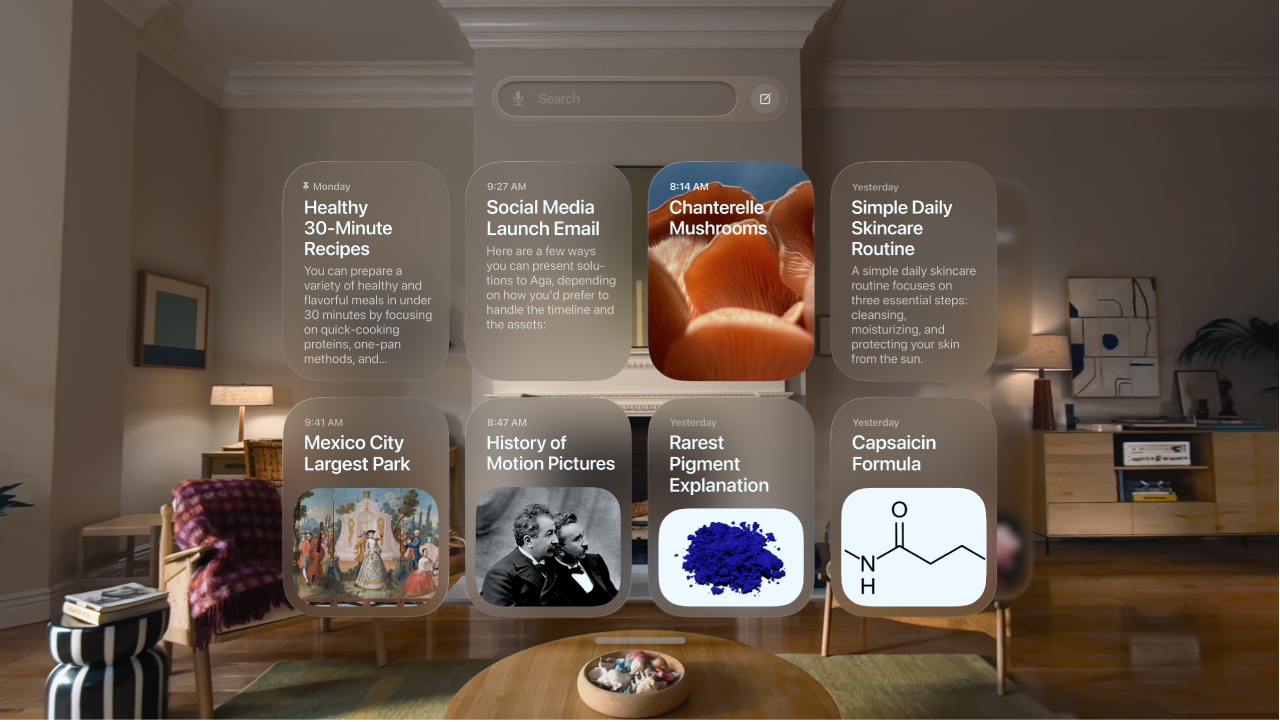
Start or continue a conversation
Go to the Siri app
 on your Apple Vision Pro.
Tap
 to start a new conversation, or tap a conversation you want to continue.
Do one of the following to enter your request:
Type your request: Tap


Speak your request: Tap Siri, then speak your request.
Do any of the following:
Add a photo or file: Tap

Ask a follow-up: Just keep talking or typing—Siri keeps the context of your conversation.


View, search, and pin your conversations
You can view your conversation history, which syncs across platforms when you’re signed in to the same Apple Account.
Go to the Siri app
on your Apple Vision Pro.If you’re in a conversation, tap

Do any of the following:
Open a conversation: Tap it.
Tip: If you want to open a conversation in your space instead of in the app, pinch and hold the conversation, then tap Open in New Window.
Search conversations: Tap in the search bar and speak or type your query.
Pin a conversation: Pinch and hold a conversation, then tap Pin.
Rename a conversation: Pinch and hold a conversation, tap Rename, enter a new name, then tap OK.
Delete a conversation: Pinch and hold a conversation, then tap Delete.

Change Siri app settings
With Siri AI, you have a dedicated Siri app that brings all your conversations together in one place. In Siri app settings, you can choose what appears when you open the Siri app and how long to keep conversations.
Go to the Settings app
 on your Apple Vision Pro.
Tap Siri.
Do any of the following:
Choose what you see when you open the app: Tap Opens To, then choose Recent Conversations or A New Conversation.
Choose how long to keep conversations: Tap Keep Conversations, then choose an option.
Note: If you choose 30 days or 1 year, older conversations are permanently deleted.
Choose how much of a conversation to preview: Tap Preview, then choose how many lines you want to show up.