
Intro to device management
Overview
Apple devices provide a rich set of configuration options through the device management framework. The device management framework allows devices to receive and act on configurations and profiles sent to them using a device management service. A device management service can be linked to an organization’s Apple School Manager or Apple Business.
Devices enroll in a device management service using one of several enrollment methods that are available for organization-owned and user-owned devices. After enrollment, devices are notified by the Apple Push Notification service (APNs) when a device management service wants to communicate with the device. The device then contacts the device management service and the device management service securely sends configurations, profiles, and apps to the device, which the device acts upon.
Device management services help organizations of any size set up and configure devices quickly and securely. With a device management service, you can send configurations, profiles, and commands to enrolled devices, whether the devices are organization- or user-owned.
The device management administrator can use the device management service to install and update software, adjust settings, monitor compliance with organizational policies, check device status, and remotely lock or erase devices. Organizations can automatically enroll devices they own through Apple School Manager or Apple Business, and users can enroll their own devices in the device management service.
Declarative device management extends these capabilities. By using declarations and the status channel, devices proactively share their status with the device management service. This two-way communication lets organizations respond more dynamically to changes that may affect security or compliance. One type of declaration, a configuration, consists of JSON payloads that apply settings to Apple devices.
The following sections describe enrollment methods, configuration profiles, and managed settings.
Enrollment methods
Understanding the different types of enrollment methods will help you support people who are having difficulty getting started with their device. The method used to enroll a device in device management depends on the device ownership model. A device owned by an organization can be supervised. Supervision generally denotes that the organization owns the device, which provides additional control over its configuration and restrictions. For more information, see About device supervision.
There are two methods for enrolling organization-owned devices:
Automated Device Enrollment: Used for organization-owned devices that appear in Apple School Manager or Apple Business. Automated Device Enrollment provides supervision and the highest level of management for devices. Device management administrators can manage even more settings and see more information than with Device Enrollment or User Enrollment.
Devices manually added to Apple School Manager or Apple Business with Apple Configurator have a 30-day provisional period that begins when the device is first enrolled. During the provisional period the devices behave like any other device already in Apple School Manager or Apple Business with mandatory supervision and device management service enrollment. The device can be shut down and stored until you need it or sent to the user.
When you give the device to a user, they have a 30-day provisional period to release the device from Apple School Manager or Apple Business, supervision, and the device management service. This 30-day provisional period begins after successfully assigning and enrolling the device in a device management service that links to Apple School Manager or Apple Business. For more information, see Add devices using Apple Configurator to Apple School Manager in the Apple School Manager User Guide, or Add devices using Apple Configurator to Apple Business in the Apple Business User Guide.
Device Enrollment: Used to enroll existing organization-owned devices that are already in use.
Note: A Mac enrolled using Device Enrollment is supervised, with some limitations. An iPhone or iPad enrolled using Device Enrollment isn’t supervised.
A third enrollment method, User Enrollment, is used for user-owned devices, sometimes called BYOD (bring your own device):
Enrollment method | Ownership | Supervised upon enrollment? |
|---|---|---|
Automated Device Enrollment | Organization | Yes |
Device Enrollment | Organization | No (iPhone, iPad); Yes (Mac) |
User Enrollment | User | No |
A device can be enrolled with only one device management service at a time, regardless of the device management or enrollment method used. If your organization migrates from one service to another, see Plan your device management migration and Migrate managed devices to another device management service in Apple Platform Deployment.
Configuration profiles
A configuration profile is an XML file with a .mobileconfig file extension that consists of payloads that may contain device settings, restrictions, and credentials for Apple devices. A device management service or Apple Configurator for Mac can create these files, or they can be created manually.
Profile removal
Removing enrollment and configuration profiles from managed devices can lead to loss of security settings, app configurations, and compliance with organizational policies, potentially rendering the device unsupported and vulnerable to threats.
A device management service administrator can manage profile removal by enforcing restrictions that prevent users from removing the device management service’s enrollment profile, thereby maintaining security and compliance. The administrator can also release a device from management, which removes the enrollment profile and the configurations, configuration profiles, and managed apps associated with it. When a device is released, it’s no longer managed by the device management service.
Managed settings
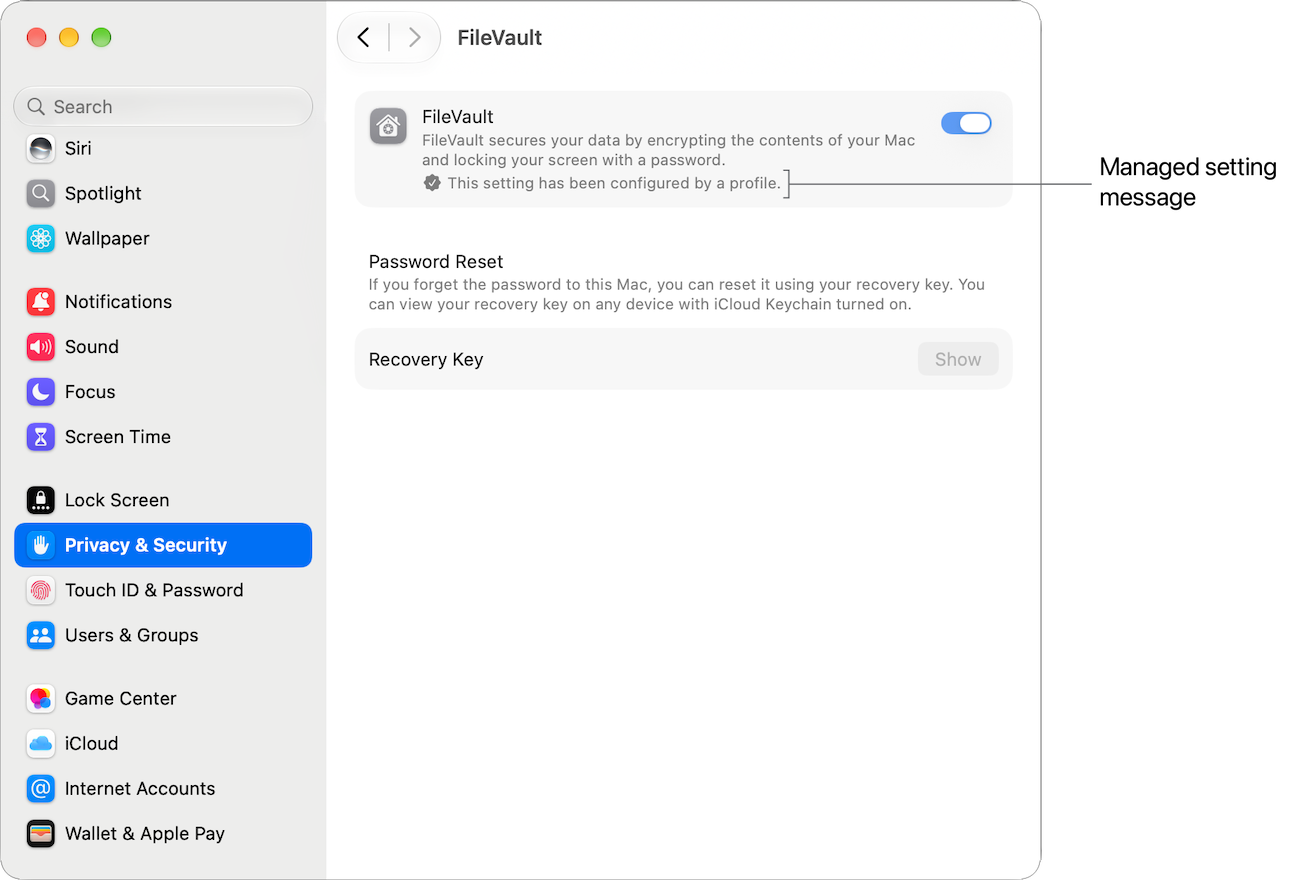
If a setting on iPad, iPhone, or Mac is managed, it may appear dimmed in Settings or System Settings. The phrase “This setting has been configured by a profile” might also appear. These visual indicators mean the setting has been locked and can be changed only by the device management service.
How to view a configuration profile on iPhone or iPad
Go to Settings > General > VPN & Device Management > Device Management.
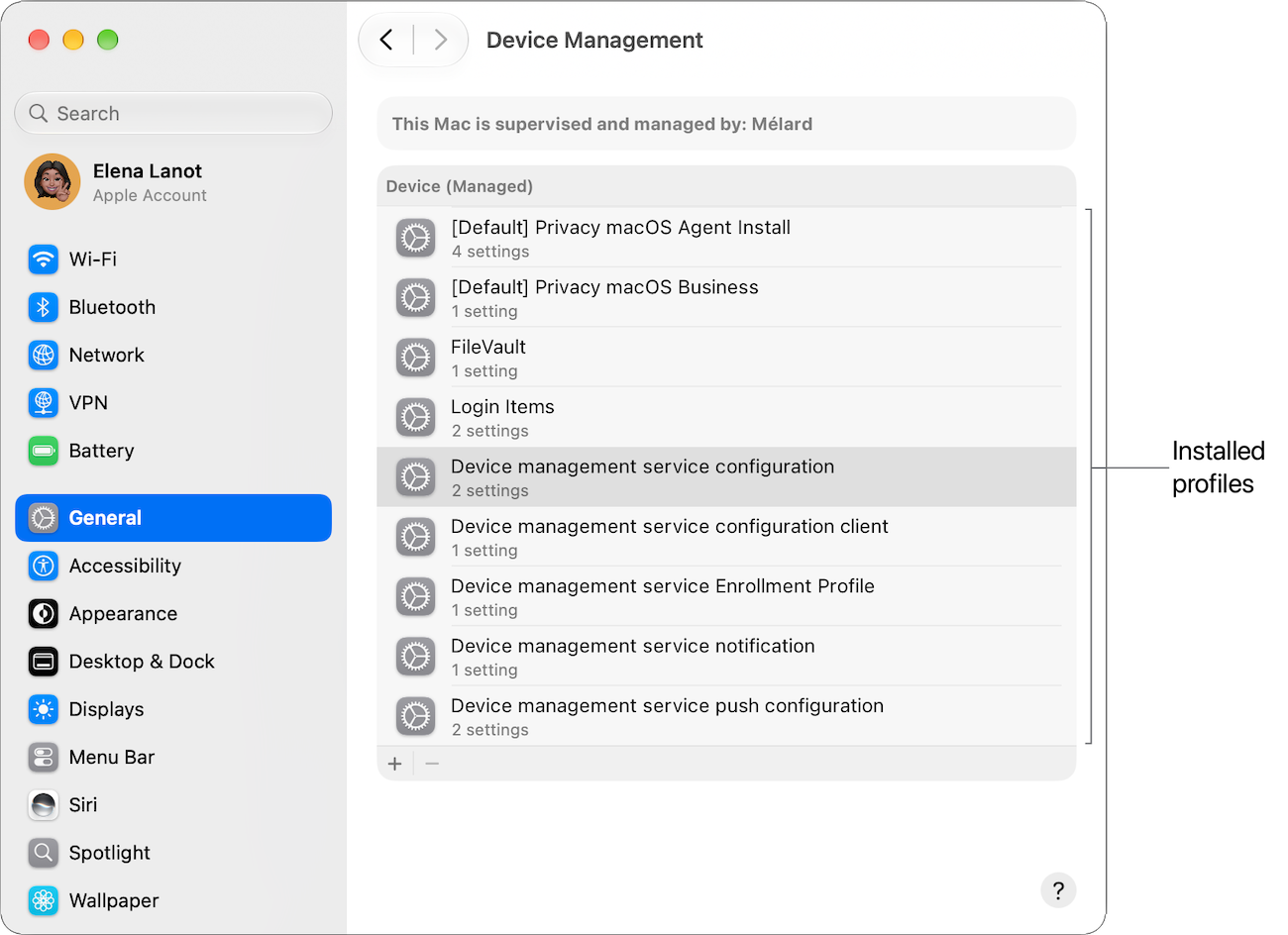
How to view a configuration profile on a Mac
Choose Apple menu > System Settings, click General in the sidebar, then click Device Management, or open System Information and choose Software > Profiles in the sidebar.
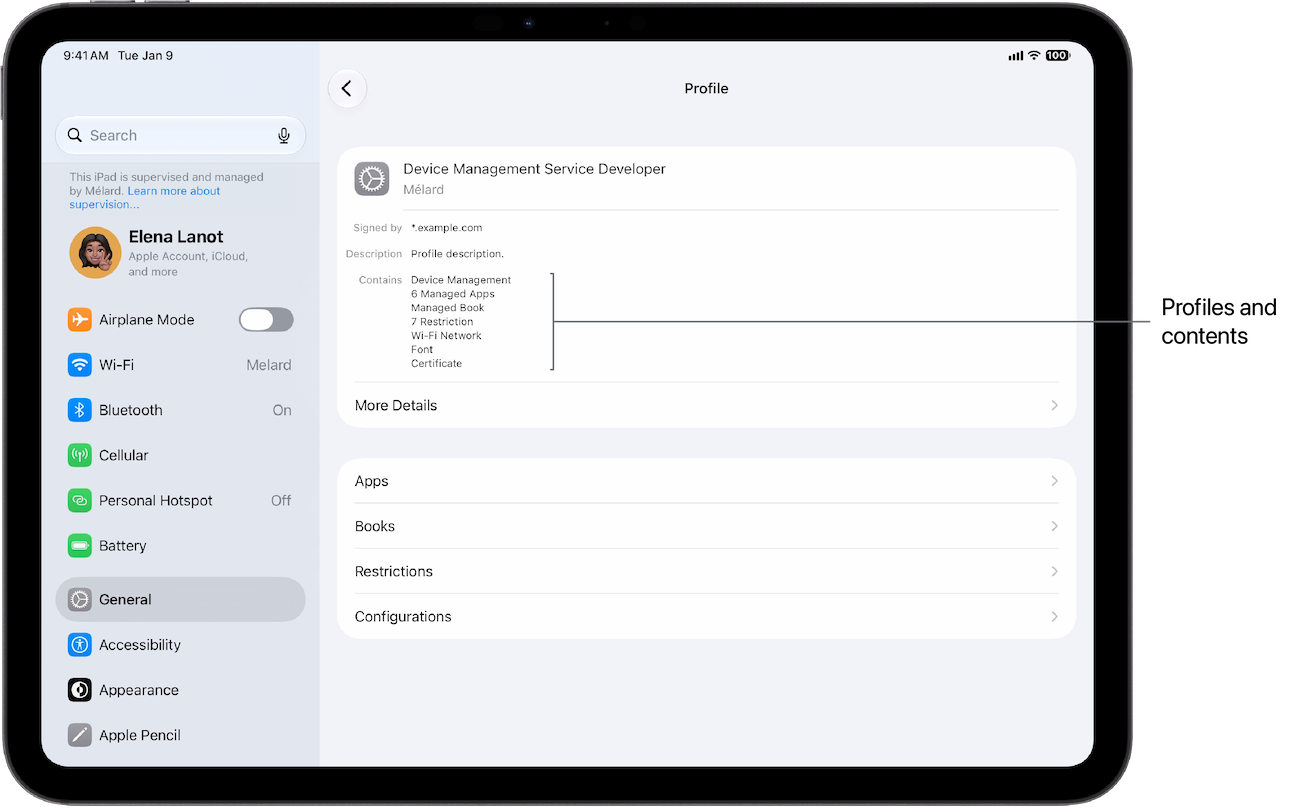
How to view configuration profile contents on iPhone or iPad
Examine configuration profiles and their contents on the device after they’re installed. Tap the listed options, such as Apps, Books, and Restrictions, for information. You can also tap More Details to reveal enrollment profile information.
How to view configuration profile contents on Mac
Examine configuration profiles and their contents on the device after they’re installed. Double-click any of the listed profiles on a managed Mac to reveal information that contains a description of the profile, the date of installation, what settings are affected on the Mac, and further information on the specific profile in the details section.
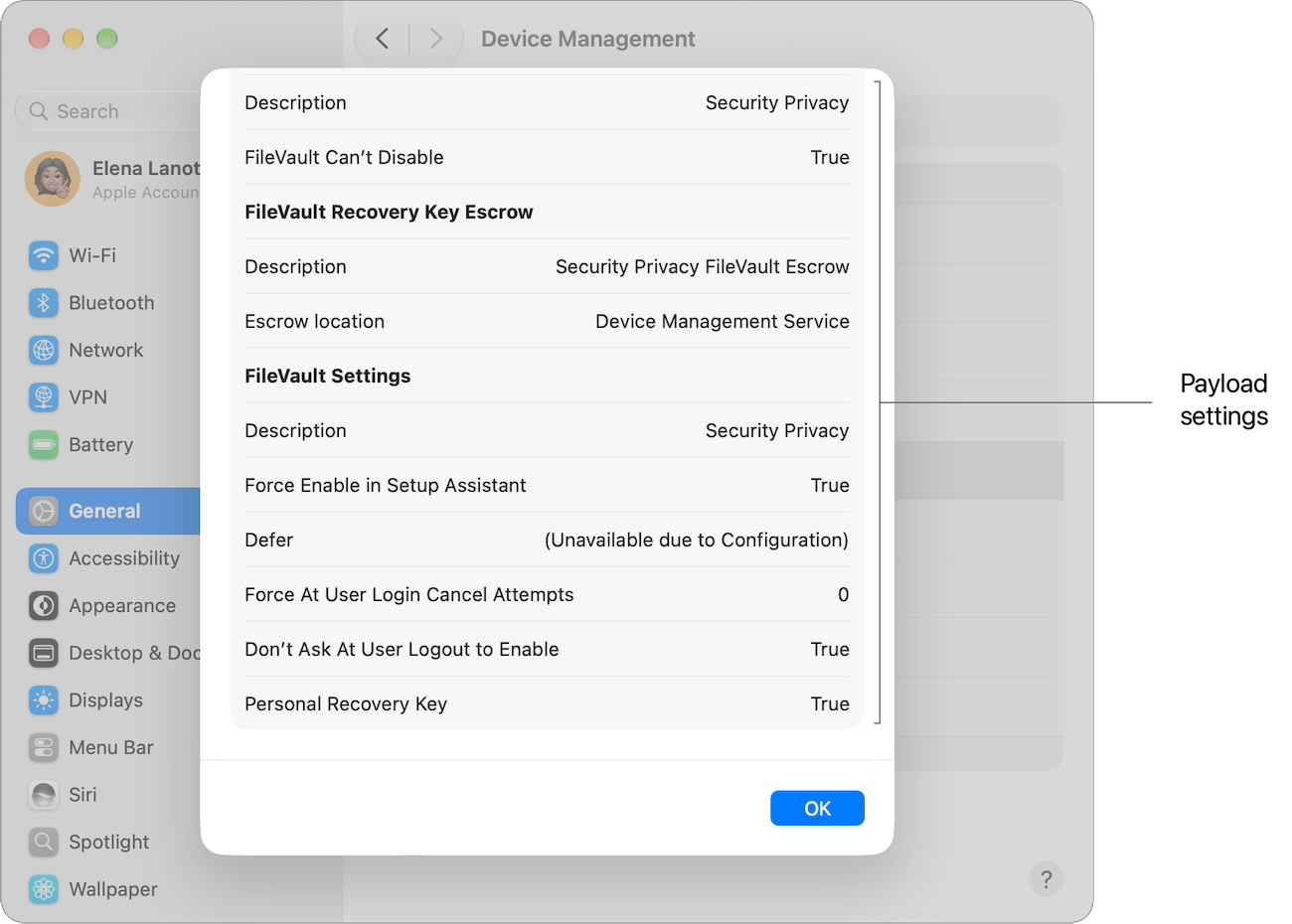
The same information can also be viewed in System Information. In the System Information sidebar under Software, click Managed Client or Profiles to review installed profiles.
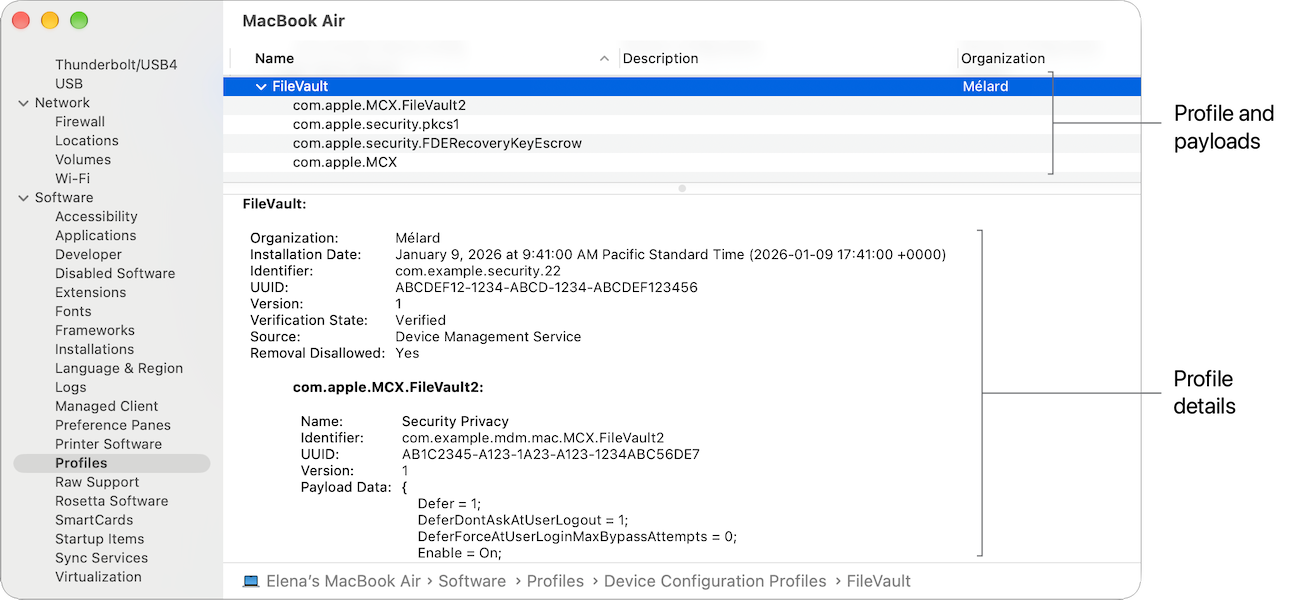
The view of a profile’s contents in System Information is formatted differently from the view in Device Management settings.