
Add devices using Apple Configurator to Apple Business
You can manually add the following devices to Apple Business using Apple Configurator, even if the devices weren’t purchased directly from Apple, an Apple Authorized Reseller, or an authorized cellular carrier:
App | iPhone | iPad | Mac | Apple TV (only models with Ethernet) | Apple Vision Pro |
|---|---|---|---|---|---|
Apple Configurator for iPhone |
|
|
|
|
|
Apple Configurator for Mac |
|
|
|
|
|


After you set up the devices, they behave like any other device already in Apple Business with mandatory supervision and device management service enrollment. You can then shut down the device and store it until you need it or send it to the user. When you give the device to a user, they have a 30-day provisional period to release the device from Apple Business, supervision, and the device management service. This 30-day provisional period begins after successfully assigning and enrolling the device in:
The built-in device management service in Apple Business
An external device management service that links to Apple Business
Note: For manually added devices, review terms of use for Authorized Devices.
Requirements to add a device using Apple Configurator for iPhone
To download and use Apple Configurator for iPhone, your iPhone needs to have iOS 16 or later installed and your iPad needs to have iPadOS 16 or later installed.
To add devices to Apple Business, they need to have a specific minimum software version and be at a specific Setup Assistant pane:
Minimum supported operating system version | Setup Assistant pane |
|---|---|
macOS 12.0.1 | Select Your Country or Region |
iOS 16 | Choose a Wi-Fi Network |
iOS 16 | Choose a Wi-Fi Network |
visionOS 26 | Hello |
Additional Mac requirements
To add Mac computers, they need to have Apple silicon or an Apple T2 Security Chip. For a list of computers of compatible computers, see the Apple Support articles Mac computers with Apple silicon and Mac models with the Apple T2 Security Chip.
You can add a new Mac or you can add a Mac that has already been set up. Before you can add a Mac that’s already been set up, you need to first erase all content and settings. See Erase your Mac in the Mac User Guide.
Take these additional steps before you add a Mac:
Decide how you want the Mac to connect to the internet, then either create a configuration profile or gather the necessary adapters and cables.
Share the Wi-Fi network credentials (default method): This requires that you connect the iPhone to a Wi-Fi network with access to the internet. The Mac uses the same network credentials when it starts.
Use a network configuration profile: This requires that you create a configuration profile with a Wi-Fi or 802.1X payload containing the appropriate network credentials and save it in a location in the Files app. You can then configure it in Apple Configurator > Settings. See Create and edit configuration profiles in Apple Configurator in the Apple Configurator for Mac User Guide.
Note: If necessary, you can add a certificate payload for use with Wi-Fi or 802.1X authentication to the configuration profile. See Certificates device management payload settings for Apple devices in Apple Platform Deployment.
Connect the Mac to the internet using an Ethernet connection: This requires that you connect the Mac to the internet before assigning it to Apple Business.
Sign in on Apple Configurator for iPhone
Before you add an iPhone, iPad, Mac, or Apple Vision Pro to Apple Business, you need to sign in with a user who has permissions to manage devices.
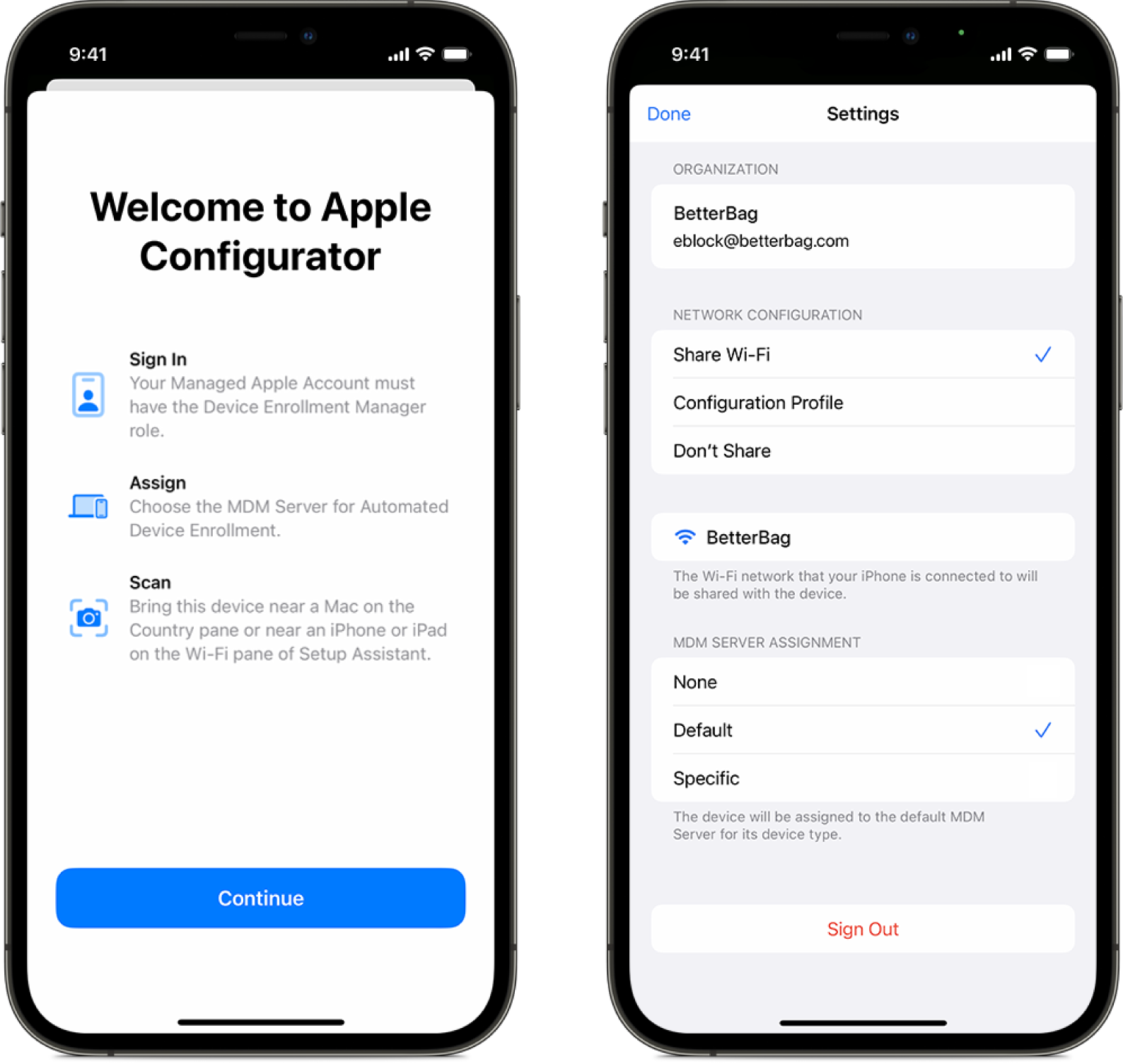
Make sure your iPhone can access the internet through a Wi-Fi network or a cellular connection, then launch Apple Configurator
 on your iPhone.
Sign in with the Managed Apple Account of a user who has permissions to manage devices.
If necessary, go to Settings in the Apple Configurator app, then complete steps 4 or 5.
Select the network connection method you want to use:
Share Wi-Fi: This method shares the iPhone Wi-Fi connection with the device you want to add.
Configuration Profile: This method requires a configuration profile for the device you want to add.
Don’t Share: This method requires the user to select connection method.
Note: This method isn’t supported with Apple Vision Pro.
Select the device management service assignment method:
None: Don’t automatically assign devices to a device management service.
If you select None, you need to complete the task, Assign a device you add with Apple Configurator to a device management service.
Default: Automatically assign devices to the configured device management service in Apple Business for a specific device type (iPhone, iPad, Mac, Apple Vision Pro).
Specific: Automatically assign devices to a specific device management service.
Add a new Mac using Apple Configurator for iPhone
Before you begin, make sure you review the requirements and Sign in on Apple Configurator for iPhone.
Launch Apple Configurator
on your iPhone.If you’re adding a Mac laptop, plug it into a power source so it doesn’t go to sleep during the process.
If the Mac is connecting to the internet using Ethernet, plug in all necessary cables and adapters.
Start up the Mac.
Select the language in Setup Assistant, click Continue, then stop when you see the Select Your Country or Region pane.
Note: You need to restart the Mac if you go past the Select Your Country or Region pane.
Bring your iPhone close to the Mac, then do one of the following:
Scan the image that appears in Setup Assistant.
Click Pair Manually in the lower left corner of the Setup Assistant, then tap Manual Pairing in Apple Configurator and enter the six-digit code that appears.
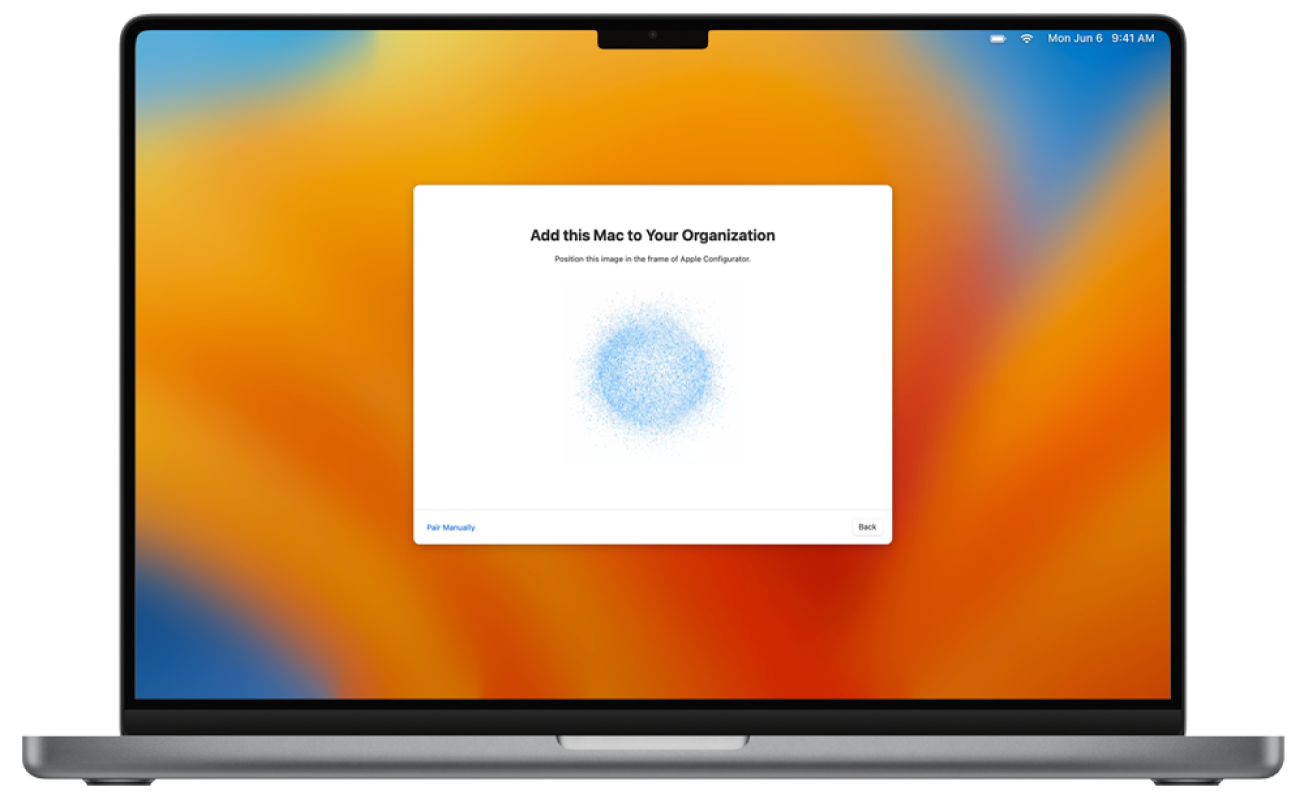
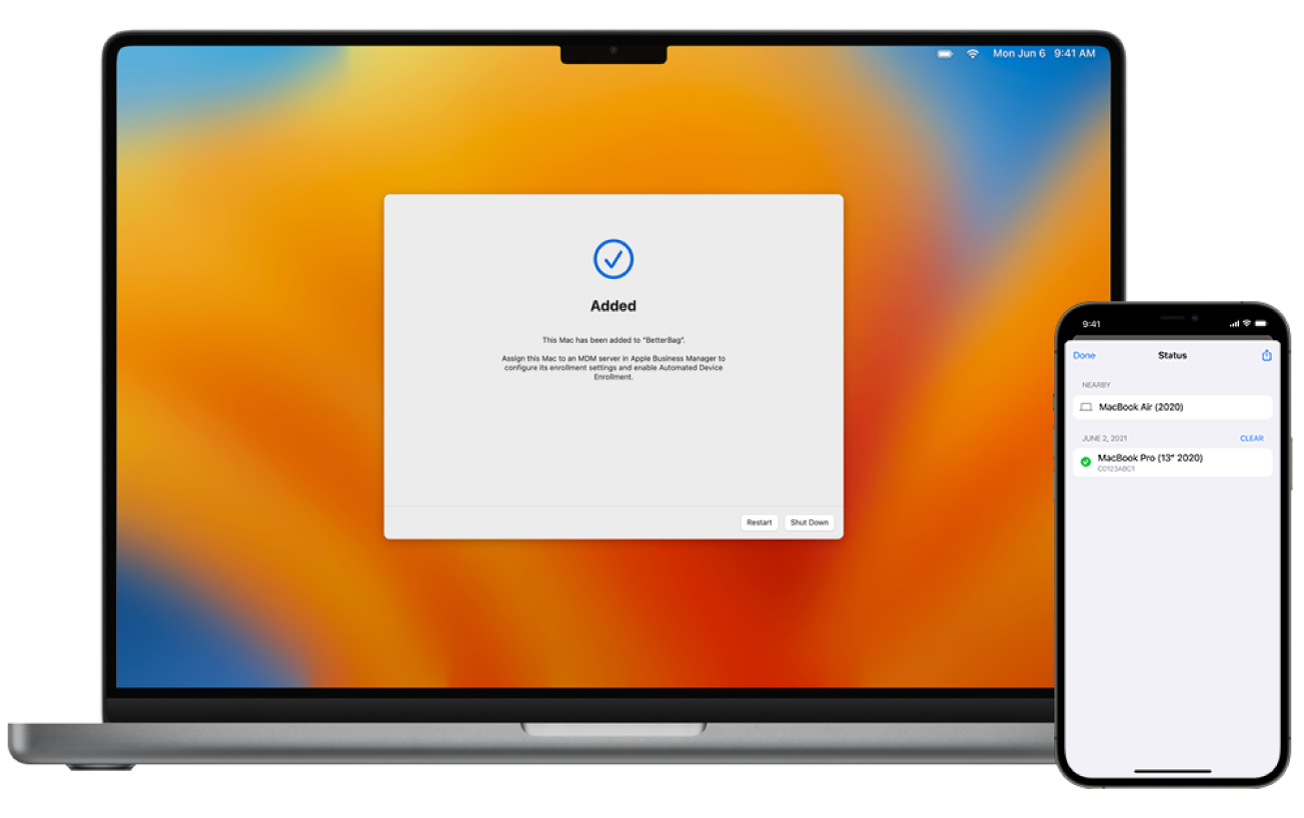
The serial number and other information about the Mac uploads to Apple Business.
Wait for the process to complete, then click Shut Down to turn off the Mac.
Important: If you don’t choose to automatically assign newly added devices to a device management service when you add the Mac, you need to complete the task Assign a device you add with Apple Configurator to a device management service.
Add a configured Mac using Apple Configurator for iPhone
If you want to add a configured Mac to Apple Business, you need to first erase all content and settings.
WARNING: Erasing your Mac removes all the information from it. Make sure you have an up-to-date backup of your Mac.
Before you begin, make sure you review the requirements and Sign in on Apple Configurator for iPhone.
Launch Apple Configurator
on your iPhone.If you’re adding a Mac laptop, plug it into a power source so it doesn’t go to sleep during the process.
If the Mac is connecting to the internet using Ethernet, plug in all necessary cables and adapters.
Choose Apple menu
 > System Settings > General
  > Transfer or Reset, then click Erase All Content and Settings.
In Erase Assistant, enter your administrator information.
Review items that Erase Assistant removes in addition to your content and settings.
If your Mac has multiple user accounts, click the arrow next to your account name to review the items.
Click Continue, then follow the onscreen instructions.
Note: If you have a modified version of macOS, Erase Assistant can’t erase your Mac and displays an alert indicating you need to first reinstall macOS. See Erase and reinstall macOS in the Mac User Guide.
Wait for the Mac to restart.
Select the language in Setup Assistant, click Continue, then stop when you see the Select Your Country or Region pane.
Note: You need to restart the Mac if you go past the Select Your Country or Region pane.
Bring your iPhone close to the Mac, then do one of the following:
Scan the image that appears in Setup Assistant.
Click Pair Manually in the lower left corner of the Setup Assistant, then tap Manual Pairing in Apple Configurator and enter the six-digit code that appears.
The serial number and other information about the Mac uploads to Apple Business.
Wait for the process to complete, then click Shut Down to turn off the Mac.
Important: If you don’t choose to automatically assign newly added devices to a device management service when you add the Mac, you need to complete the task Assign a device you add with Apple Configurator to a device management service.
Add an iPhone or iPad using Apple Configurator for iPhone
Before you begin, make sure you review the requirements and Sign in on Apple Configurator for iPhone.
Launch Apple Configurator
on your iPhone.Start up the iPhone or iPad.
Continue through the Setup Assistant, then stop when you see the Choose a Wi-Fi Network pane.
Note: You need to restart the iPhone or iPad if you go past the Choose a Wi-Fi Network pane.
Bring your iPhone with Apple Configurator close to the iPhone or iPad, then do one of the following:
Scan the image that appears in Setup Assistant.
Tap Pair Manually in the lower left corner of the Setup Assistant, then tap Manual Pairing in Apple Configurator and enter the six-digit code that appears.
Note: If Setup Assistant doesn’t show the pairing pane on the iPhone or iPad you want to add, return to the Home Screen on your iPhone, then tap the Apple Configurator app.
The serial number and other information about the iPhone or iPad uploads to Apple Business.
Wait for the process to complete, then tap Erase and Shut Down.
Important: If you don’t choose to automatically assign newly added devices to a device management service when you add the iPhone or iPad, you need to complete the task Assign a device you add with Apple Configurator to a device management service.
Ensure the device management service has a record of the device to proceed with Automated Device Enrollment.
If prompted, ignore the proximity setup option.
Proceed with Setup Assistant on the newly configured iPhone or iPad.
Add an Apple Vision Pro using Apple Configurator for iPhone
Before you begin, make sure you review the requirements and Sign in on Apple Configurator for iPhone.
Note: The device running Apple Configurator for iPhone needs to be configured to share the current Wi-Fi connection or a Wi-Fi configuration profile with Apple Vision Pro.
Launch Apple Configurator
on your iPhone.Start up the Apple Vision Pro.
The Setup Assistant needs to be at the Setup Assistant Hello pane.
Note: You need to restart the Apple Vision Pro if you go past the Hello pane.
Bring your iPhone with Apple Configurator close to the Apple Vision Pro, tap Manual Pairing in Apple Configurator, then enter the six-digit code that appears to the user wearing the Apple Vision Pro.
Note: If Setup Assistant doesn’t show the pairing pane on the Apple Vision Pro you want to add, return to the Home Screen on your iPhone, then tap the Apple Configurator app.
The serial number and other information about the Apple Vision Pro uploads to Apple Business.
Wait for the process to complete, then tap Erase and Shut Down.
Important: If you don’t choose to automatically assign newly added devices to a device management service when you add the Apple Vision Pro, you need to complete the task Assign a device you add with Apple Configurator to a device management service.
Ensure the device management service has a record of the Apple Vision Pro to proceed with Automated Device Enrollment.
If prompted, ignore the proximity setup option.
Proceed with Setup Assistant on the newly configured Apple Vision Pro.
Add an iPhone, iPad, or Apple TV using Apple Configurator for Mac
There are two ways to add iPhone, iPad, and Apple TV devices to Apple Business in Apple Configurator:
Do select the Activate and complete enrollment option: Select this option if you have an existing device that your device management service already manages and has a record for. This can include managing all the Setup Assistant steps so that the user gets a device that’s ready to use.
Don’t select the Activate and complete enrollment option: Select this option if you have a new or existing device that requires unique user authentication to enroll in a device management service. The device remains at the Setup Assistant, and the user completes the enrollment.
If the device is in use, sign out of iCloud, turn off Find My before erasing the device, and leave the device plugged in while the process completes.
Note: The Apple TV needs to have Ethernet to be added manually.
In Apple Configurator for Mac, select one or more devices you want to prepare or use Blueprints, then do one of the following:
Click Prepare in the toolbar.
Choose Actions > Prepare.
Control-click the selected devices or Blueprints, then choose Prepare.
The Prepare Assistant appears.
Select Manual Configuration, then add the devices to Apple School Manager or Apple Business.
Deselect Activate and Complete Enrollment, click Next, then select New Service from the Device Management Service menu and click Next.
Enter Apple School Manager or Apple Business in the Name field, leave the device management service URL unchanged, then click Next.
The URL won’t verify.
Click Next, don’t add a certificate, then click Next.
Do one of the following:
Select your organization
Select New Organization.
Click Next, enter the Managed Apple Account user name and password of a user who has permissions to manage devices, then click Next.
To view roles and permissions, see Intro to roles and permissions.
Click Continue to complete the sign in, then select Generate a new supervision identity.
Select which Setup Assistant panes you prefer to skip in Setup Assistant, then click Next.
Select a Wi-Fi configuration profile, then select Next.
To learn how to create a configuration profile, see Create and edit configuration profiles in the Apple Configurator for Mac User Guide.
Authenticate using your macOS administrator user name and password, then click Update Settings.
If prompted, unlock the device.
If prompted that the device is already setup and need to be erased, click Erase to continue.
The device is then left at the Setup Assistant, and the user completes the enrollment.
Important: If you intend to use Automated Device Enrollment with manually added devices, don’t proceed with Setup Assistant on the device after you assign it to a device management service in Apple Business. See Assign, reassign, or unassign devices.
Assign a device you add with Apple Configurator to a device management service
After adding a device with Apple Configurator, it appears in a group named Apple Configurator in the Devices section in Apple Business. You can then assign the device to one of your device management services. After assigning a device to your service, it no longer uses any settings from Apple Configurator.
Important: You may need to refresh the list of devices in your device management service before the newly added devices appear.
In Apple Business, sign in with a user whose role has permissions to add devices with Apple Configurator.
To view roles and permissions, see Intro to roles and permissions.
Select the Search Filter, select Source, select Apple Configurator, then select Search.
Select one or more devices, select Assign Device Management for a single device or select Assign for multiple devices, then select the device management service you want to assign the devices to.
Select Continue.
Carefully read the dialog, then select Confirm.
A new activity is created.
Choose one of the following:
Stop the activity.
View the activity.
Select Close.
Wait for the activity to complete, then select Done.
When an enrollment profile is removed using Apple Configurator
On devices with iOS 14 and iPadOS 14 or later, when you use Apple Configurator for Mac to enroll a device in Apple Business and then remove the device management service enrollment profile from the device, the device resets to factory settings and automatically releases from Apple Business.