
Restore iPhone or iPad from a Mac backup
If a user created an iPhone or iPad backup on their Mac, they can use the Finder to restore the backup to a device. If they created an iPhone or iPad backup using Apple Configurator on their Mac, they can use the Restore from Back Up action. Restoring a device from a backup in the Finder, or with Apple Configurator, reinstalls apps, settings, and user data from the time the backup was made.
On a device with iOS 27 and iPadOS 27 or later, a restore doesn’t bring back a device’s enrollment or supervision. See Back up and restore a managed iPhone or iPad.
Restore from a backup using the Finder
Steps to take:
On the Mac, open a new Finder window.
Connect the device to the Mac with a supported Thunderbolt or USB cable. If a message asks for the device passcode or to Trust This Computer, follow the onscreen steps. Get help if you don’t have the passcode.
Select the iPhone or iPad when it appears in the Finder window.
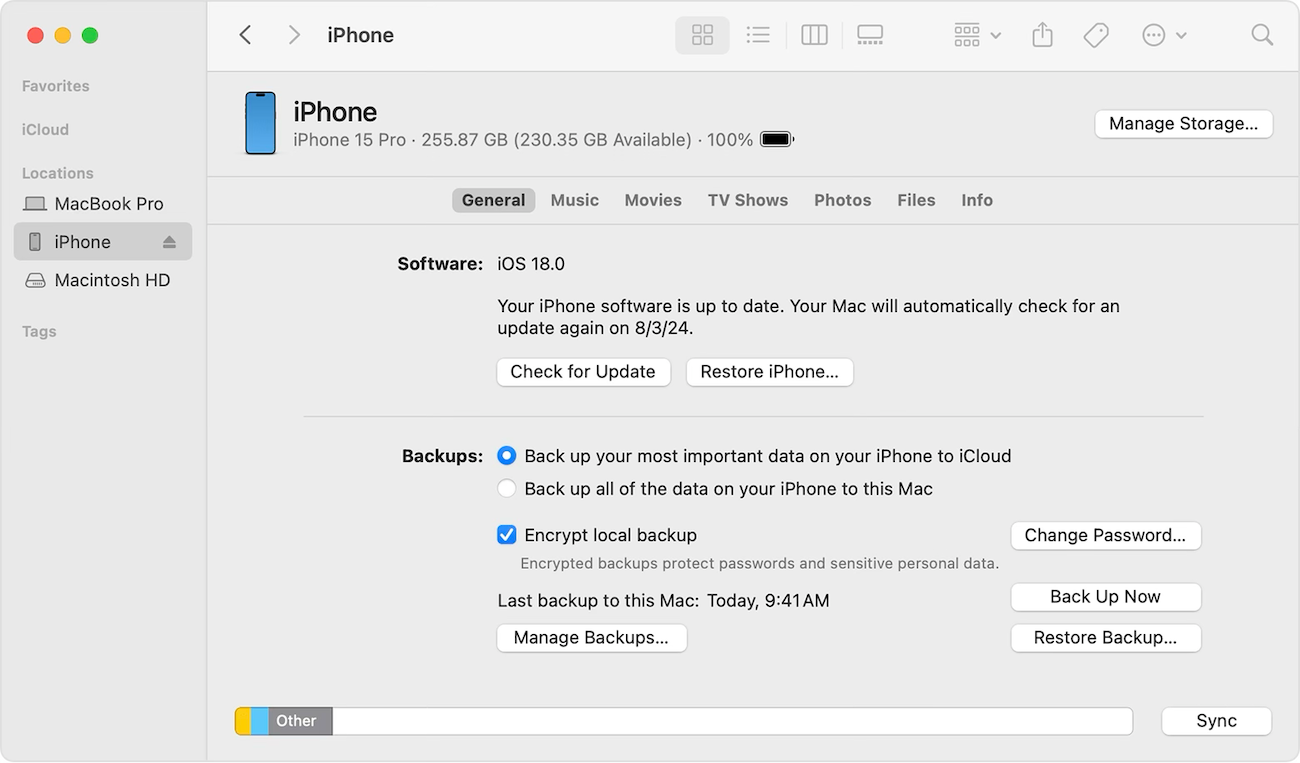
Select Restore Backup. Learn what to do if a message says the device’s software is too old.
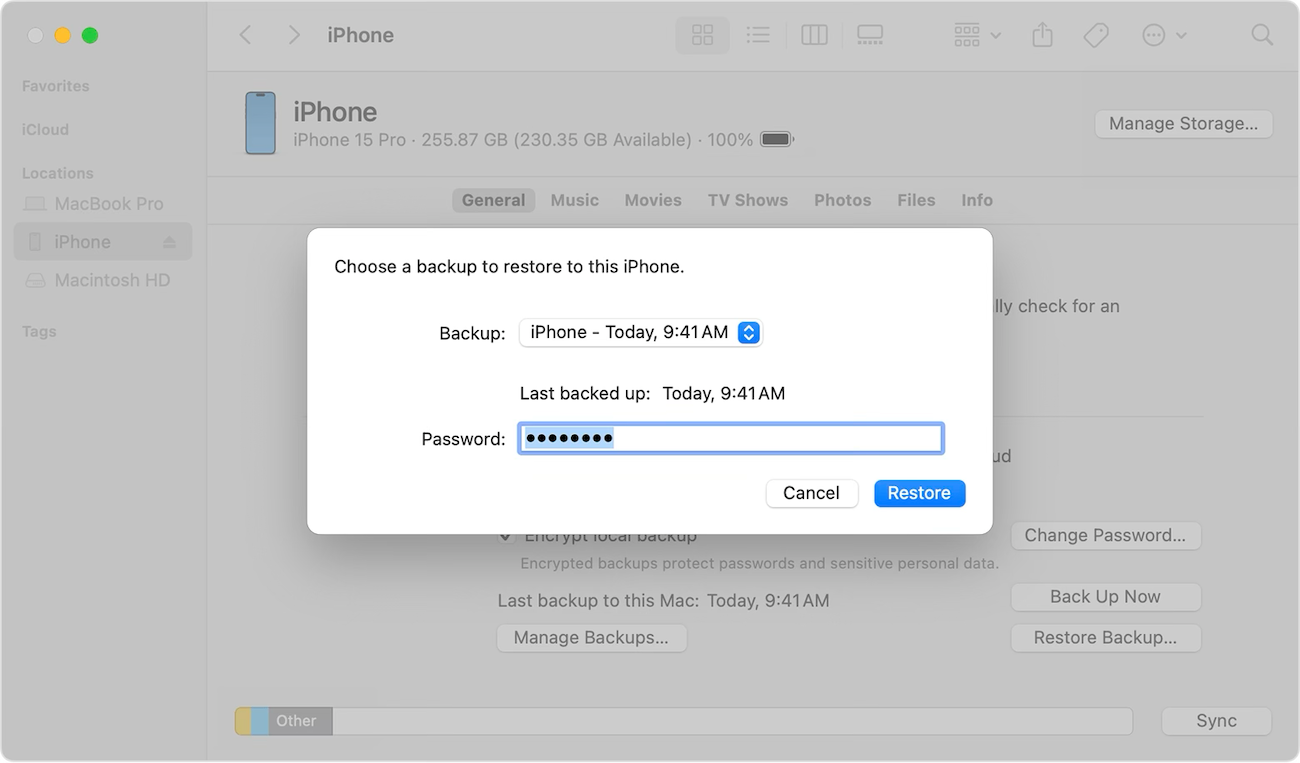
Look at the date of each backup, and pick the most relevant.
Click Restore, and wait for the restore to finish. If asked, have the user enter the password for the encrypted backup.
Keep the device connected after it restarts, and wait for it to sync with the Mac. The user can disconnect after the sync finishes.
Restore iPhone or iPad using Apple Configurator for Mac
On the Mac, download and install Apple Configurator from the App Store.
Connect the device to the Mac with a supported Thunderbolt or USB cable.
Select the device in the device window.
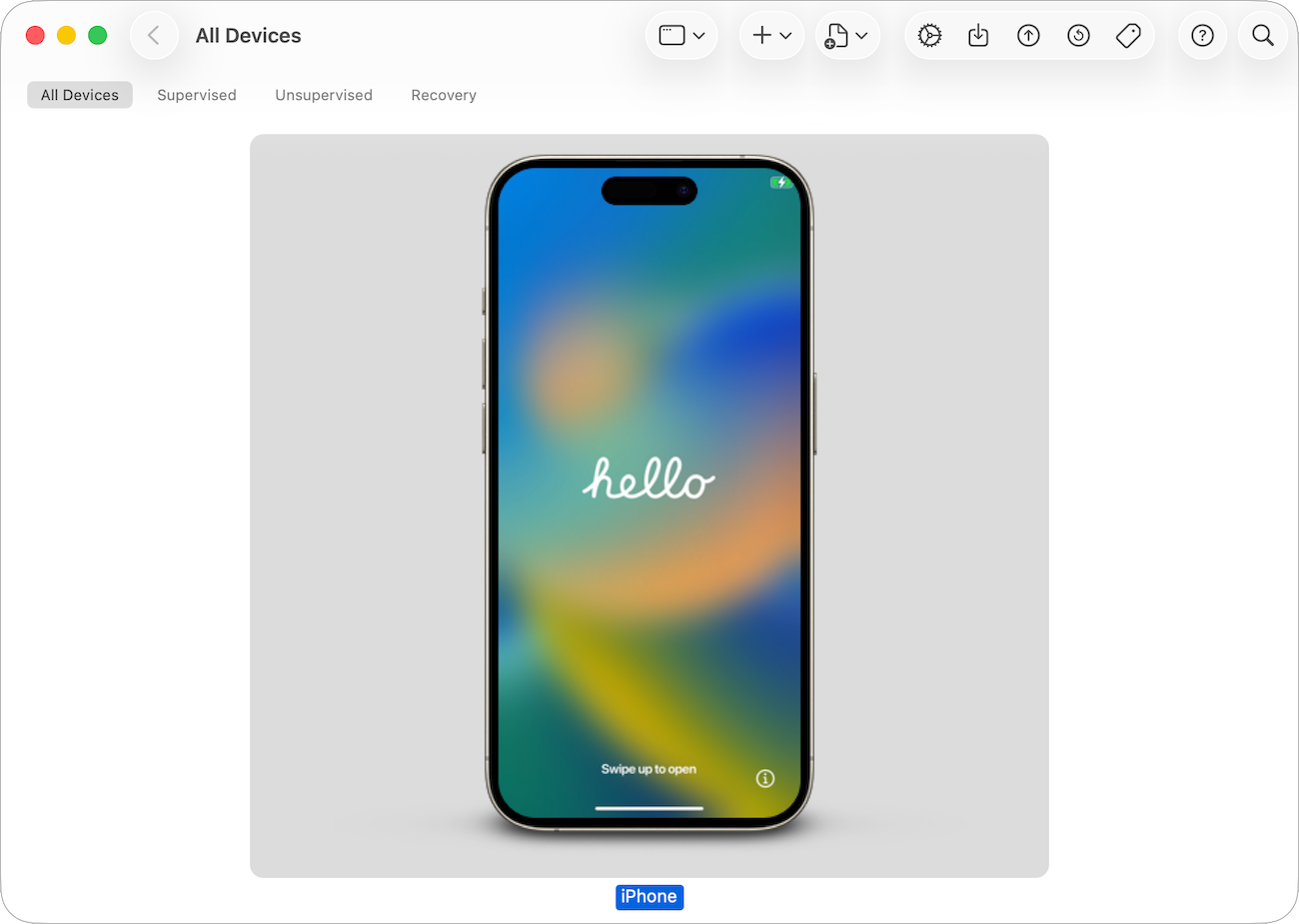
Do one of the following:
Choose Actions > Restore from Back Up.
Control-click the selected devices, and choose Restore from Back Up.
Locate the backup using one of the following methods:
Search for a backup: Click in the search field, enter the name of the backup, then press Return.
Sort backups: Click a column title to sort backups by device name, encryption status, or backup date.
Select the relevant backup, then click Restore. If asked, enter the password for the encrypted backup.
WARNING: All contents on the device will be erased before restoring the device from the selected backup.
If a restore from a Mac backup fails
Issues may appear during or after the restore process that prevent a user from restoring a device from a Mac backup.
What to look for:
A message appears and states that the backup is incompatible or can’t be used.
The restore begins but doesn’t complete.
The Finder doesn’t detect the backup.
The backup appears dimmed or missing in the list.
After restore, some settings or apps are missing.
The user can’t remember the password for their encrypted backup.
Steps to take:
Incompatible backup: The backup might need a later version of iOS or iPadOS. See the Apple Support article Restore an iPhone, iPad, or iPod touch that needs a newer version of iOS or iPadOS.
Search for a backup: Click in the search field, enter the name of the backup, then press Return.
Sort backups: Click a column title to sort backups by device name, encryption status, or backup date.
Forgotten backup password: Users can’t restore an encrypted backup without its password. See “If a user can’t remember their password for their encrypted backup” in Back up an unmanaged iPhone or iPad to a Mac to make a new encrypted backup.