Pages User Guide for iPad
- Welcome
- What’s new
- Copyright

Quick navigation in Pages on iPad
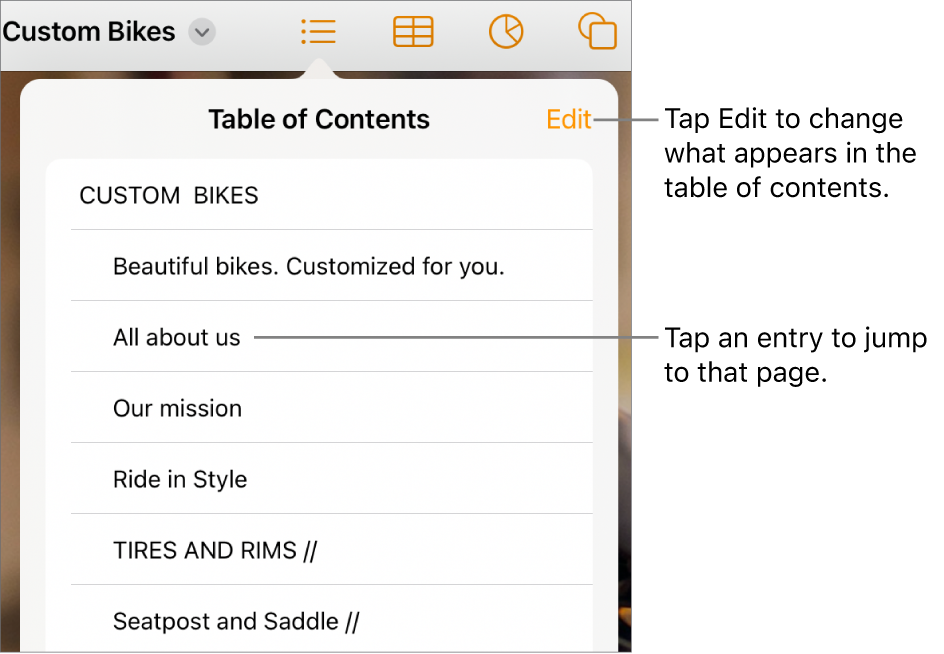
To make it easier to navigate your document, you can view thumbnails of the pages in your document or a table of contents to help you quickly find and jump to a particular page. You can also use a shortcut to jump to the beginning of the document.
Show or hide Page Thumbnails view
Go to the Pages app
 on your iPad.
Open a document.
Tap
 at the top of the screen, then turn on Page Thumbnails
To hide page thumbnails, swipe left across the thumbnails.
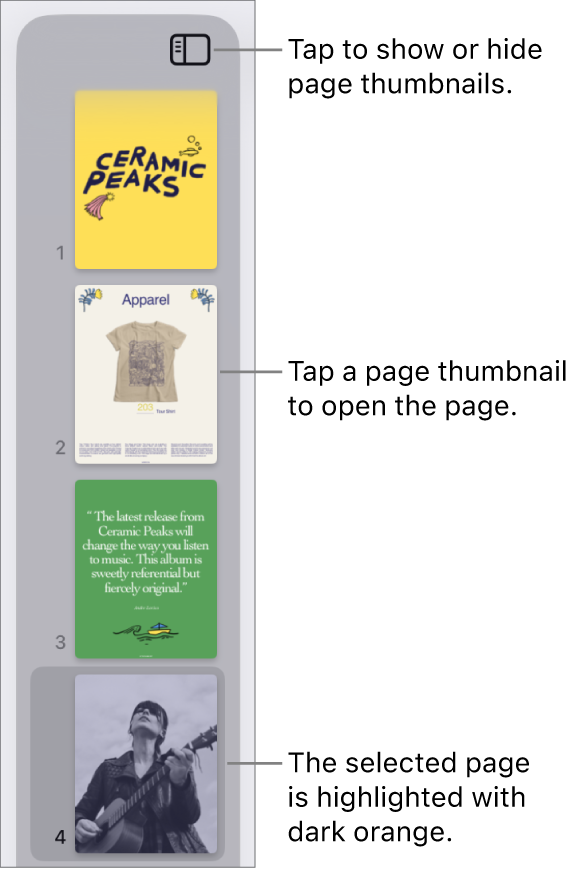
In Page Thumbnails view, you can rearrange sections in a word-processing document or rearrange pages in a page layout document. See Rearrange pages or sections.
Show Table of Contents view
Go to the Pages app
on your iPad.Open a document, then tap
 at the top of the screen.
Tap an entry to jump to that page.
To close the table of contents without leaving the current page, tap the document.
Jump to the beginning of a document
Go to the Pages app
on your iPad.Tap the status bar (the border displaying the time, above the Pages toolbar).
Tip: You can also bookmark text in your document, then use the bookmarks list to jump to the bookmarks. See Add bookmarks and cross-references.