Listen to songs, view lyrics, and watch music videos
In the Shazam app, you can listen to or preview your identified songs, view time-synced lyrics, and watch Apple Music previews and YouTube music videos.
Listen to your identified songs on iPhone or iPad
If you’re an Apple Music subscriber, you can listen to full songs in the Shazam app on your Apple device.
Go to the Shazam app
 , then tap Library
  at the bottom of the screen.
Do either of the following:
Tap
 on a song.
Tap a song’s cover art or name, then tap
in the track screen.
Tap
 to show the Now Playing screen.
Do either of the following:
Tap
 or
or  to show or hide upcoming songs.
Tap
 to hide Now Playing.
To play full songs in the Shazam app, you must subscribe to Apple Music.
Note: When the Shazam app is connected to Spotify, you can only listen to song previews. If the app is disconnected from Spotify and you’re still unable to play full songs on iPhone or iPad, go to Settings
 >Privacy & Security > Media & Apple Music, then turn on Shazam.
Listen to previews of your identified songs on an Android device
You can listen to song previews in the Shazam app on your Android device. If you’re an Apple Music subscriber, you can automatically sync your identified songs to a “My Shazam Tracks” playlist and listen to full songs in Apple Music.
Go to the Shazam app
, tap  (or swipe to the Library), then tap Songs.
Do either of the following:
Tap
on a song.Tap the a song’s cover art or name, then tap
in the track screen.
Tap
to show playback controls and upcoming song previews, or tap  to hide the playback controls and upcoming previews.
View your identified songs and details
Go to the Shazam app
, then do one of the following:On iPhone or iPad: Tap Library
at the bottom of the screen.On an Android device: Tap
(or swipe to the Library).
Do one of the following:
On iPhone or iPad: Tap Library
at the bottom of the screen, then scroll through the list of songs. Tap  to sort the songs by date, song title, or artist name.
On an Android device: Tap Songs, then scroll through the list of songs.
To view a song’s details, tap the song’s cover art or song name, then scroll to view the album title, label, release date, and more.
Search or browse your identified songs on iPhone and iPad
Go to the Shazam app
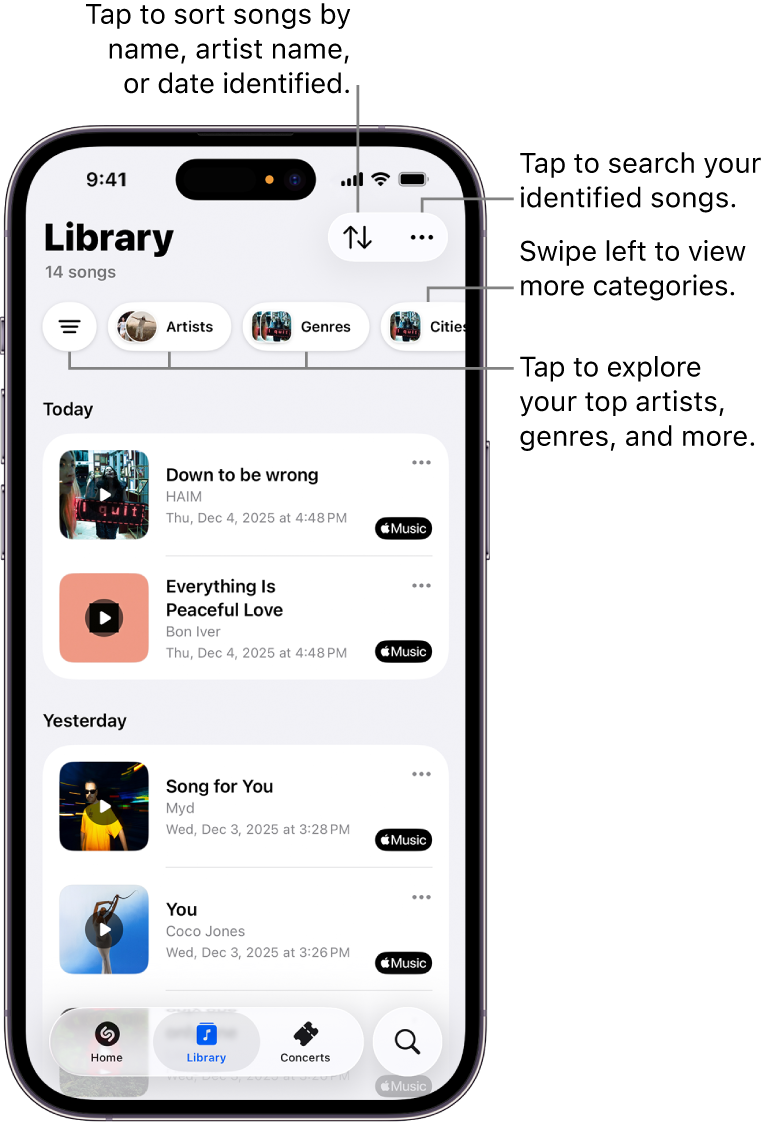
, then tap Library at the bottom of the screen.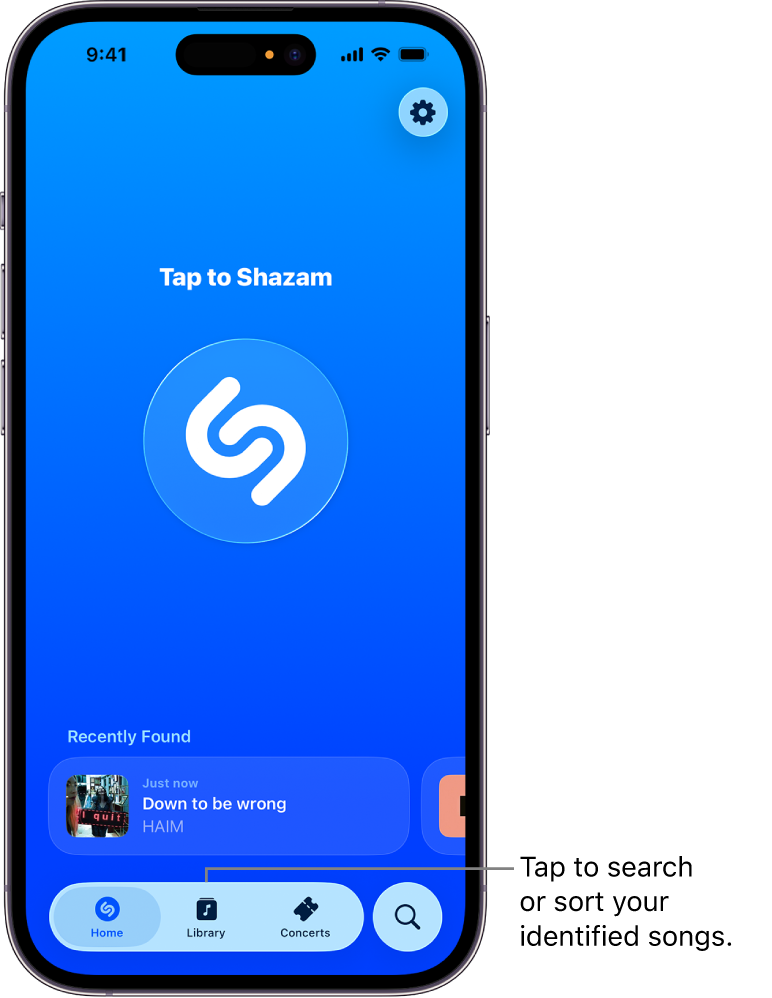
Do any of the following:
Tap
, then choose a sorting option.Tap
 , tap
, tap  to display the search field, then enter a song or artist name in the field.
Tap
 , then tap an artist, genre, city, mood, decade, or source. Alternatively, tap a category to explore your identified songs (swipe left to view more categories).
Note: Categories appear once you’ve identified 12 or more songs. To browse by city, allow the Shazam app to use your location.
Tip: To quickly search songs from your iPhone and iPad Home Screen, touch and hold the Shazam app icon, then tap Search Songs.


Search or browse your identified songs on an Android device
Go to the Shazam app
, tap (or swipe to the Library), then tap Songs.Do either of the following:
Tap
 , then tap an artist, genre, mood, decade, or source. Alternatively, tap a category to explore your identified songs (swipe left to view more categories).
Note: Categories appear after you’ve identified 12 or more songs. To browse by city, allow the Shazam app to use your location.
Tap
, then enter a song or artist name in the search field.
View lyrics for your identified songs
You can follow along with time-synced lyrics on a freshly identified song, or view lyrics for any previously identified song.
Note: Lyrics aren’t available for all songs.
Go to the Shazam app
on iPhone, iPad, or an Android device.Do either of the following:
View time-synced lyrics: Immediately after you identify a song, tap
 on iPhone or iPad, or tap
  on an Android device.
Note: Time-synced lyrics are available only with a newly identified song. Time-synced lyrics aren’t available for all songs.
View lyrics for a previous song: Tap a song, then tap
on iPhone or iPad, or tap on an Android device.
Tip: Love to sing along and have Apple TV 4K? Take the lead—or blend in with the original artist—with Apple Music Sing. See Use Apple Music Sing in the Apple TV 4K User Guide.
Watch music videos from Apple Music and YouTube
Go to the Shazam app
, then do one of the following:On iPhone or iPad: Tap Library
at the bottom of the screen.On an Android device: Tap
(or swipe to the Library), then tap Songs.
Do either of the following:
Watch a video on Apple Music: Tap a song’s cover art or name, tap the preview video (if available) in the track screen, tap Music Video (on iPhone or iPad), then tap Watch on Apple Music.
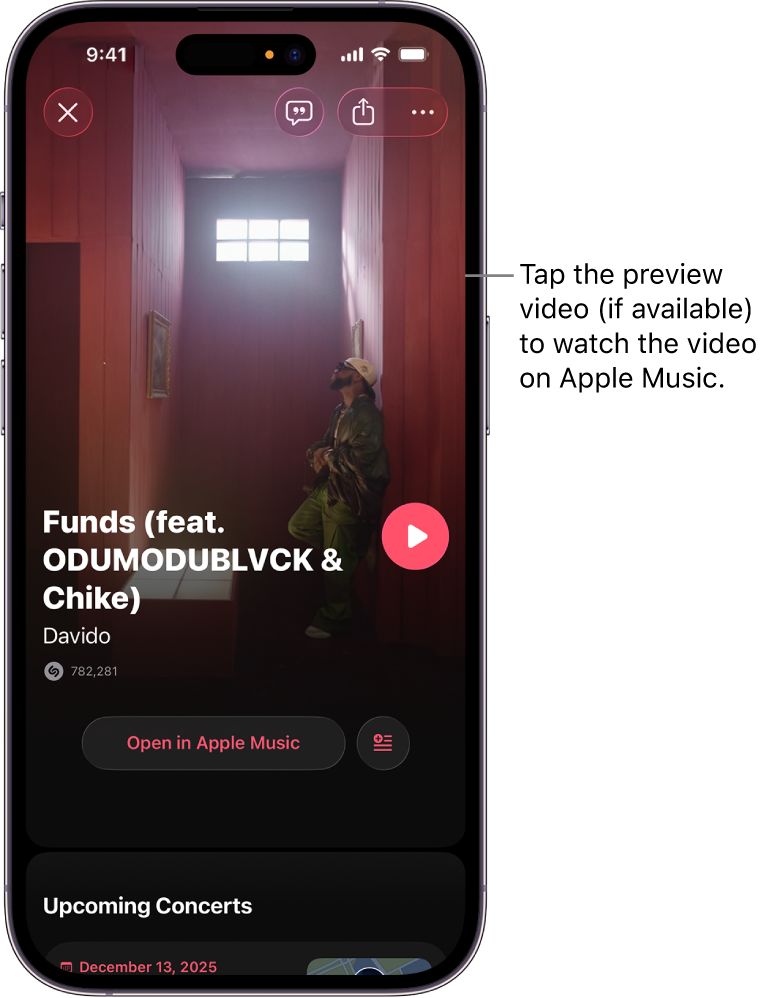
Note: Music videos aren’t available for all songs. If you don’t see a video preview, make sure Autoplay Videos is turned on in Shazam app settings
 .
.Watch a YouTube video: Tap a song’s cover art or song name, scroll down in the track screen to the video category, then tap the YouTube play button.

Tip: You can have iPhone or iPad play songs from one of four mood-based playlists—Sleep, Chill, Productivity, or Wellbeing—in Ambient Music.