Final Cut Pro Logic Effects
- Welcome
-
- Intro to echo effects
-
- Intro to Delay Designer
- Delay Designer interface
- Main display controls
- View buttons
- Navigate the Tap display
- Create taps
- Select taps
- Move and delete taps
- Use the tap toggle buttons
- Edit taps in the Tap display
- Align tap values
- Edit filter cutoff
- Edit pan
- Tap parameter bar
- Tap shortcut menu
- Reset tap values
- Master section controls
- Use Delay Designer in surround
- Modulation Delay
- Stereo Delay
- Tape Delay
- Copyright
MultiMeter Goniometer controls in Final Cut Pro for Mac
The MultiMeter effect’s Goniometer helps you judge the coherence of the stereo image and determine phase differences between the left and right channels. Phase problems are easily spotted as trace cancelations along the center line, labeled M for mid/mono.
The idea of the goniometer was born with the advent of early two-channel oscilloscopes. To use such devices as goniometers, users would connect the left and the right stereo channels to the X and Y inputs, while rotating the display by 45° to produce a useful visualization of the signal stereo phase.
The signal trace slowly fades to black, imitating the retro glow of the tubes found in older goniometers, while also enhancing the readability of the display.
To add the MultiMeter effect to a clip and show the effect’s controls, see Add Logic effects to clips in Final Cut Pro for Mac.
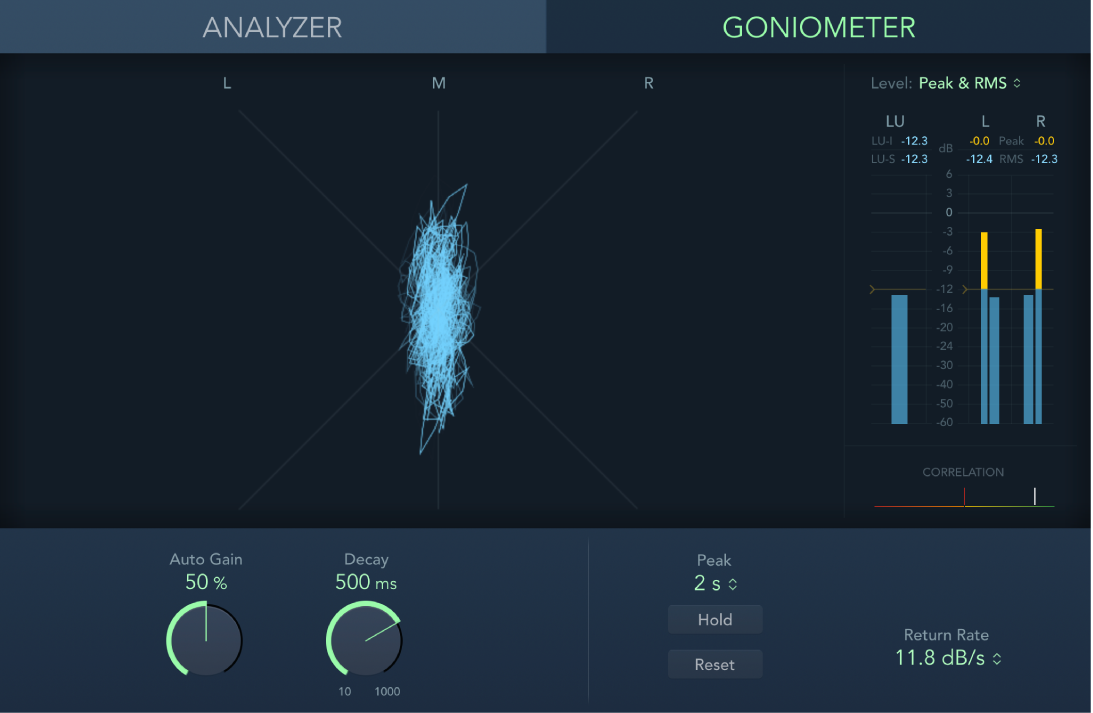
Goniometer button: Switch the main display to the Goniometer.
Auto Gain knob and field: Set the amount of display compensation for low input levels. You can set Auto Gain levels in 10% increments or turn Auto Gain off.
Note: To avoid confusion with the Auto Gain parameter found in other included effects and processors (such as the compressors), Auto Gain is used only as a display parameter in the meters. It increases display levels to enhance readability. It does not change the actual audio levels.
Decay knob and field: Determine the time it takes for the Goniometer trace to fade to black.
Download this guide: PDF