Apple Vision Pro User Guide
- Welcome
-
- Change notification settings and device sounds
- Set the date, time, language, and region
- Change your device name
- Change the appearance of text and windows
- Unlock your iPhone with Apple Vision Pro
- See your keyboard, game controller, or iPhone while immersed
- See people around you while immersed
- Use Apple Vision Pro in Travel Mode
- Refresh apps in the background
- Set content restrictions in Screen Time
- Let others use your Apple Vision Pro
-
- Apple Music Classical
- Books
- Calendar
- Capture
- Clock
- Encounter Dinosaurs
- Home
- Maps
- Mindfulness
- News
- Numbers
- Pages
- Podcasts
- Reminders
- Shazam
- Shortcuts
- Spatial Gallery
- Stocks
- Tips
- Voice Memos
-
- Get started with Apple Intelligence
- Create original images with Image Playground
- Create your own emoji with Genmoji
- Use Image Wand
- Use Writing Tools to write, improve, and summarize content
- Use ChatGPT with Apple Intelligence
- Summarize notifications and reduce interruptions
- Apple Intelligence and privacy
- Turn off and restrict access to Apple Intelligence features
-
- Get started with accessibility features
- Turn on features with the Accessibility Shortcut
- Change Siri accessibility features
-
- Use AssistiveTouch
- Perform actions with sounds
- Perform actions with your eyes
- Perform actions with your voice
- Perform actions with face gestures
- Use Look to Drive
- Adjust settings for the Digital Crown
- Look up to open Control Center
- Use a pointer to navigate
- Control your device with an external keyboard
- Adjust AirPods settings
- Use Guided Access
- Copyright and trademarks
Explore Encounter Dinosaurs on Apple Vision Pro
Encounter Dinosaurs is an interactive experience on Apple Vision Pro that lets you come face-to-face with dinosaurs.
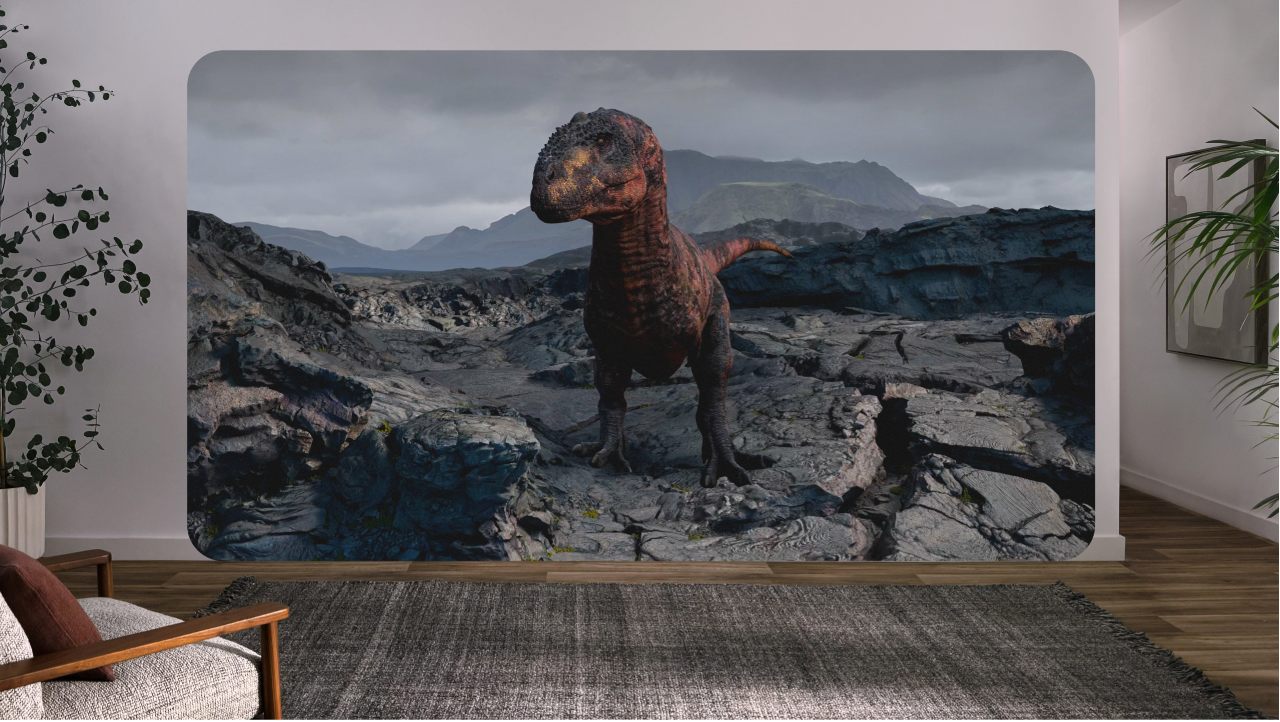
Ways to explore
To get started, go to the Encounter Dinosaurs app 
As you go through the experience, here are a few ways you can explore:
Try to touch or interact with different creatures. They may respond differently based on how you interact with them.
If you move around during the experience, the creatures’ eyes follow your movements.
Try the experience multiple times, as your actions can lead to different endings.
During the experience, Apple Vision Pro gradually reveals your surroundings if you move; you can continue to interact with the experience while this occurs. The experience returns to its previous immersion level when you stop moving. Always stay aware of your surroundings, as the experience may limit your ability to see objects around you. See Prepare your space before using Apple Vision Pro and About immersion.
Adjust settings
Before you get started, you can adjust the settings for your experience.
Go to the Encounter Dinosaurs app

Tap

Room Dimming: Dim your room around the content.
Room Alignment: Allow content to automatically adjust to best fit your space.
Audio Descriptions: Use audio to describe what’s happening in the experience.
Closed Captions: Show captions to describe what’s happening in the experience.
Interaction Assist: Lets you choose from a list of actions throughout the experience, rather than moving around your space.
