
Find My and location sharing
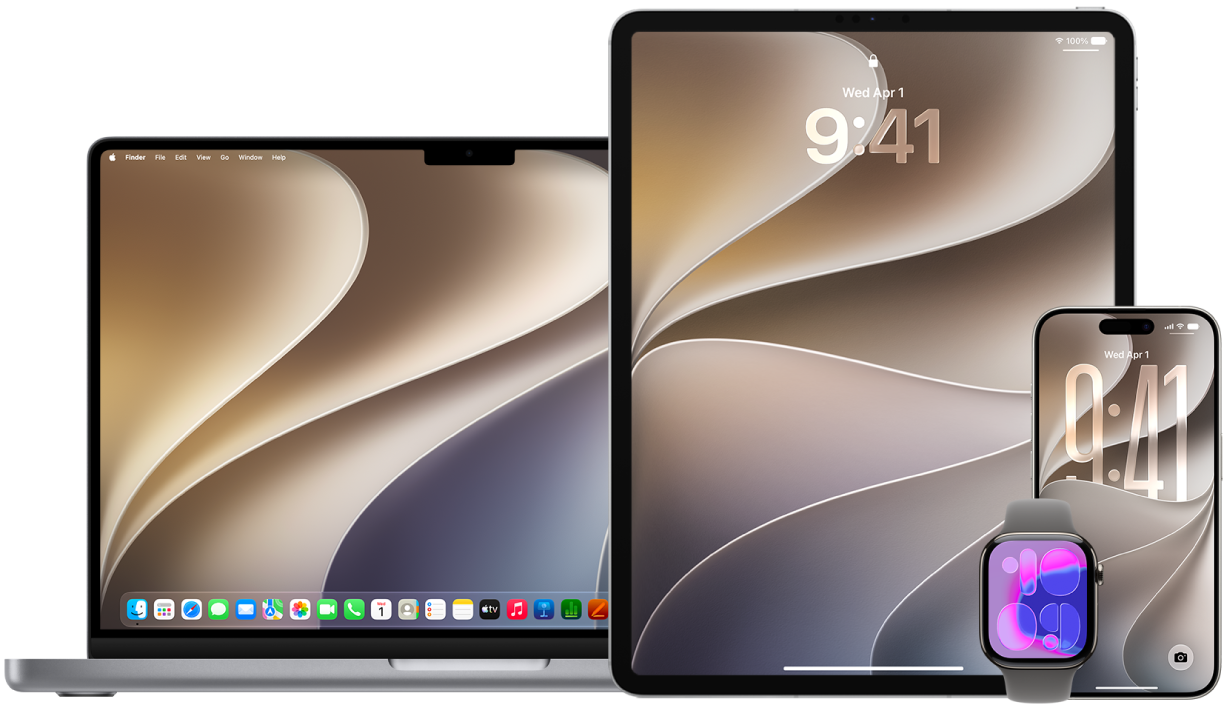
The Find My app for iPhone, iPad, Mac, and Apple Watch helps you keep track of your devices and lets you and other people share your locations with each other.
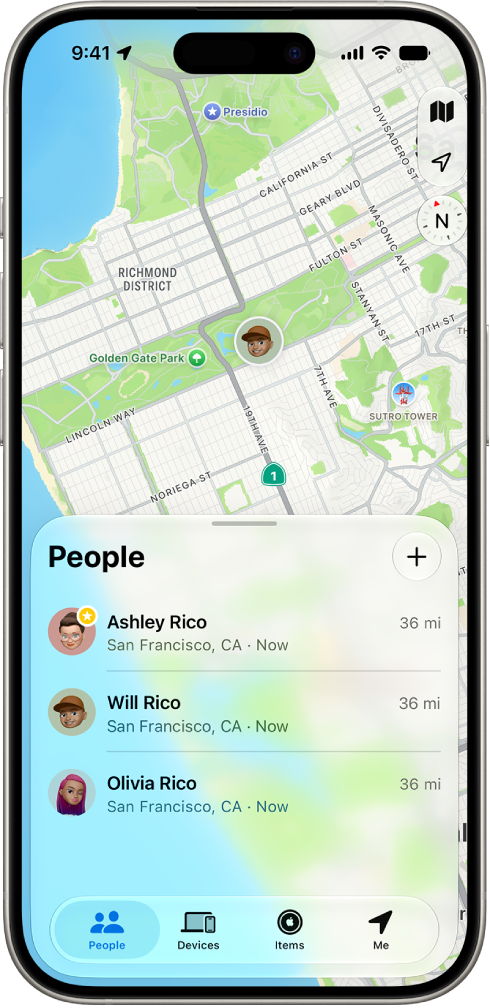
If you set up Family Sharing and use Location Sharing, your family members automatically appear in the People tab, although they still have to share their location with you. See Manage Family Sharing.
Find out how: To view a task below, select the plus button  next to its title.
Location sharing details and where they are viewable
When you share your location with other people through Find My, they can view it in the apps listed in the table below.
If you and the person you share your location with both have an iPhone with iOS 15 or later, you also share your Live Location in all the apps listed below. If you’re on the move, they can get a sense of the direction you’re traveling in and your speed.
App | Description |
|---|---|
 The Find My app | In the Find My app, others can go to the People tab and tap your name to see your location. |
The Find My app | If you and another person both share your location with each other, both have an iPhone 15, and are near each other, you can use Precision Finding to find each other’s exact location. When you’re located near this person, Precision Finding helps them find you until they’re within a few feet of your location. If someone’s trying to find you with Precision Finding, you receive a notification that they’re trying to locate you. To learn more, see Use Precision Finding on iPhone to meet up with a friend in the iPhone User Guide. |
The Find My app | If you set up Family Sharing and use Location Sharing, your family members automatically appear in the People tab but location sharing doesn’t start until you share your location with each other. See Manage Family Sharing. |
 The Messages app | In Messages, when others you’ve shared your location with tap on your contact icon, they are taken to a Details view that shows your current location shared through Find My. |
The Messages app | In Messages in iOS 17 and iPadOS 17 or later, others you’ve shared your location with can also see your approximate location at the top of the Messages thread. |
 The Maps app | In Maps, when others you’ve shared your location with search for your name, they see your current location being shared through Find My on their map. |
Location change notifications
You can use the Find My app to notify a friend when your location changes. People you share location with can also set up notifications to see when your location changes.
You can turn off any location change notification about you. This includes notifications you set and notifications your friends create.
To see all notifications about you, do one of the following:
On your iPhone or iPad: Open the Find My app
 , then tap Me.
On your Mac: Open the Find My app
, then click Me.
Look for a Notifications About You section.
If you do see the Notifications About You section, select a name to see more details.
If you don’t see the Notifications About You section, your friends aren’t notified when your location changes.
If you see a notification you want to delete, select a name, then select a notification.
Delete the notification, then confirm that you want to delete it.
Stop or pause sharing your location in Find My on iPhone or iPad
When you stop sharing through any of the methods listed below, your location will disappear from the other person’s Find My, Maps, Contacts, and Messages apps.
 IMPORTANT: When you stop sharing your location, the people you previously shared with may notice that you’ve stopped. On earlier operating systems, they may receive a notification in Messages that you stopped sharing.
Open the Find My app
.Do one of the following:
To pause sharing with one person: Tap People at the bottom of the screen, then tap the name of the person you want to pause sharing your location with. Tap
 , then tap Hide Location.
Important: When you hide your location, sharing automatically resumes the next day.
To stop sharing with one person: Tap People at the bottom of the screen, then tap the name of the person you don’t want to share your location with. Tap Stop Sharing My Location, then tap Stop Sharing Location.
To stop sharing with everyone: Tap Me at the bottom of the screen, then turn off Share My Location
Note: If the Find My app has been deleted from your device, you can turn off Location Services (go to Settings
 > Privacy & Security > Location Services) to help ensure that your location isn’t being shared. Then download the Find My app from the App Store again.
Stop sharing your location in Messages on iPhone or iPad
When you stop sharing through any of the methods listed below, your location disappears from the other person’s Messages app on their devices.
Open the Messages app
 .
.Do one of the following:
To stop sharing messages in a conversation: Choose the conversation with the person you want to stop sharing with, tap on the person’s name at the top of the conversation, then tap Stop Sharing My Location.
To stop sharing by deleting the conversation: In the Messages conversation list, swipe left on the conversation, tap
 , then tap Yes to confirm you want to stop sharing your location with the participants in this conversation.
Stop sharing your location in Contacts on iPhone or iPad
When you stop sharing through either of the methods listed below, your location disappears from the other person’s Contacts apps on their devices.
Open the Contacts app
 .
.Tap the person’s name.
Tap Stop Sharing My Location.
When to disable Find My iPhone for a lost or stolen device
Find My iPhone (in Settings > Find My) helps you find your phone if it is lost or stolen.
When Find My iPhone is turned on, your device may be found through the Find My network for up to 24 hours after it has been powered off or disconnected from the internet. The location of your device is visible through Find My in the Devices tab on your other devices, and to anyone in Family Sharing you share your location with.
If you need to get to a safe location and you want to turn off your device, but you’re concerned that someone else may use this feature to find your location, you can temporarily turn off the Find My Network when you power off the device by tapping iPhone Findable After Power Off (under Slide to Power Off) and following the onscreen instructions. Use the task below if you want to disable this feature.
CAUTION: When you turn off Find My [device] and Find My network, you aren’t able to locate, lock, or erase your device if it’s lost or stolen.
On your iPhone or iPad: Go to Settings
> [your name] > Find My > Find My iPhone > Find My network.Disabling this feature means you can’t use it if your device is lost or stolen and powered down.
On your Mac: Choose Apple menu
 > System Settings, click your name at the top of the sidebar, then click iCloud. Click See All next to Saved to iCloud, then click Find My Mac.