Apple Vision Pro User Guide
- Welcome
-
- Change notification settings and device sounds
- Set the date, time, language, and region
- Change your device name
- Change the appearance of text and windows
- Unlock your iPhone with Apple Vision Pro
- See your keyboard, game controller, or iPhone while immersed
- See people around you while immersed
- Use Apple Vision Pro in Travel Mode
- Refresh apps in the background
- Set content restrictions in Screen Time
- Let others use your Apple Vision Pro
-
- Apple Music Classical
- Books
- Calendar
- Capture
- Clock
- Encounter Dinosaurs
- Home
- Maps
- Mindfulness
- News
- Numbers
- Pages
- Podcasts
- Reminders
- Shazam
- Shortcuts
- Spatial Gallery
- Stocks
- Tips
- Voice Memos
-
- Get started with Apple Intelligence
- Create original images with Image Playground
- Create your own emoji with Genmoji
- Use Image Wand
- Use Writing Tools to write, improve, and summarize content
- Use ChatGPT with Apple Intelligence
- Summarize notifications and reduce interruptions
- Apple Intelligence and privacy
- Turn off and restrict access to Apple Intelligence features
-
- Get started with accessibility features
- Turn on features with the Accessibility Shortcut
- Change Siri accessibility features
-
- Use AssistiveTouch
- Perform actions with sounds
- Perform actions with your eyes
- Perform actions with your voice
- Perform actions with face gestures
- Use Look to Drive
- Adjust settings for the Digital Crown
- Look up to open Control Center
- Use a pointer to navigate
- Control your device with an external keyboard
- Adjust AirPods settings
- Use Guided Access
- Copyright and trademarks
Stay connected and share memories using Apple Vision Pro
On Apple Vision Pro, make FaceTime calls that are life-size, take and share spatial photos and videos with others so they feel like they were there, and share your view, so others in the room or in calls can see what you see.
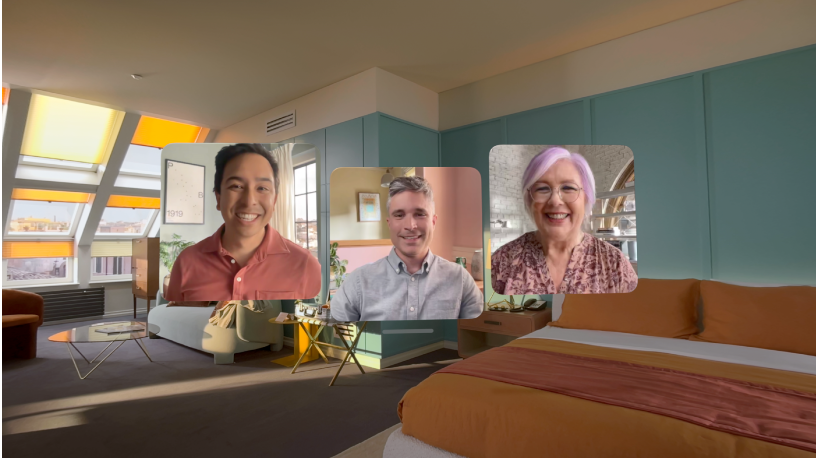
Make FaceTime calls
FaceTime on Apple Vision Pro brings calls right into the room. During a call, you can also work in apps with others on the call, so you can easily collaborate in real time.
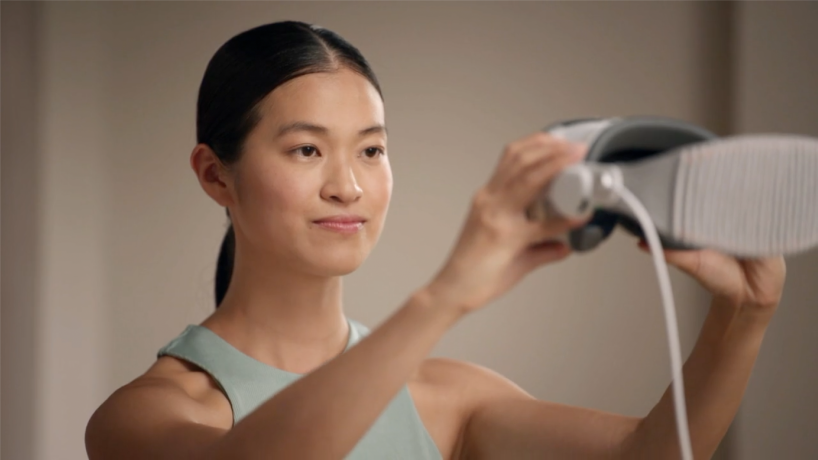
Capture your Persona
Your Persona shows your natural expressions and movements during FaceTime calls, so everyone you’re talking to can see your reactions, no matter what device they’re on. You can adjust the lighting and warmth, and even choose whether your Persona wears glasses. To get started, go to the Settings app  , then tap Persona.
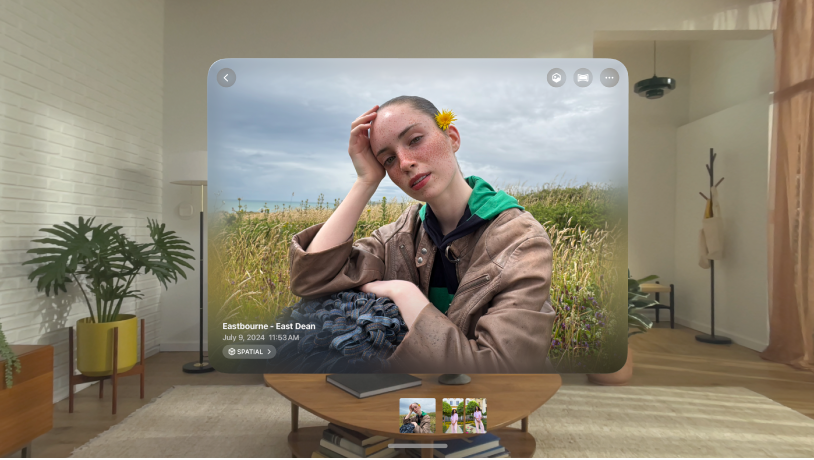
Take and share spatial photos and videos
Spatial photos and videos take you back to a moment in time, like a celebration with friends or a special family gathering, so it feels like you’re there again. You can also let everyone experience the moment by sharing spatial photos and videos for others to view on their Apple Vision Pro, or using SharePlay with Photos during a FaceTime call.
Capture, view, and share spatial photos and videos on Apple Vision Pro

Share your view
You can mirror your view on an external screen, share content directly with people nearby, or share your view in a FaceTime call, so others can follow along. To mirror your view on another screen, open Control Center, then tap Mirror My View. To start sharing with people nearby or on a FaceTime call, tap  to the right of the window bar in an app.
Share apps and experiences with people nearby on Apple Vision Pro