Set up and use Apple TV with Assistive Access on iPad
A person using Assistive Access on iPad can play shows and movies that are downloaded in the Apple TV app  . You can add the Apple TV app when you set up Assistive Access or anytime after.
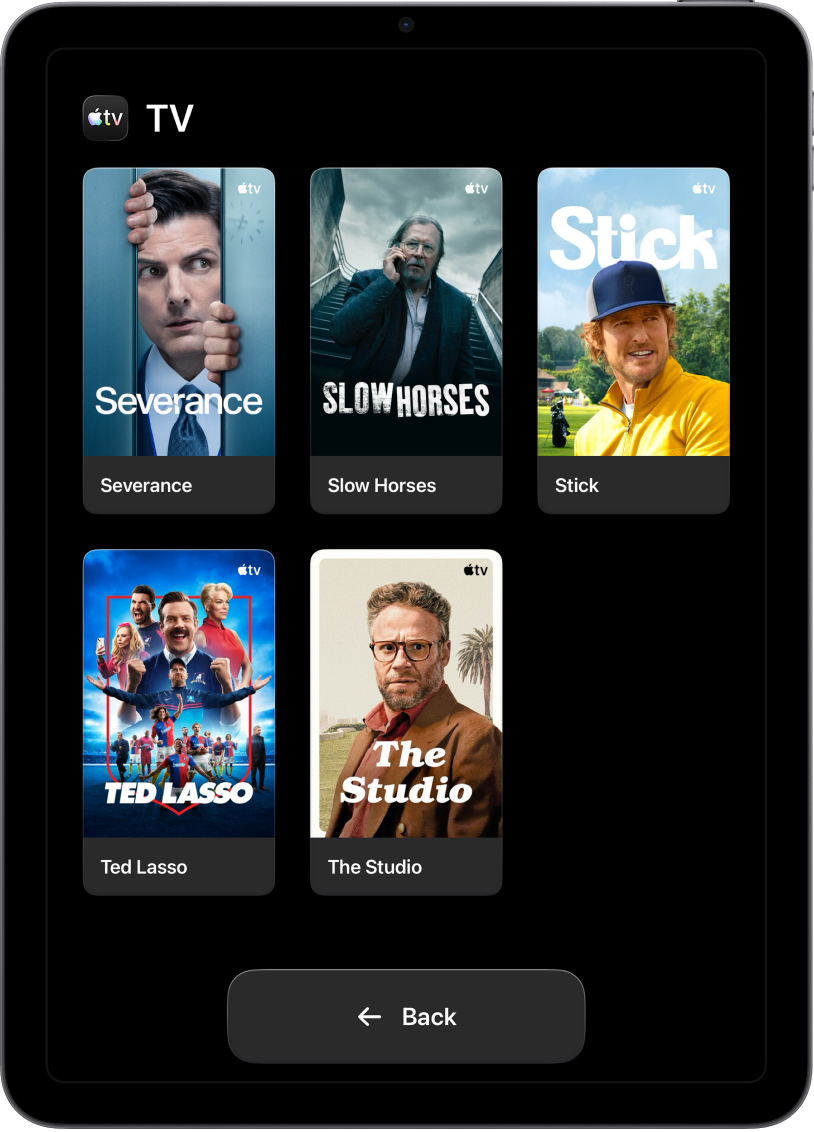
Add the Apple TV app
Exit Assistive Access if it’s active.
Go to the Settings app
 .
.Tap Accessibility, then tap Assistive Access.
Tap Manage Apps, then tap
 next to TV.
Note: Shows and movies must be downloaded in the Apple TV app
to be viewed in Assistive Access. See the Apple Support article Download and stream shows, movies, and events from Apple TV+, MLS Season Pass, and Apple TV channels.
Play a show or movie
Enter Assistive Access if it’s not active, then go to the TV app
.Do one of the following:
Start watching a show: Tap a show, then tap an episode.
Start watching a movie: Tap a movie.
Stop playing a show or movie: Tap Pause.
Continue playing a show or movie: Tap Play.
The Apple TV app works with certain accessibility features, such as closed captions. To learn how to set up and use other accessibility features, see Get started with accessibility features in the iPad User Guide.
For more resources, visit the Apple Accessibility Support website.
On any screen in Assistive Access, the person using Assistive Access can always tap Back to return to the previous screen.