
Find and view files and folders in iCloud Drive on iCloud.com
You can view files and folders stored in iCloud Drive using a web browser.
Find and view files and folders
Go to icloud.com/iclouddrive, then sign in to your Apple Account (if necessary).
Select an option in the sidebar, such as Recents or Browse.
To open a file or folder, tap it (on a phone or tablet) or double-click it (on a computer).
Tip: To see a preview of a file on a computer, select the file, then press the Space bar.
Search for specific files or folders on iCloud.com
With iOS 26.4, iPadOS 26.4, macOS 26.4, or later, you can have a trusted device provide search results for iCloud Drive on iCloud.com. Your searches are encrypted and no search history is kept on Apple servers by using on-device processing. When you type in the search field, you see suggestions for filenames, folder names, and document types, provided by your iPhone, iPad, or Mac.
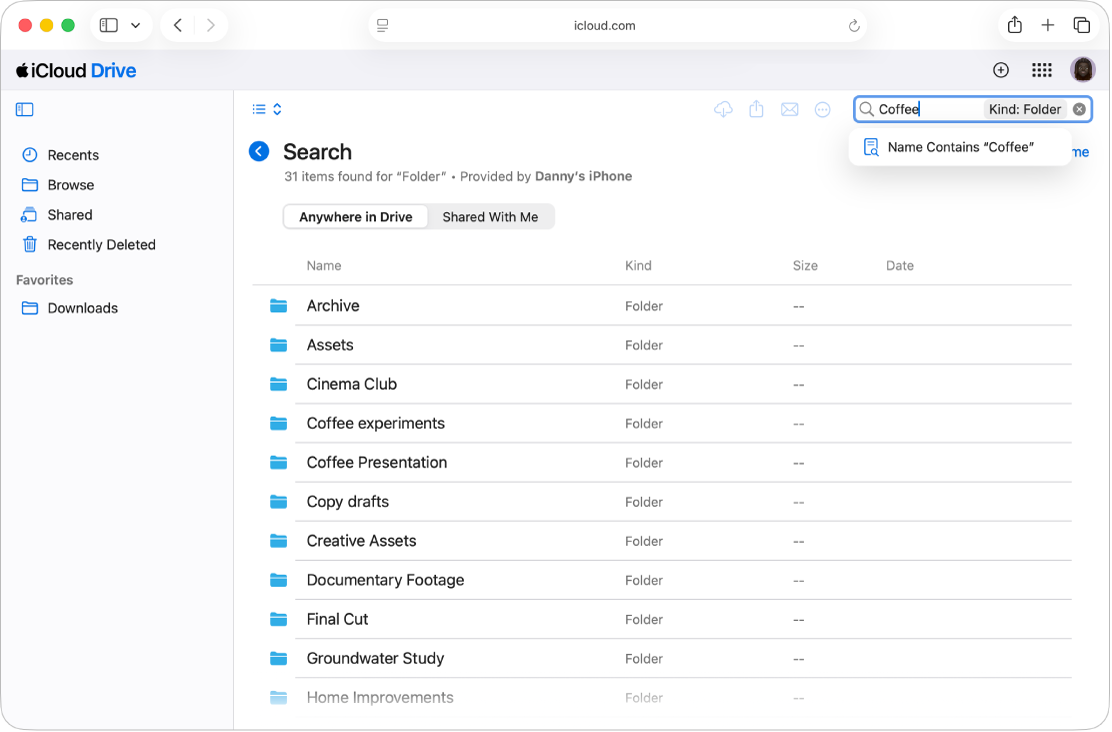
Go to icloud.com/iclouddrive, then sign in to your Apple Account (if necessary).
Select Recents or Browse in the sidebar.
Enter a filename, folder name, or the document type you’re looking for into the search field.
Select one of the suggestions or press Return.
Select
 to clear the search.
Note: If you haven’t turned on Allow Search on iCloud.com, you’re prompted to enable search using your trusted device. Select Continue, open the notification that appears on your device, then select Allow.
Change how files and folders are displayed
Go to icloud.com/iclouddrive, then sign in to your Apple Account (if necessary).
On a tablet or computer, select
 or
or  in the top-left corner (depending on your current view). On a phone, tap
  in the top-right corner.
 Choose an option:
Grid: Files and folders are shown as icons arranged in a grid.
List: Files and folders are arranged by name in a list, and other columns show additional information.
Change how files and folders are sorted
Go to icloud.com/iclouddrive, then sign in to your Apple Account (if necessary).
Select the “Sort by” pop-up menu in the top-right corner. (On a phone, tap
in the top-right corner before selecting the “Sort by” pop-up menu.)If you don’t see the “Sort by” pop-up menu, make sure you’re not viewing the Recents folder.
Choose Date, Kind, Name, or Size.
View file and folder info
Go to icloud.com/iclouddrive, then sign in to your Apple Account (if necessary).
Select the file or folder, then select
in the top-right corner.Choose Get Info.
The information includes the file type, its size, when it was last modified, and where it’s stored. If the file is shared, you can also see who shared it.