
Get started with Keynote on iPad
Keynote makes it easy to create beautiful and engaging presentations with fun animations, interesting transitions, and professional polish.
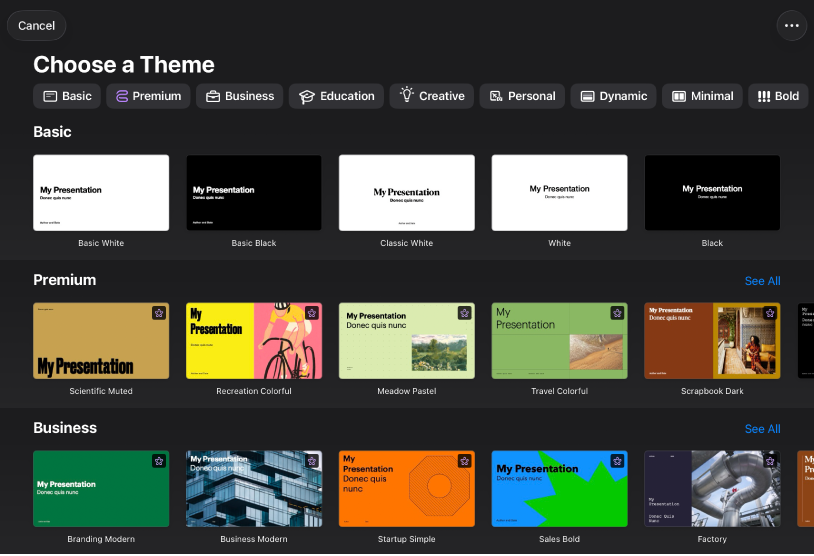
Begin with a theme
Creating a slideshow? Start with a theme, then modify it however you want. Themes include predesigned slide layouts that have placeholders for your own content. Go to the Keynote app  on your iPad, tap Choose a Theme (or
  ), then tap a theme.
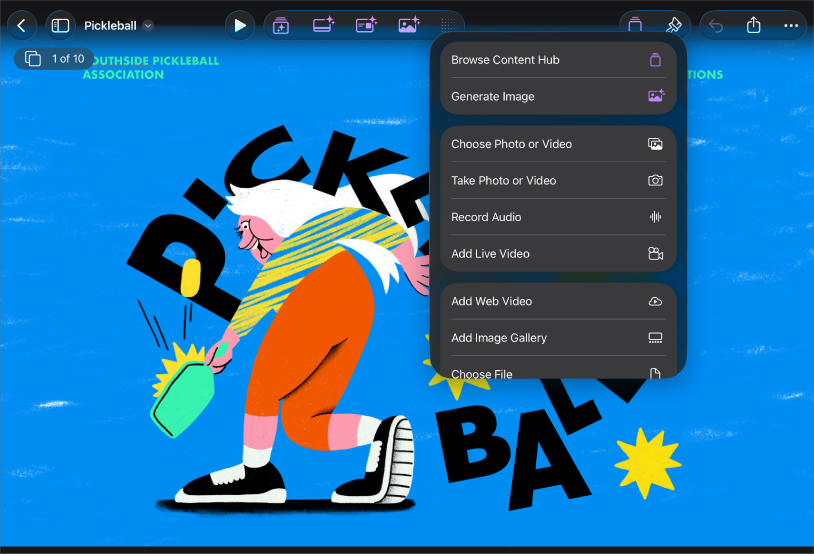
Add photos, movies, and more
You can add objects such as photos, movies, shapes, and charts to your presentation. To add an object, tap one of the object buttons in the toolbar, then select an object from the menu. You can also tap  to add objects from the Content Hub.
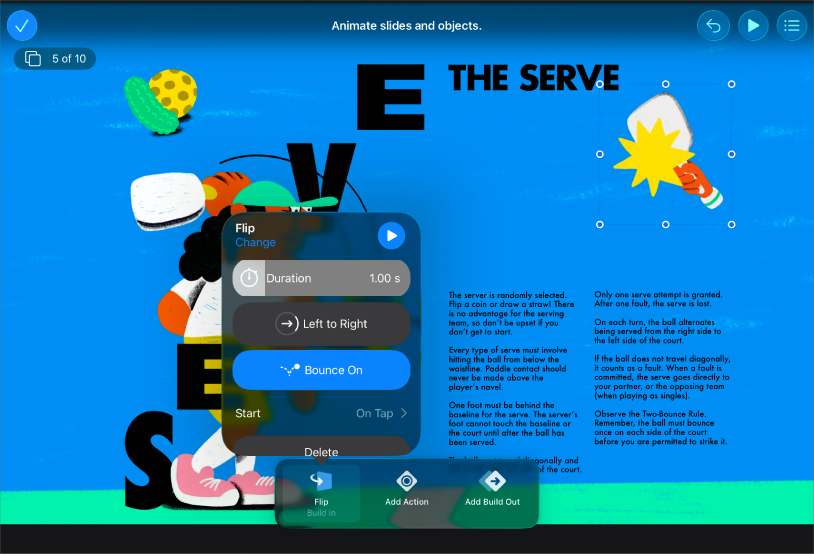
Bring your presentation to life with animations
Animations help your slideshow appear more dynamic by moving objects onto, off, or around the slide. Tap the object you want to animate, tap  , tap Animate, then tap Add Build In, Add Action, or Add Build Out. Tap an animation effect in the list, then tap Done.
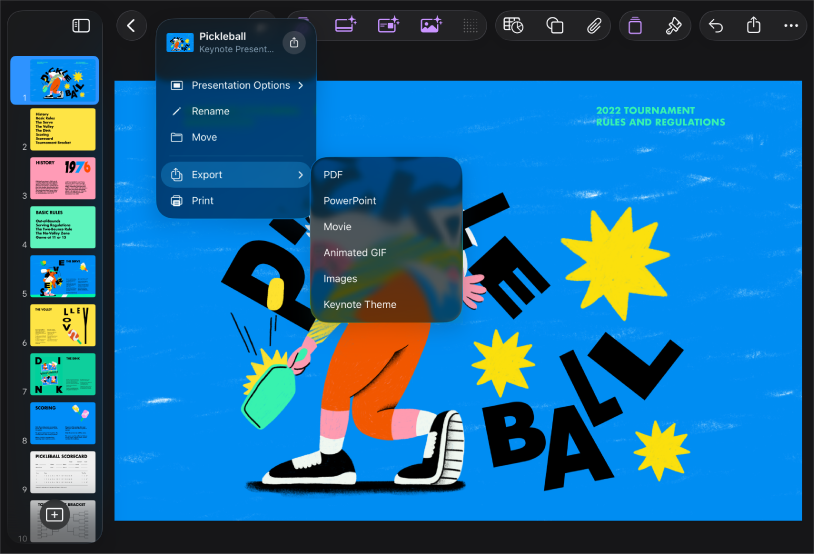
Export your presentation
You can save a copy of your presentation as a Keynote file or in another format, such as PDF, PowerPoint, a movie, and more. To export your presentation, tap  in the toolbar, tap Export, then select the format you want to use.
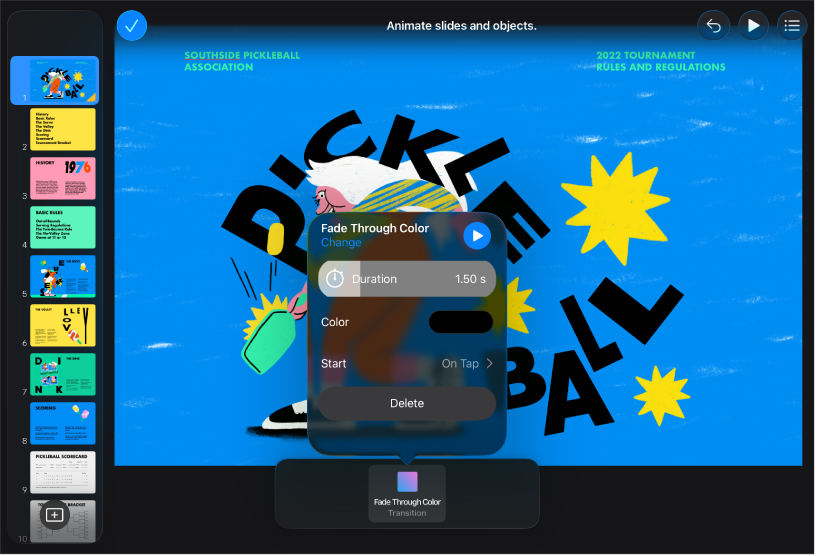
Use slide transitions
Transitions give your slideshow a more seamless appearance as you move from one slide to the next during a presentation. To add a transition, tap a slide twice in the slide navigator, tap , tap Transition, tap Add Transition, tap a transition effect, then tap Done.
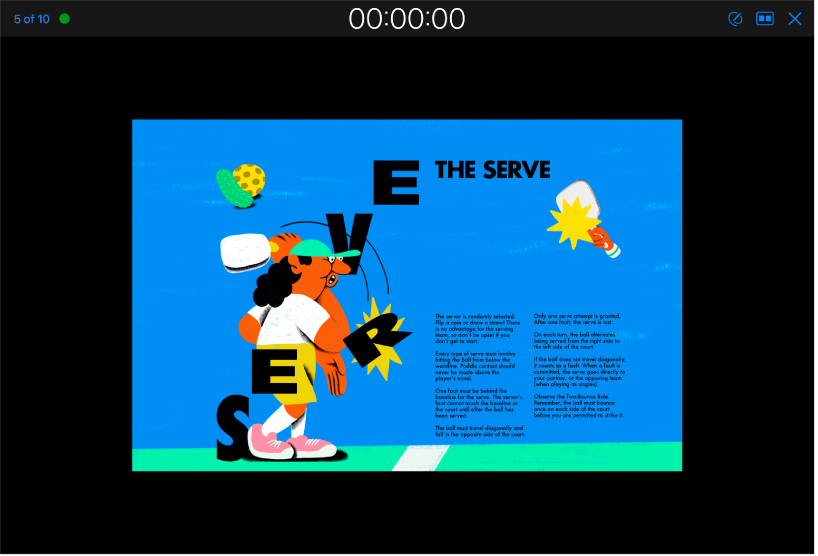
Play your presentation
To practice your presentation, tap  in the toolbar, then tap Rehearse Slideshow. When you’re ready to deliver your presentation to an audience, tap the slide you want to begin with in the slide navigator, then tap
  in the toolbar. Tap the slide to advance through the slideshow, or swipe right to go back a slide.
Want to learn more?
This guide helps you get started using Keynote 15.3 on your iPad. (To see which version of Keynote you have, go to Settings  > Apps > Keynote.)
To explore the Keynote User Guide, tap Table of Contents at the top of the page, or enter a word or phrase in the search field.
Keynote 15.3 for iPad requires iPadOS 18 or later. Keynote is available in the App Store and requires an Apple Account to download. Features are subject to change, and some may require internet access. Additional fees and terms may apply.