
Add and edit a shape in Pages on iPhone
The shapes library contains hundreds of shapes in a variety of categories. You can also generate a custom shape from a text description. After you add a shape to a page, you can customize the shape in a number of ways. For example, you can change the standard five-point star into a twenty-point starburst and adjust how rounded the corners of a square are. You can also add text inside a shape and fill a shape with color or an image.
Tip: You can add an SVG image to your document, then break it apart into shapes and edit them like other shapes. To learn more about adding SVG images, see Add an image.
 | Available with subscription: Some features require a subscription to Apple Creator Studio. To learn more, see the Apple Creator Studio webpage and the Apple Support article About Apple Creator Studio. | ||||||||||
Add a shape
Go to the Pages app
 on your iPhone.
Open a document, tap
 in the toolbar, then tap
  .
.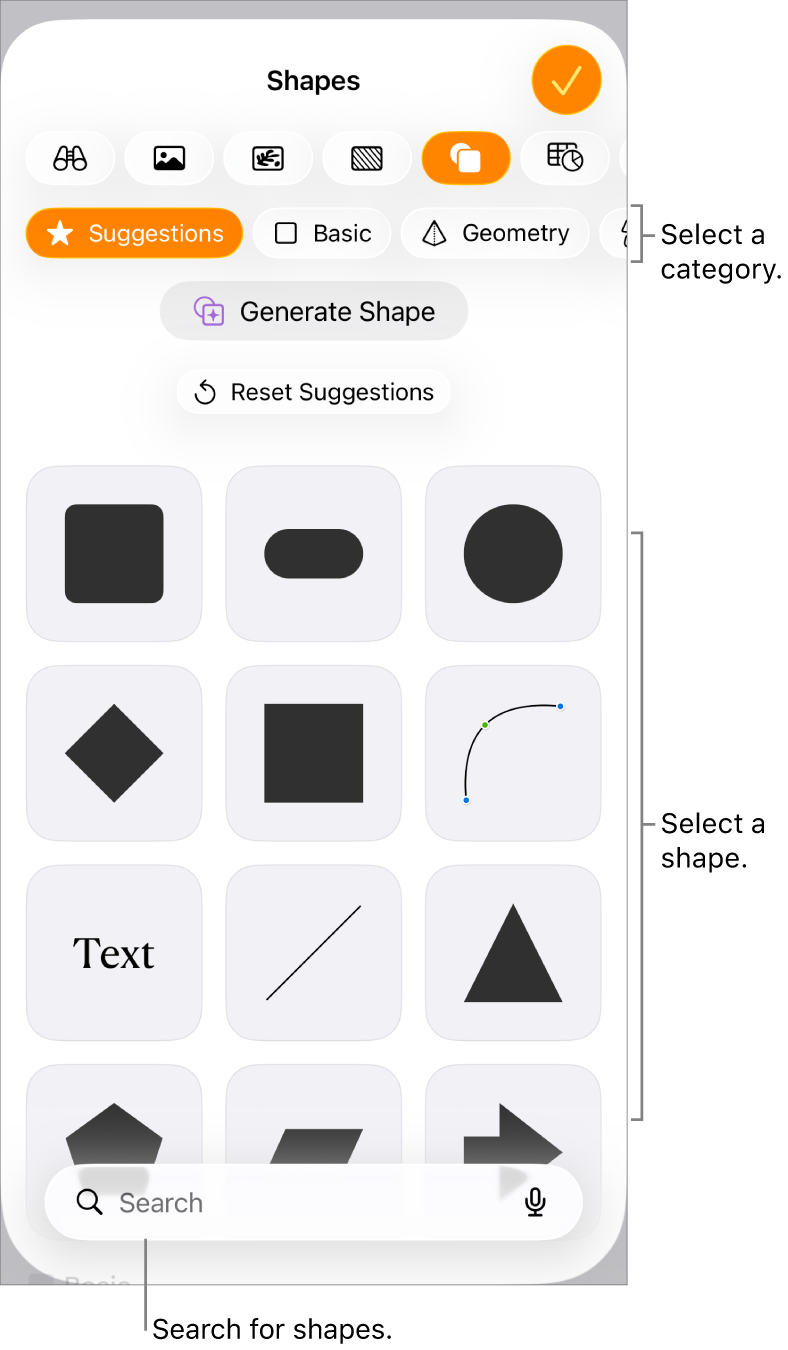
Select a category at the top of the shapes library, then tap a shape to add it to your document.
To search for a shape, tap
 at the bottom of the shapes library, then enter the name of the shape.
Drag the shape to reposition it on the page.
Adjust the features of a shape
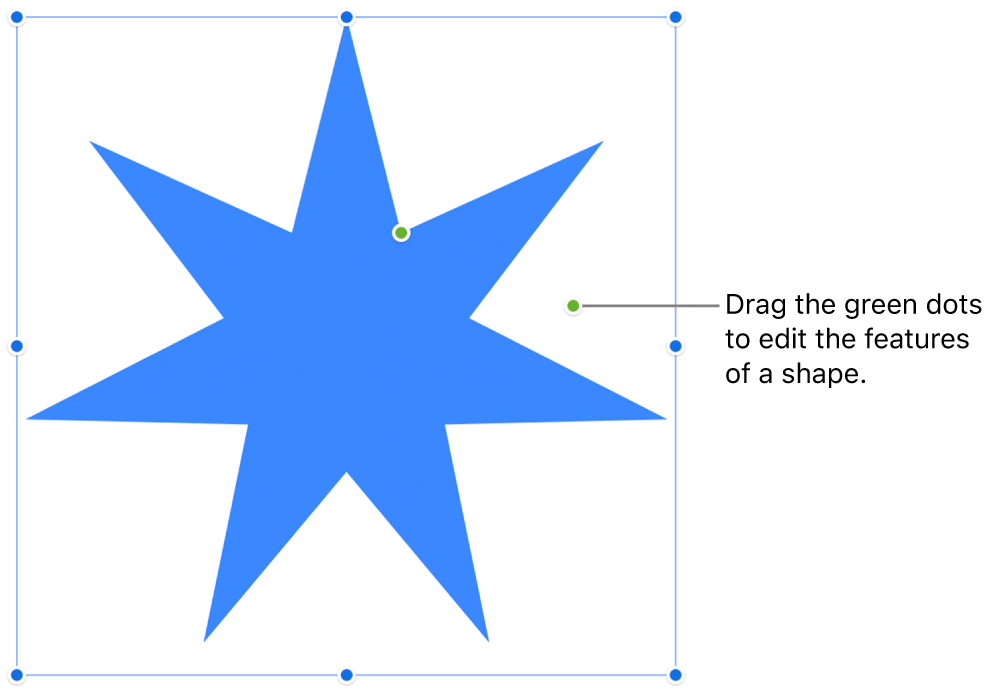
You can change features of any basic shape (from the Basic category in the shapes library) that has a green dot when it’s selected. For example, you can add more arms to a five-point star.
Go to the Pages app
on your iPhone.Open a document with a basic shape, then tap the shape to select it.
Do any of the following:
Reshape the corners of a rounded rectangle: Drag the green dot toward a corner to sharpen it, or away from a corner to make it rounder.
Change the number of points on a star: Drag the outer green dot clockwise to add points, or counterclockwise to remove them. A star can have between three and twenty points.
Change the shape of the points on a star: Drag the inner green dot toward the center of the star to make the points longer and narrower, or drag away from the center to make the points shorter and wider.
Change the shape of a callout or speech bubble: Drag the green dot on the body of the bubble to reshape it. Drag the green dot at the tip of the point to change its length and position. Drag the green dot at the base of the point to change its width.
Change the number of sides in a polygon: Drag the green dot clockwise or counterclockwise to adjust the number of sides.
Adjust the proportions of arrows: Drag the green dot toward the tip of the arrow to make the arrowhead shallower, or drag the dot toward the side point of the arrow to make the arrow’s trunk thicker.
You can also edit features of a shape by changing their specific values, like the number of points on a star, the corner radius on a rounded rectangle, the width of the tail on a speech bubble, and more. Tap
 , tap Arrange, then use the controls or tap the values for the features you want to change.
Generate a shape
If you subscribe to Apple Creator Studio, you can use Shape Generation to create a custom shape from a text description.
This feature is not available in all countries and regions. To learn more, see About Apple Creator Studio.
Go to the Pages app
on your iPhone.Open a document, tap
in the toolbar, then tap .Note: If this is your first time using Shape Generation in Pages, follow the onscreen instructions to share your age range with the app. Shape Generation is not available for all ages, so a parent or guardian must enable this feature for children and teens in their family group. To learn more, see the Apple Support article How to set up Family Sharing on your iPhone, iPad, or Mac.
Tap Generate Shape, then type a description of the shape you want to create in the text field.
Up to four shape options based on your description are generated. Your generated shapes are saved automatically and can be browsed in the Content Hub across your documents and apps.
Do one of the following:
Insert a shape: Tap the shape you want, then tap Insert to add it to your document.
Try new variations: Tap the regenerate button to generate four new shape options, or edit your text description and try again.
Important: Shape Generation is subject to usage limitations. To check your usage status, tap  in the toolbar, tap Intelligence Features, then tap Show Usage Status.
To work with multiple shapes at the same time, touch and hold one shape, then tap the other shapes with another finger.