
Edit an image in Numbers on iPad
After you add a photo or graphic to your spreadsheet, you can crop it and remove parts you don’t want. You can also use Image Generation to intelligently edit an image, or open an image in Pixelmator Pro for advanced editing.
 | Available with subscription: Some features require a subscription to Apple Creator Studio. To learn more, see the Apple Creator Studio webpage and the Apple Support article About Apple Creator Studio. | ||||||||||
Mask (crop) a photo
You can hide unwanted portions of an image without modifying the image file.
Go to the Numbers app
 on your iPad.
Open a spreadsheet with an image, then double-tap the image.
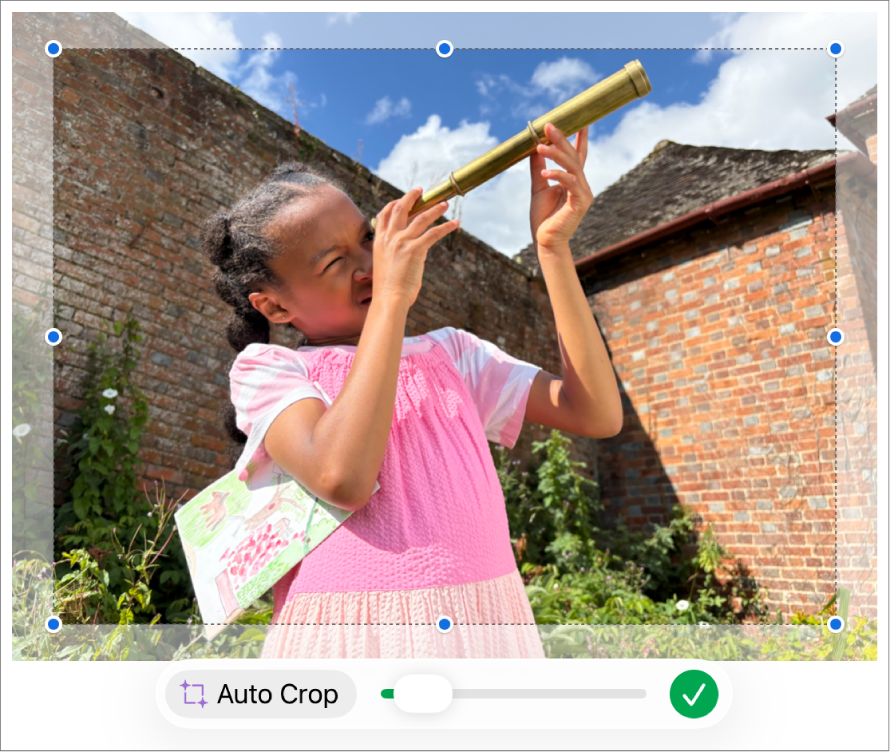
The mask controls appear. The default mask is the same size as your image.
Use the controls to change which parts of the image are visible:
Tap
 when you’re finished.
Double-tap the image at any time to readjust its mask.
Auto Crop a photo
If you subscribe to Apple Creator Studio, you can use Auto Crop to intelligently generate suggestions to improve image composition.
Go to the Numbers app
on your iPad.Open a spreadsheet with an image, double-tap the image to view the mask controls, then tap Auto Crop to preview image suggestions.
Tap a suggestion to update your image, tap anywhere to dismiss suggestions, then tap
to exit the mask controls.
Remove background and other elements from a photo
You can remove a background or color from an image with the Remove Background tool.
Go to the Numbers app
on your iPad.Open a spreadsheet with an image, tap the image to select it, then tap Remove Background (you may have to tap
 first).
If possible, the background is automatically removed.
Do any of the following:
Remove another color: Drag your finger over the color you want to remove.
As you drag, the mask selection grows to include areas that use similar colors.
Undo all changes: Tap Reset in the controls.
Tap Done.
Edit an image with Pixelmator Pro
If you have Pixelmator Pro installed on your iPad, you can open an image in Pixelmator Pro for advanced editing. When you save your changes, the image updates in your spreadsheet.
Go to the Numbers app
on your iPad.Open a spreadsheet with an image, then tap the image to select it.
Tap
 in the toolbar, tap Image, then tap Edit in Pixelmator Pro.
The image opens in Pixelmator Pro.
Edit the image using Pixelmator Pro’s tools, tap the Save to Numbers button in the toolbar, then return to Numbers.
The edited image from Pixelmator updates in your spreadsheet.
Note: Some editing actions in Numbers (such as Super Resolution) require converting a Pixelmator image to a regular image, which flattens the Pixelmator layer data.
Edit an image with a text description
If you subscribe to Apple Creator Studio, you can use Image Generation to intelligently edit images.
This feature is not available in all countries and regions. To learn more, see About Apple Creator Studio.
Go to the Numbers app
on your iPad.Open a spreadsheet, then tap
 in the toolbar.
Note: If this is your first time using Image Generation in Numbers, follow the onscreen instructions to share your age range with the app. Image Generation is not available for all ages, so a parent or guardian must enable this feature for children and teens in their family group. To learn more, see the Apple Support article How to set up Family Sharing on your iPhone, iPad, or Mac.
In the Generate an Image window, tap
 , then choose the image you want to edit.
If you are asked to send data, select Allow Once or Always Allow.
In the text field, describe the changes you want to make, then tap
 .
.An image based on your text description is generated.
To edit the image, use the text field to describe your changes or choose a variable like Mood, Style, or Mash-up, then tap
.To start over, tap
 .
.Do one of the following:
Save the image: Tap
 , then choose where you want to save the image.
Add the image to the sheet: Tap the Insert button.
Important: Image Generation is subject to usage limitations. To check your usage status, tap  , tap Intelligence Features, then tap Show Usage Status.
Increase resolution with Super Resolution
If you subscribe to Apple Creator Studio, you can use Super Resolution to increase the resolution of photos, making them clearer.
This feature requires an Apple Intelligence-capable device, and is not available in all countries and regions. To learn more, see About Apple Creator Studio.
Go to the Numbers app
on your iPad.Open a spreadsheet with an image, tap the image to select it, then tap
 in the toolbar.
To work with multiple images at the same time, touch and hold one image, then tap the other images with another finger.