Numbers User Guide for iPad
- Welcome
- What’s new
-
- Get started with Numbers
- Intro to images, charts, and other objects
- Create a spreadsheet
- Open spreadsheets
- Prevent accidental editing
- Personalize templates
- Use sheets
- Undo or redo changes
- Save your spreadsheet
- Find a spreadsheet
- Delete a spreadsheet
- Print a spreadsheet
- Change the sheet background
- Copy text and objects between apps
- Customize the toolbar
- Use Apple Pencil with Numbers
- Change Numbers privacy and analytics settings
- Copyright

Use sheets in Numbers on iPad
You can add multiple sheets (or tabs) to a spreadsheet to help you better organize your tables, charts, and other information. For example, you could separate your party planning into sheets for the budget, seating chart, vendor information, and task list. You can also add colors to tabs to visually distinguish between sheets, or hide sheets you don’t need right away.
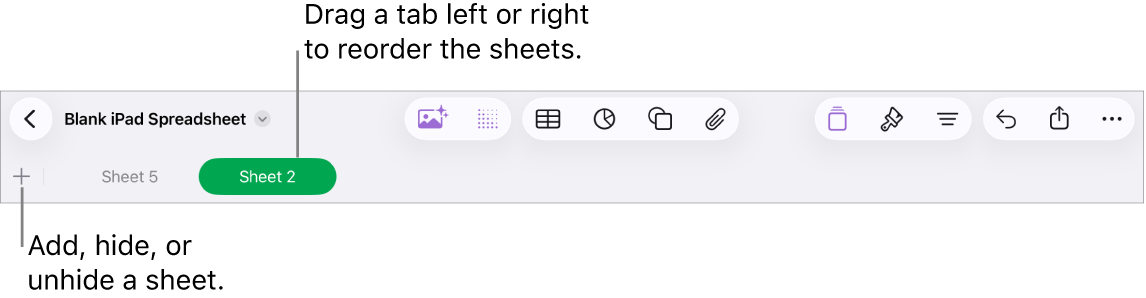
Organize sheets
Do any of the following:
Go to the Numbers app
 on your iPad.
Open a spreadsheet, then do any of the following:
Rename a sheet: Double-tap the name of the sheet so the insertion point appears, then type a new name.
Duplicate a sheet: Tap the tab you’re currently viewing, then tap Duplicate.
Reorder sheets: Drag a tab left or right to reorganize sheets.
Add a color to a tab: Tap an empty area on the sheet, tap
 in the toolbar, tap Tab Color, then choose a color.
Hide a sheet: Tap the tab you’re currently viewing, then tap Hide.
Show a hidden sheet: Tap the tab you’re currently viewing, tap Unhide, then choose Unhide All Sheets or the sheet you want to show.
Delete a sheet: Tap the tab you’re currently viewing, then tap Delete.
Note: When you share a spreadsheet that contains hidden sheets, the people you share it with can still access those sheets.
If your spreadsheet includes bidirectional text (text written in both left-to-right and right-to-left languages), you can also reverse the direction of your sheets. See Format tables for bidirectional text.