Mac User Guide
- Welcome
- What’s new in macOS Tahoe
-
- Intro to Apple Intelligence
- Translate messages and calls
- Create original images with Image Playground
- Create your own emoji with Genmoji
- Use Apple Intelligence with Siri
- Find the right words with Writing Tools
- Summarize notifications and reduce interruptions
- Use ChatGPT with Apple Intelligence
- Apple Intelligence and privacy
- Block access to Apple Intelligence features
-
- Intro to Continuity
- Use AirDrop to send items to nearby devices
- Hand off tasks between devices
- Control your iPhone from your Mac
- Copy and paste between devices
- Stream video and audio with AirPlay
- Make and receive calls and text messages on your Mac
- Use your iPhone internet connection with your Mac
- Share your Wi-Fi password with another device
- Use iPhone as a webcam
- Insert sketches, photos, and scans from iPhone or iPad
- Unlock your Mac with Apple Watch
- Use your iPad as a second display
- Use one keyboard and mouse to control Mac and iPad
- Sync music, books, and more between devices
-
- Get started
-
- Accessibility features for vision
- Get started with VoiceOver
- Zoom in on what’s around you
- Zoom in on your Mac screen
- Increase font size and icons
- Adjust the display colors
- Hover to zoom in on text and colors
- Listen to or change how text appears in apps
- Customize onscreen motion
- Increase the size of what’s on your screen
- Make the pointer easier to see
- Have your Mac speak text that’s on the screen
- Resources for your Mac
- Resources for your Apple devices
- Copyright and trademarks

Add family members to a Family Sharing group on Mac
The family organizer can add up to five family members to the Family Sharing group. Each family member joins with their own Apple Account, which allows everyone to share subscriptions, purchases, and locations while keeping their own account privacy protected.
The organizer, a parent, or a guardian can create an Apple Account for a child under 13. (Age varies by country or region.)
Add family members to a Family Sharing group
Go to the System Settings app
 on your Mac.
Click Family in the sidebar.
If you don’t see Family, set up Family Sharing.
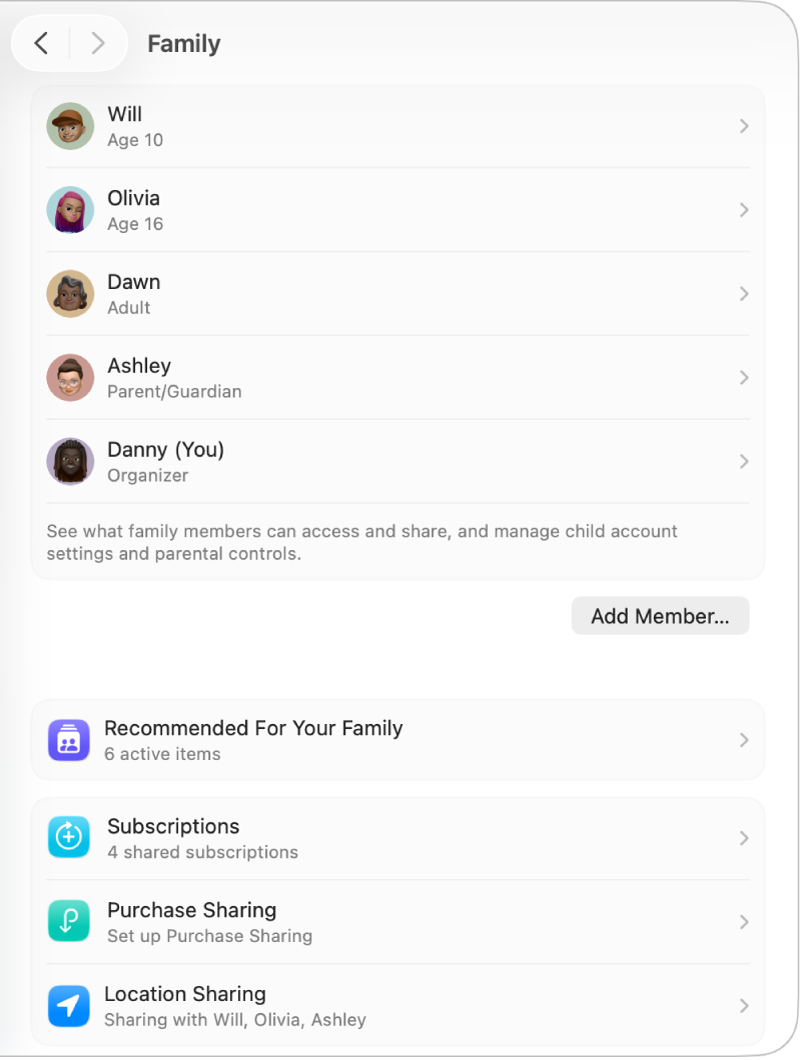
Click Add Member, then do one of the following:
Invite someone currently with you: Click Invite People, choose Invite in Person, then click Continue. Ask them to enter their Apple Account email address or phone number and their password on your Mac.
Send an invitation: Click Invite People, then choose AirDrop, Mail, or Messages. Click Continue, then send the invitation.
Note: If the person you’re inviting doesn’t have an Apple Account, they have to create one before they can accept your invitation.
Create an account for a child: Click Create Child Account, then follow the onscreen instructions. See the Apple Support article Create an Apple Account for your child.
Ask the person you invited to accept the invitation.
Resend or revoke an invitation
If the person you added doesn’t join your Family Sharing group, you can resend the invitation to try again, or revoke it so they can’t join anymore.
Go to the System Settings app
on your Mac.Click Family in the sidebar.
If you don’t see Family, set up Family Sharing.
Click the name of the person you invited, then do one of the following:
Resend the invitation: Click Resend, then choose an option.
Revoke the invitation: Click Revoke.
After your family members accept your invitation, Family Sharing is set up on everyone’s devices automatically.
New family members can turn on Purchase Sharing in Family Sharing settings to make their purchases available to the family group. See the Apple Support article How to share apps and purchases with Family Sharing.
For information about combining your Apple subscriptions, see the Apple Support article Bundle Apple subscriptions with Apple One.