GarageBand User Guide
- Welcome
-
- Play a lesson
- Choose the input source for your guitar
- Customise the lesson window
- See how well you played a lesson
- Measure your progress over time
- Slow down a lesson
- Change the mix of a lesson
- View full-page music notation
- View glossary topics
- Practise guitar chords
- Tune your guitar in a lesson
- Open lessons in the GarageBand window
- Get additional Learn to Play lessons
- If your lesson doesn’t finish downloading
- Touch Bar shortcuts
- Glossary
- Copyright

Share songs to the Music app in GarageBand on Mac
You can share a song to the Music app and add it to a playlist. You can then play the song in the Music app on your iPhone, iPad or Mac when you’re signed in to your Apple Account. Songs can be shared as uncompressed AIFF audio files or as compressed audio files with various quality levels.
Share a song to the Music app
In GarageBand on Mac, choose Share > Song to Music.
In the Share dialogue, do the following:
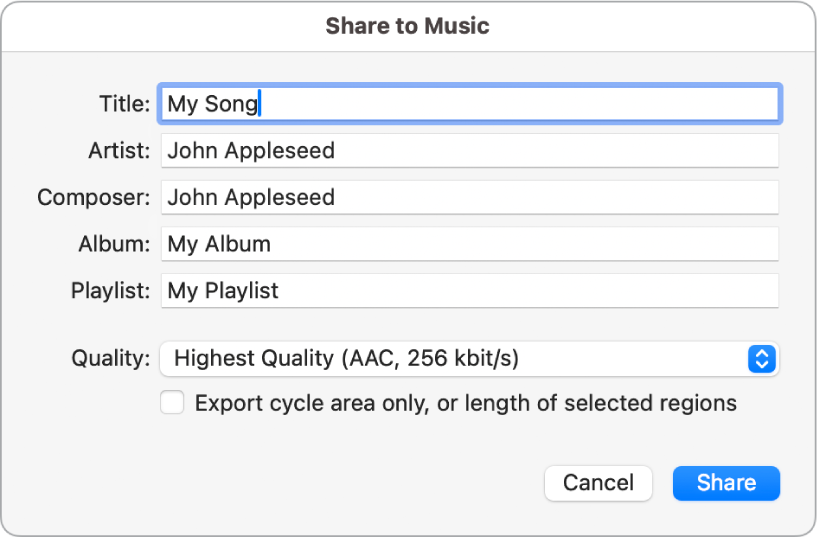
If you want to rename the shared file, select the song name in the Title field, then enter a new name.
Enter artist, composer, album information and playlist name for the shared file in the respective text fields.
Tip: You can also add these tags in My Info settings.
Choose the quality level for the shared file from the Quality pop-up menu.
By default, the entire song is shared. Any silence at the beginning or end is trimmed. To share only the cycle area, or only selected regions (if there is no active cycle area), select the “Export cycle area only, or length of selected regions” tickbox.
Click Share.
The shared song appears in the Music app, where you can burn it to a CD or convert it to a different file format you choose in the Music app’s settings (Settings > File > Import Settings).
Note: You cannot import audio directly from the Music app into GarageBand, but you can import audio files from the Finder. See Import audio and MIDI files in GarageBand on Mac.