Watch MLS in the Apple TV app
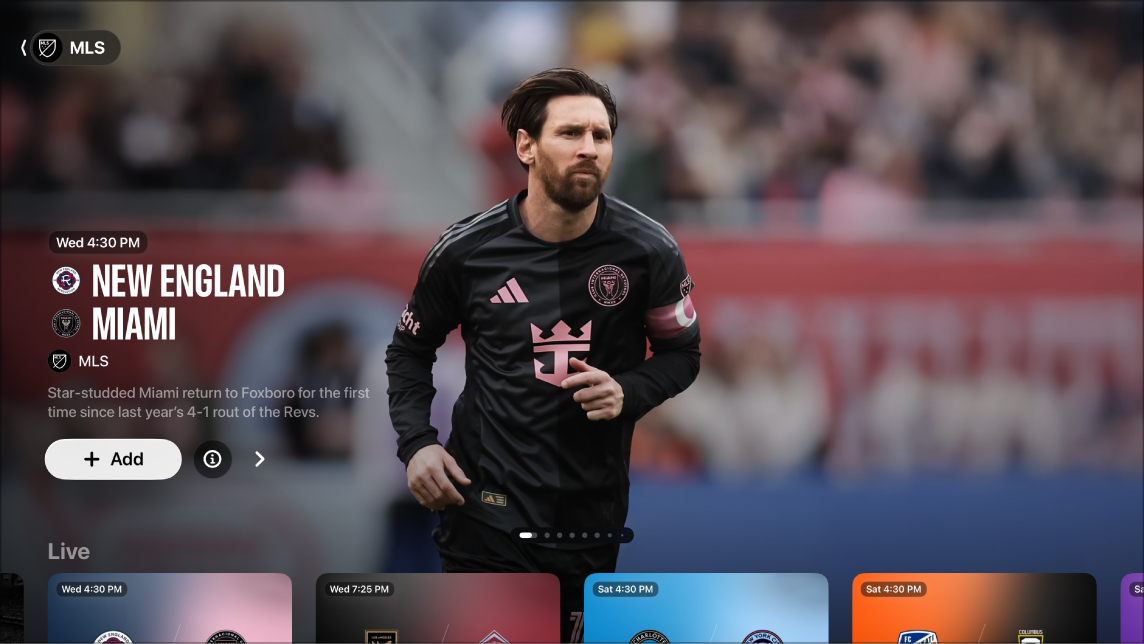
The MLS screen in the Apple TV app gives you access to Major League Soccer events when you subscribe to Apple TV.
You can see matches in progress with up-to-the-minute scores, browse upcoming matches, watch multiple matches at the same time, watch replays of previous matches, and access pregame and postgame shows and a whip-around show featuring live look-ins, analysis, and discussion.
Note: Some MLS games may be available to watch on a promotional basis, but full access to all games, shows, and features requires a subscription to Apple TV.
Watch Major League Soccer
Go to the Apple TV app
 on Apple TV 4K.
Open the sidebar, then select MLS.
Do any of the following:
Explore featured matches: View featured matches at the top of the MLS screen by selecting
 to progress through items. Swipe left on the clickpad or touch surface to go back.
Select
 to get more information about a match or select
  to add it to your watchlist.
Browse available matches, league standings, and more: Navigate down to a category row, then navigate left or right to view available options.
Tip: When browsing a row, you can scroll up to highlight the row title, then select it to view all items in that category or view more information about the collection.
Watch replays of past matches: Navigate down to Past Matches, then choose a replay option.
Follow your favorite clubs using My Sports: Navigate down to the All Clubs row, navigate left or right to a club, press and hold the clickpad or touch surface on your remote, then choose Follow Team. For more information, see Follow your favorite teams with My Sports.
Browse a club’s matches, profiles, player profiles, and more: Navigate down to the All Clubs row, navigate left or right to a club, select the club, then browse the available category rows.
To start watching, select an event or match; or, if you haven’t subscribed to Apple TV, follow the onscreen instructions to subscribe.
If a match is in progress, it plays automatically as a preview on the MLS screen. Press and hold the clickpad or touch surface, then choose options to Watch Live, Start Over, or listen to a different broadcast language.
For past matches, you can select Full Replay immediately after the match concludes, or Recap to watch a condensed version when it becomes available (usually within hours after after the match is finished).
Note: Sports events added to your watchlist appear in the Continue Watching row when they are live.
Note: To turn off live scores, see Adjust Apple TV app settings on Apple TV 4K.
Catch up with Key Plays
When you start watching a live match in progress, you can catch up to the action by watching all the key plays you missed. You can also browse and watch key plays at any time during the match.
Go to the Apple TV app
on Apple TV 4K.Open the sidebar, then select MLS.
Do either of the following:
Catch up to a match in progress: Select a match, then choose Catch Up from the menu.
Go to key plays during a match: While watching a match, show playback controls, select Key Plays, then select a key play from the Key Plays tab.
Key plays start playing in order from the beginning of the match if you’re catching up, or from the key play you select from the Key Plays tab.
While watching key plays, you can do either of the following:
Browse the collection: Navigate left or right.
Return to the match: Select Jump to Live in the lower-left corner of the screen, or to resume playback from the last spot you were watching, press
 or
or  on your remote.
Watch multiple MLS streams at the same time
With Multiview, you can play up to four live MLS streams at the same time. See Use Multiview to watch multiple live sports streams.
Listen to live local radio (if available) during MLS matches
While you’re watching a match, show playback controls.
Swipe up on the clickpad or touch surface, then select
 .
.Choose an audio track option from the pop-up menu:
TV: Play the audio commentary from the TV broadcast.
Local Radio, [home team, language]: Listen to the home team’s radio broadcast while watching the match or game.
To close the pop-up menu, press
or on your remote.