MainStage User Guide
- Welcome
-
- Overview of Edit mode
-
- Select patches and sets in the Patch List
- Copy, paste, and delete patches
- Reorder and move patches in the Patch List
- Add and rename patches
- Create a patch from several patches
-
- Overview of the Patch Settings Inspector
- Select patch settings in the Patch Library
- Set the time signature for patches
- Change the tempo when you select a patch
- Set program change and bank numbers
- Defer patch changes
- Instantly silence the previous patch
- Change patch icons
- Transpose the pitch of incoming notes for a patch
- Change the tuning for a patch
- Add text notes to a patch
-
- Overview of channel strips
- Add a channel strip
- Change a channel strip setting
- Configure channel strip components
- Show signal flow channel strips
- Hide the metronome channel strip
- Create an alias of a channel strip
- Add a patch bus
- Set channel strip pan or balance positions
- Set channel strip volume levels
- Mute and solo channel strips
- Use multiple instrument outputs
- Use external MIDI instruments
- Reorganize channel strips
- Delete channel strips
-
- Overview of the Channel Strip Inspector
- Choose channel strip settings
- Rename channel strips
- Change channel strip colors
- Change channel strip icons
- Use feedback protection with channel strips
- Set keyboard input for a software instrument channel strip
- Transpose individual software instruments
- Filter MIDI messages
- Scale channel strip velocity
- Set channel strips to ignore Hermode tuning
- Override concert- and set-level key ranges
- Add text notes to a channel strip in the Channel Strip Inspector
- Route audio via send effects
-
- Screen Control Inspector overview
- Replace parameter labels
- Choose custom colors for screen controls
- Change background or grouped screen control appearance
- Set screen controls to show the hardware value
- Set parameter change behavior for screen controls
- Set hardware matching behavior for screen controls
- Reset and compare changes to a patch
- Override concert- and set-level mappings
-
- Overview of mapping screen controls
- Map to channel strip and plug-in parameters
- Map screen controls to actions
- Map a screen control to multiple parameters
- Use screen controls to display PDF document pages
- Edit the saved value for a mapped parameter
- Set drum pads or buttons to use note velocity
- Map screen controls to all channel strips in a patch
- Undo screen control parameter mappings
- Remove screen control mappings
- Work with graphs
- Create controller transforms
- Share patches and sets between concerts
- Record the audio output of a concert
-
- Overview of concerts
- Create a concert
- Open and close concerts
- Save concerts
- How saving affects parameter values
- Clean up concerts
- Consolidate assets in a concert
- Rename the current concert
-
- Overview of the Concert Settings Inspector
- Set MIDI Routing to channel strips
- Transpose incoming note pitch for a concert
- Define the program change message source
- Send unused program changes to channel strips
- Set the time signature for a concert
- Change the tuning for a concert
- Set the pan law for a concert
- Add text notes to a concert
- Control the metronome
- Silence MIDI notes
- Mute audio output
-
- Layout mode overview
-
- Screen control parameter editing overview
- Lift and stamp screen control parameters
- Reset screen control parameters
- Common screen control parameters
- Keyboard screen control parameters
- MIDI activity screen control parameters
- Drum pad screen control parameters
- Waveform screen control parameters
- Selector screen control parameters
- Text screen control parameters
- Background screen control parameters
- How MainStage passes through MIDI messages
- Export and import layouts
- Change the aspect ratio of a layout
-
- Before performing live
- Use Perform mode
- Screen controls in performance
- Tempo changes during performance
- Tips for performing with keyboard controllers
- Tips for performing with guitars and other instruments
- Tune guitars and other instruments with the Tuner
- The Playback plug-in in performance
- Record your performances
- After the performance
- Tips for complex hardware setups
-
- Overview of keyboard shortcuts and command sets
-
- Concerts and layouts keyboard shortcuts
- Patches and sets (Edit mode) keyboard shortcuts
- Editing keyboard shortcuts
- Actions keyboard shortcuts
- Parameter mapping (Edit mode) keyboard shortcuts
- Channel strips (Edit mode) keyboard shortcuts
- Screen controls (Layout mode) keyboard shortcuts
- Perform in Full Screen keyboard shortcuts
- Window and view keyboard shortcuts
- Help and support keyboard shortcuts
-
-
- Use MIDI plug-ins
-
- Arpeggiator overview
- Arpeggiator control parameters
- Note order parameters overview
- Note order variations
- Note order inversions
- Arpeggiator pattern parameters overview
- Use Live mode
- Use Grid mode
- Arpeggiator options parameters
- Arpeggiator keyboard parameters
- Use keyboard parameters
- Assign controllers
- Modifier controls
- Note Repeater controls
- Randomizer controls
-
- Use Scripter
- Use the Script Editor
- Scripter API overview
- MIDI processing functions overview
- HandleMIDI function
- ProcessMIDI function
- GetParameter function
- SetParameter function
- ParameterChanged function
- Reset function
- JavaScript objects overview
- Use the JavaScript Event object
- Use the JavaScript TimingInfo object
- Use the Trace object
- Use the MIDI event beatPos property
- Use the JavaScript MIDI object
- Create Scripter controls
- Transposer controls
-
-
- Alchemy overview
- Alchemy interface overview
- Alchemy Name bar
- Alchemy file locations
-
- Alchemy source overview
- Source master controls
- Import browser
- Source subpage controls
- Source filter controls
- Source filter use tips
- Source elements overview
- Additive element controls
- Additive element effects
- Spectral element controls
- Spectral element effects
- Pitch correction controls
- Formant filter controls
- Granular element controls
- Sampler element controls
- VA element controls
- Wide unison mode
- Source modulations
- Morph controls
- Alchemy master voice section
- Alchemy Extended parameters
-
- Playback plug-in overview
- Add a Playback plug-in
- Playback interface
- Use the Playback waveform display
- Playback transport and function buttons
- Playback information display
- Playback Sync, Snap To, and Play From parameters
- Use the Playback group functions
- Use the Playback Action menu and File field
- Use markers with the Playback plug-in
-
- Sample Alchemy overview
- Interface overview
- Add source material
- Edit mode
- Play modes
- Source overview
- Synthesis modes
- Granular controls
- Additive effects
- Additive effect controls
- Spectral effect
- Spectral effect controls
- Filter module
- Lowpass, bandpass, and highpass filters
- Comb PM filter
- Downsampler filter
- FM filter
- Envelope generators
- Mod Matrix
- Modulation routing
- Motion mode
- Trim mode
- More menu
-
- Sculpture overview
- Sculpture interface
- Global parameters
- Amplitude envelope parameters
- Use the Waveshaper
- Filter parameters
- Output parameters
- Define MIDI controllers
- Extended parameters
-
- Studio Piano
- Copyright and trademarks
Beat Breaker Main Editor in MainStage
The Main Editor is where you interact with Beat Breaker’s effects. Incoming audio enters the input buffer on the far left, and the output waveform in the center shows your audio divided into slices. Each slice defines a region of audio where you can apply effects. You can add, delete, and move slices using slice markers in the Slice Editor strip, which sits above the output waveform.
Beat Breaker has six edit modes: Time is orange, Repeat is magenta, Cutoff is cyan, Resonance is purple, Volume is yellow, and Pan is green. Use the Edit Mode buttons to switch between modes.
When you select an Edit mode and click a slice, the parameters for the selected slice appear at the top of the Main Editor. You can adjust a parameter’s value using a gesture or by dragging the sliders directly.
In Time mode, a mapping line shows which part of the input buffer plays back for the selected slice, letting you reposition audio and change its speed. Repeat mode adds up to eight repetitions of a slice to create stutter effects. Cutoff and Resonance modes let you shape the filter applied to a slice. Volume mode lets you change the volume over the duration of a slice to create swells and dynamic changes. Pan mode lets you set the stereo position of a slice. Each slice stores its settings independently, so you can apply different mode configurations to different slices within the same pattern. For example, one slice could use Time mode to reverse playback while another uses Repeat mode to create a stutter effect.
Finally, you can use the Pattern Slot menu to save and organize your patterns. See Work with pattern slots.
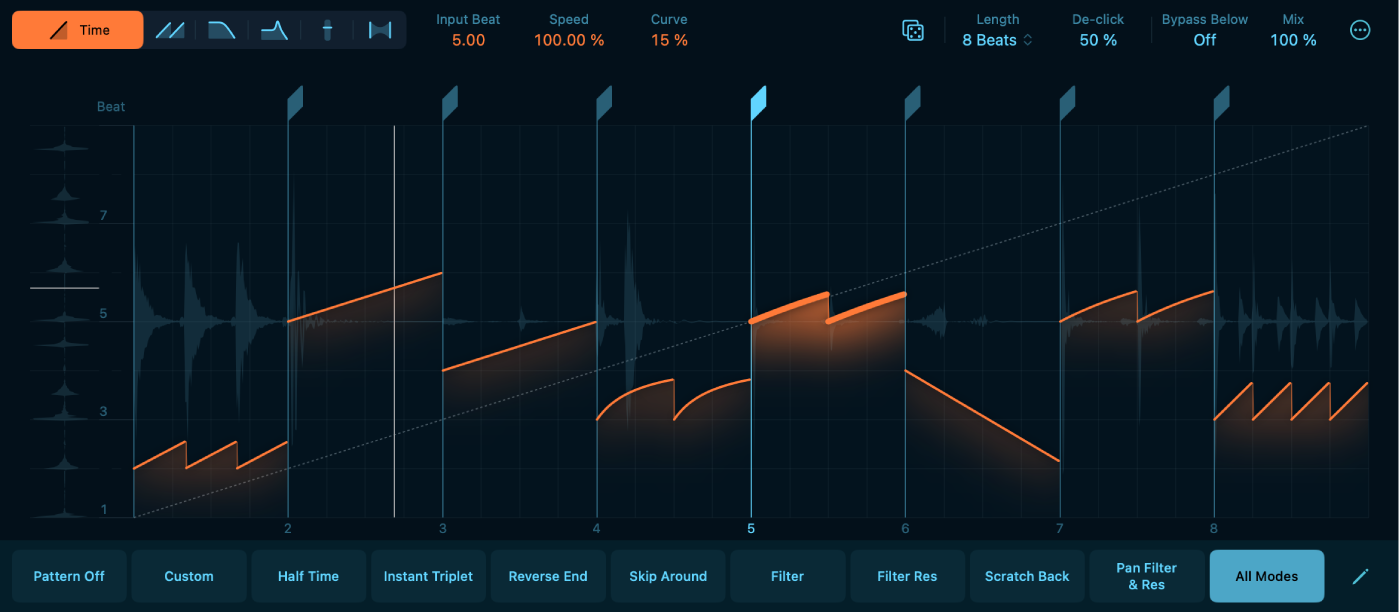
Main Editor parameters
Edit Mode buttons: Choose an edit mode to customize slice playback. See Edit modes.
Time button: Select Time mode to adjust the position and speed of a slice. See Time mode parameters.
Repeat button: Select Repeat mode to adjust the number of repetitions for a slice. See Repeat mode parameters.
Cutoff button: Select Cutoff mode to adjust the cutoff frequency of a slice. See Cutoff mode parameters.
Resonance button: Select Resonance mode to adjust the filter resonance of a slice. See Resonance mode parameters.
Volume button: Select Volume mode to adjust the volume of a slice. See Volume mode parameters.
Pan button: Select Pan mode to adjust the stereo position of a slice. See Pan mode parameters.
Input buffer: During playback, the input buffer displays the incoming audio, and its playhead shows which part of the input buffer is currently playing.
Slice Editor strip: This area contains slice markers. Use it to add, move, and delete slice markers for the selected pattern. See Work with Beat Breaker slices.
Output Beat: Set the position of the selected slice marker. This defines the beat at which the input beat is played back. See Move a slice.
Randomize button: Generate random effect values for the current mode or all modes. A single die randomizes the current mode; two dice randomize all modes. Control-click to change modes and randomization settings. See Use the Randomize button.
Global controls: Use the global controls, such as Length, De-click, and Mix, to fine-tune your pattern.
Length pop-up menu: Set the length of the current pattern in beats.
De-click value: Reduce clicks at locations where the playhead jumps by having a fast fade-out and fade-in. Decrease the value to hear more hard-hitting transients. Increase the value to remove audio clicks. Clicks occur when slices jump between noncontiguous parts of the audio, creating a sudden discontinuity in the waveform.
Bypass Below field: Set the frequency threshold below which the effect is bypassed. Frequencies below this threshold remain unaffected, while the effect is applied to frequencies above it. This is useful when applying Beat Breaker to a full mix, letting you keep low frequencies such as kick and bass unaffected while the effect processes the rest of the signal.
Mix value: Control the balance between the original and processed audio signals. Set to 100% to hear only the processed signal.
More button: Choose how quantized values are used when setting parameters on the Slice Editor strip.
Snap Output Beat: Set the snap value for the Output Beat parameter, allowing precise adjustment of parameters to quantized values when editing slices on the Main Editor.
Snap Input Beat: Set the snap value for the Input Beat parameter, allowing precise adjustment of parameters to quantized values when editing slices on the Main Editor.
Snap Speed: Set quantized values for the Speed parameter in the Main Editor, with Time for musical divisions, Pitch for semitone increments, and Off for no snapping.
Snap Cutoff: Set the snap resolution for the Cutoff parameter. Choose Off for free adjustment, or Fine, Medium, or Coarse for progressively larger snap increments.
Snap Resonance: Set the snap resolution for the Resonance parameter. Choose Off for free adjustment, or Fine, Medium, or Coarse for progressively larger snap increments.
Snap Volume: Set the snap resolution for the Volume parameter. Choose Off for free adjustment, or Fine, Medium, or Coarse for progressively larger snap increments.
Snap Pan: Set the snap resolution for the Pan parameter. Choose Off for free adjustment, or Fine, Medium, or Coarse for progressively larger snap increments.
Pattern buttons: Select a new preset pattern, or use Pattern Off to turn off all pattern effects. Each Pattern button contains settings for Time, Repeat, Cutoff, Resonance, Volume, and Pan modes, and Length. Use Pattern buttons to quickly switch Beat Breaker settings while performing or recording.
Pattern Off button: Turn off all pattern effects. Use this button to hear audio from Beat Breaker without any processing.
Pattern Slot Edit button: Turn on or off Pattern Slot Edit mode. In this mode, use the Pattern pop-up menu to load, save, and rename patterns in each pattern slot. See Work with pattern slots.