Modifying this control will update this page automatically
Apple TV 4K User Guide
- Welcome
- What’s new in tvOS 27
-
-
- Stream audio and video to Apple TV 4K
- Use HomePod or AirPlay-enabled speakers with Apple TV 4K
- Use AirPods or Beats with Apple TV 4K
- Connect Bluetooth devices
- Use your iPhone, iPad, or Apple Watch as a remote
- Manage incoming iPhone calls
- Use your iPhone or iPad as a keyboard
- Use your iPhone or iPad as a camera
- Use Siri on other devices to control Apple TV 4K
-
- Sing
-
- Fitness app at a glance
- Connect your Apple Watch or iPhone
- Subscribe to Apple Fitness+
- Start working out in the For You screen
- View workout details and control playback
- Browse or search for workouts
- Save workouts for later
- Combine workouts with Stacks
- View and manage Fitness+ plans
- Work out together using SharePlay
- App Store
- Search
- Copyright and trademarks
Change appearance settings on Apple TV 4K
Go to Settings
 on Apple TV 4K.
Go to General > Appearance, then do any of the following:
Change the appearance of backgrounds and menus: Select Light, Dark, or Automatic.
When set to Automatic, the appearance shifts from Light during daytime hours to Dark during nighttime hours.
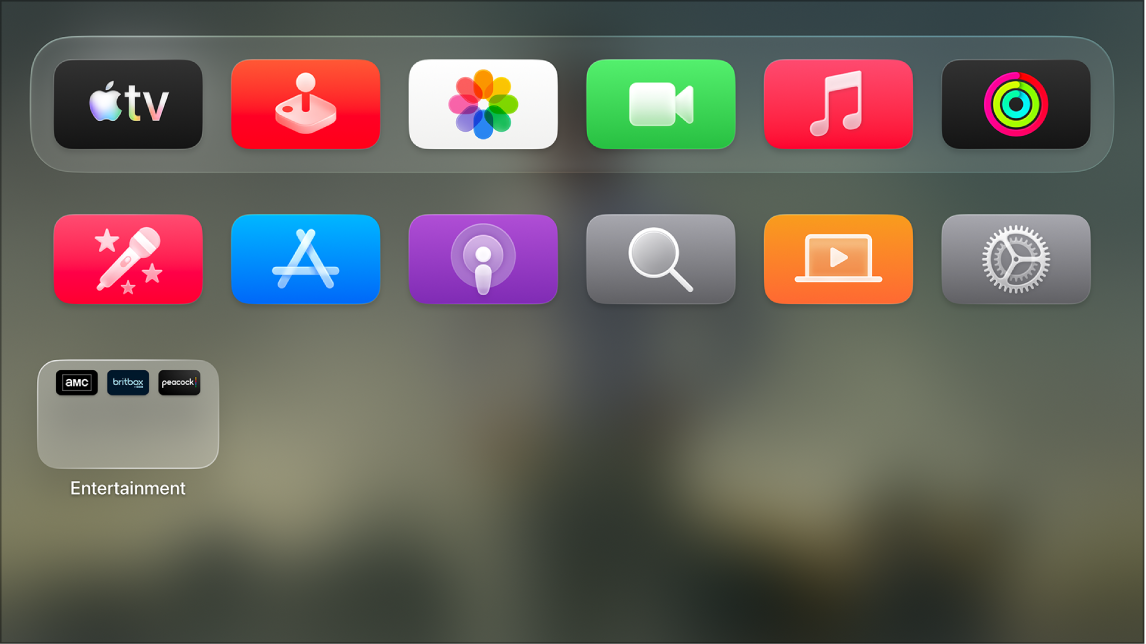
Increase the size of onscreen items: Select Default or Large.
When Large is selected, the top row of the Home Screen shows five icons instead of six.
Thanks for your feedback.