Apple Vision Pro User Guide
- Welcome
-
- Change notification settings and device sounds
- Set the date, time, language, and region
- Change your device name
- Change the appearance of text and windows
- Unlock your iPhone with Apple Vision Pro
- See your keyboard, game controller, or iPhone while immersed
- See people around you while immersed
- Use Apple Vision Pro in Travel Mode
- Refresh apps in the background
- Set content restrictions in Screen Time
- Let others use your Apple Vision Pro
-
- Apple Music Classical
- Books
- Calendar
- Capture
- Clock
- Encounter Dinosaurs
- Home
- Maps
- Mindfulness
- News
- Numbers
- Pages
- Podcasts
- Reminders
- Shazam
- Shortcuts
- Spatial Gallery
- Stocks
- Tips
- Voice Memos
-
- Get started with Apple Intelligence
- Create original images with Image Playground
- Create your own emoji with Genmoji
- Use Image Wand
- Use Writing Tools to write, improve, and summarize content
- Use ChatGPT with Apple Intelligence
- Summarize notifications and reduce interruptions
- Apple Intelligence and privacy
- Turn off and restrict access to Apple Intelligence features
-
- Get started with accessibility features
- Turn on features with the Accessibility Shortcut
- Change Siri accessibility features
-
- Use AssistiveTouch
- Perform actions with sounds
- Perform actions with your eyes
- Perform actions with your voice
- Perform actions with face gestures
- Use Look to Drive
- Adjust settings for the Digital Crown
- Look up to open Control Center
- Use a pointer to navigate
- Control your device with an external keyboard
- Adjust AirPods settings
- Use Guided Access
- Copyright and trademarks
View 3D models from your Mac on Apple Vision Pro
You can view 3D models from Preview on your Mac right in your space on Apple Vision Pro. You can also view other files from Preview, like images and PDFs.
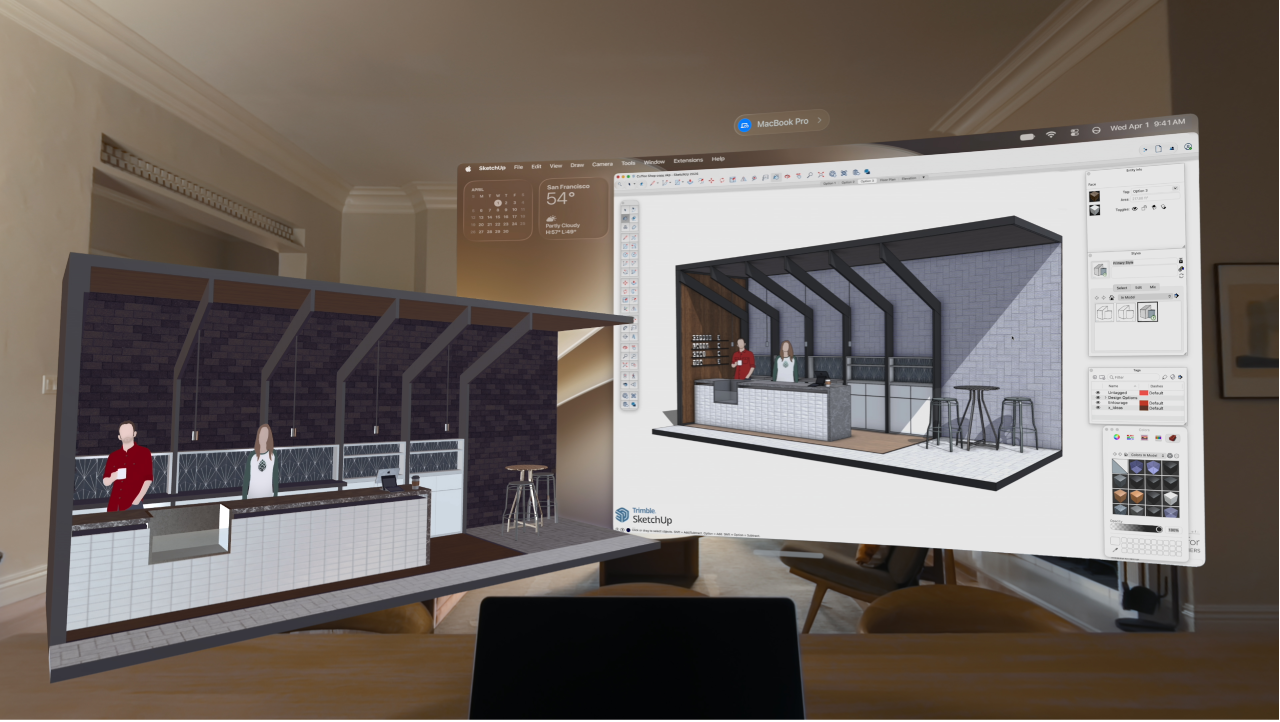
View a 3D model from Preview on your Mac
Open the 3D model you want to view on your Mac in Preview. See View 3D files in Preview on Mac in the Preview User Guide.
On Apple Vision Pro, connect to your Mac with Mac Virtual Display, then click
 in Preview.
Your 3D model automatically opens on Apple Vision Pro.
To choose how the content is shared, click

3D Scene: An interactive 3D model that you can view from every angle and move around on Apple Vision Pro. Edits made on the Mac appear in real time, and you can play animations, switch materials, view comments, and share directly from Apple Vision Pro.
Spatial Image: A live, view-only rendered image of the content.

What you need to view 3D models from your Mac
Your Mac and Apple Vision Pro must be on the same Wi-Fi network, or connected via USB.
The document must be saved in Preview on your Mac. Unsaved documents can’t be synced.
Your Mac must have macOS 27 or later installed, and Apple Vision Pro must have visionOS 27 or later.
To view an interactive 3D model, the file must be a USD file (in USDA, USDC, or USDZ format). Other files that Preview can open, like images or PDFs, can only be viewed on Apple Vision Pro as a Spatial Image.
Tip: Other Mac apps built for 3D design and modeling can also send content to Apple Vision Pro in a similar way.