
Plan for and set up content caching
Content caching is primarily affected by two main factors: connectivity and hardware configurations.
Plan your content cache for best performance
You get the best performance from your content cache by attaching it to your network using a single multi-Gigabit Ethernet connection. The content cache can serve hundreds of clients concurrently, which can saturate a Gigabit Ethernet port. Therefore, in most deployments the performance bottleneck is usually the bandwidth of your local network.
Important: For best results, deploy content caching on a Mac that has a single wired Ethernet connection as its only connection to the network. Content caching can use a Wi-Fi connection instead of Ethernet, but performance might be affected and it isn’t recommended.
If your Mac is in an environment where clients download large amounts of a wide variety of content, for example when caching iCloud content, be sure to set the cache size limit high enough. This prevents the content cache from deleting cached content frequently, which may necessitate downloading the same content multiple times, thereby using more internet bandwidth.
Set up your content cache
The following are best practices for content caching:
Allow all Apple push notifications.
Don’t use manual proxy settings.
Don’t use a proxy to accept client requests and pass them to content caches.
Don’t use deep packet inspection on the traffic from your content caches to Apple servers.
Bypass proxy authentication for content caches.
Specify a TCP port for caching if your firewall rules need a fixed port. The port needs to be available for the content caching service to start.
Manage intersite caching. If all sites use the same public IP address, you can use the Cache content for setting to keep the traffic within a site.
Block rogue cache registration for managed Mac computers by enforcing the device management service restriction “Prevent content caching” on all Mac computers not intended as a content cache.
Block rogue cache registration for unmanaged Mac computers by blocking access to lcdn-locator.apple.com for all Mac computers that are not provisioned by the organization for content caching.
Define whether only shared content, iCloud content, or both is cached by the same content cache. In most deployments, a content cache is configured to cache one or the other.
Note: All content caching connections to the internet are initiated by the content cache. Also content cache discovery uses a server-side matching mechanism instead of multicast.
Use multiple content caches
You can use multiple content caches in your network. Those caches can be arranged in a hierarchy and can take different roles to accommodate more complex network setups:
Peer: Unless configured otherwise, multiple content caches that share the same public IP address—or public IP addresses if DNS TXT records are used—become peers. When requested content isn’t available on one content cache, it checks its peers for the asset. If the content is available, it’s downloaded from the peer and stored in the cache while simultaneously streaming to the client. Otherwise, the peer responds with a content not found message. If none of the peers have the content, the content cache downloads it from a parent (if configured) or Apple and caches it in its own cache.
Parent: You can configure a content cache as a parent. If an item isn’t available on any of the peers, a content cache next checks configured parents according to the parent selection policy. Configuring parent content caches can help to aggregate demand across network segments, particularly in remote sites with multiple content caching services but connected over a low bandwidth link. If a parent doesn’t have the content it downloads it from Apple, caches it, and simultaneously streams the content to the requesting content cache. macOS supports up to eight levels of parent caches. If additional hierarchy levels are added, content caches reach out to Apple instead.
If you use parent caches in your deployment, you can configure a peer to use one of the following parent selection policies:
Policy | Description | ||||||||||
|---|---|---|---|---|---|---|---|---|---|---|---|
First available | Always use the first parent in the parents list that is available. This is useful for designating permanent primary, secondary, and subsequent parents. | ||||||||||
Random | Choose a parent at random. This is useful for load balancing. | ||||||||||
Round robin | Rotate through the parents in order. This is the default method used and useful for load balancing. | ||||||||||
Sticky available | Starting with the first parent in the parents list, always use the first parent that is available. Use that parent until it becomes unavailable, then advance to the next one. This is useful for designating floating primary, secondary, and subsequent parents. | ||||||||||
Hash | Hash the path part of the requested URL so that the same parent is always used for the same URL. This is useful for maximizing the size of the combined caches of the parents. | ||||||||||
Note: If turned on, iCloud content of a particular user is only stored on one content cache and isn’t replicated across peers or parents. A client maintains the affinity with that specific content cache for its iCloud content for as long as possible.
As a rough initial estimate, you can assume that 3,000 clients can be served by a single content cache. You should refine this estimate using aspects like the following to determine the actual amount of content caches needed in your network:
Your network topology, for example how much bandwidth is available to remote locations.
The storage required and whether only shared assets or also iCloud content should be cached.
Utilization of your content caches. See Content caching metrics on Mac.
Sample network configurations for content caches
In the example below, the network is organized into a three-level hierarchy that has multiple tiers of parent content caches. Peers are automatically detected when a content cache registers with the Content Caching Server registration service.
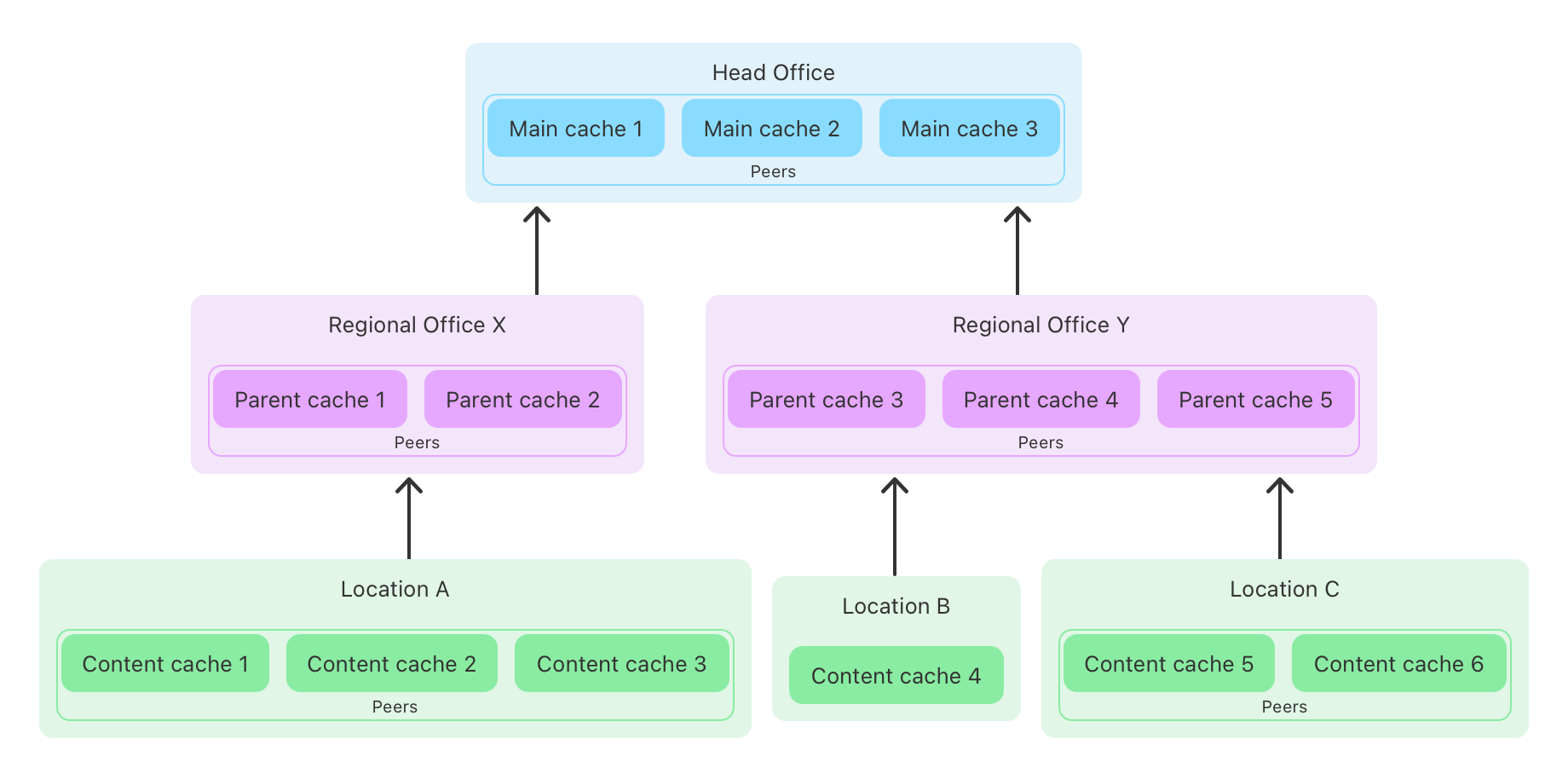
You might choose a configuration matching the first example to maximize sharing among caches. If one of the content caches in a location is unavailable, another might already have the same content cached. Content caches 1–6 and parent caches 1–5 can use one of the parent selection policies.
You might choose a configuration matching the second example to maximize the total size of the cache. Parent caches 1–5 don’t share content with each other, and neither do main caches 1–3. Content caches 1–6 and parent caches 1–5 can use the parent selection policy url-path-hash.
Verify reachability of your content caches
When your content caches are deployed, you can use an iPhone, iPad, or Mac to verify availability of the content caching service to your clients. Ensure the device is connected to the same network your clients are using.
On an iPhone or iPad
Open the details pane of the current network in Settings. This initiates the content cache discovery process. If a content cache was found it’s shown under Content Caches. For each preferred cache you can also inspect additional details like:
IP address
What type of content is cached
Rank of the cache
Health of the cache
Whether the cache is reachable
Additionally, you can initiate a cache download test to measure performance.
On a Mac
Run AssetCacheLocatorUtil in the Terminal to verify the availability of a content cache. Running the command initiates the content cache discovery process.