Mac User Guide
- Welcome
- What’s new in macOS Tahoe
-
- Intro to Apple Intelligence
- Translate messages and calls
- Create original images with Image Playground
- Create your own emoji with Genmoji
- Use Apple Intelligence with Siri
- Find the right words with Writing Tools
- Summarize notifications and reduce interruptions
- Use ChatGPT with Apple Intelligence
- Apple Intelligence and privacy
- Block access to Apple Intelligence features
-
- Intro to Continuity
- Use AirDrop to send items to nearby devices
- Hand off tasks between devices
- Control your iPhone from your Mac
- Copy and paste between devices
- Stream video and audio with AirPlay
- Make and receive calls and text messages on your Mac
- Use your iPhone internet connection with your Mac
- Share your Wi-Fi password with another device
- Use iPhone as a webcam
- Insert sketches, photos, and scans from iPhone or iPad
- Unlock your Mac with Apple Watch
- Use your iPad as a second display
- Use one keyboard and mouse to control Mac and iPad
- Sync music, books, and more between devices
-
- Get started
-
- Accessibility features for vision
- Get started with VoiceOver
- Zoom in on what’s around you
- Zoom in on your Mac screen
- Increase font size and icons
- Adjust the display colors
- Hover to zoom in on text and colors
- Listen to or change how text appears in apps
- Customize onscreen motion
- Increase the size of what’s on your screen
- Make the pointer easier to see
- Have your Mac speak text that’s on the screen
- Resources for your Mac
- Resources for your Apple devices
- Copyright and trademarks

Take a tour of MacBook Neo
Welcome to your new MacBook Neo.
Click the blue text below to learn more about a feature.
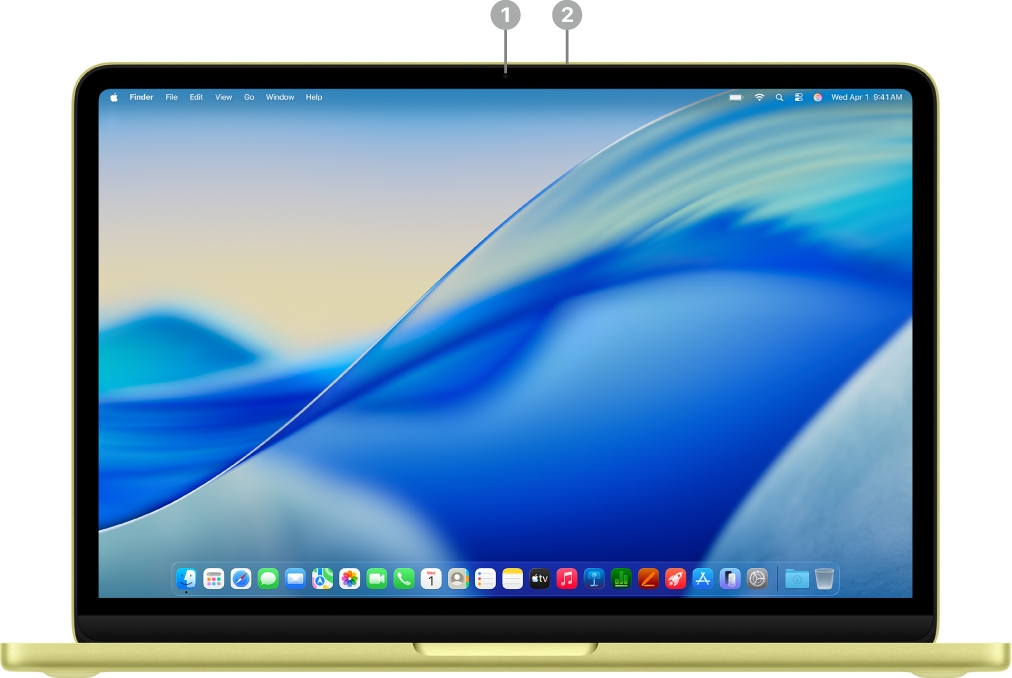 | Click the feature to learn more. | ||||||||||
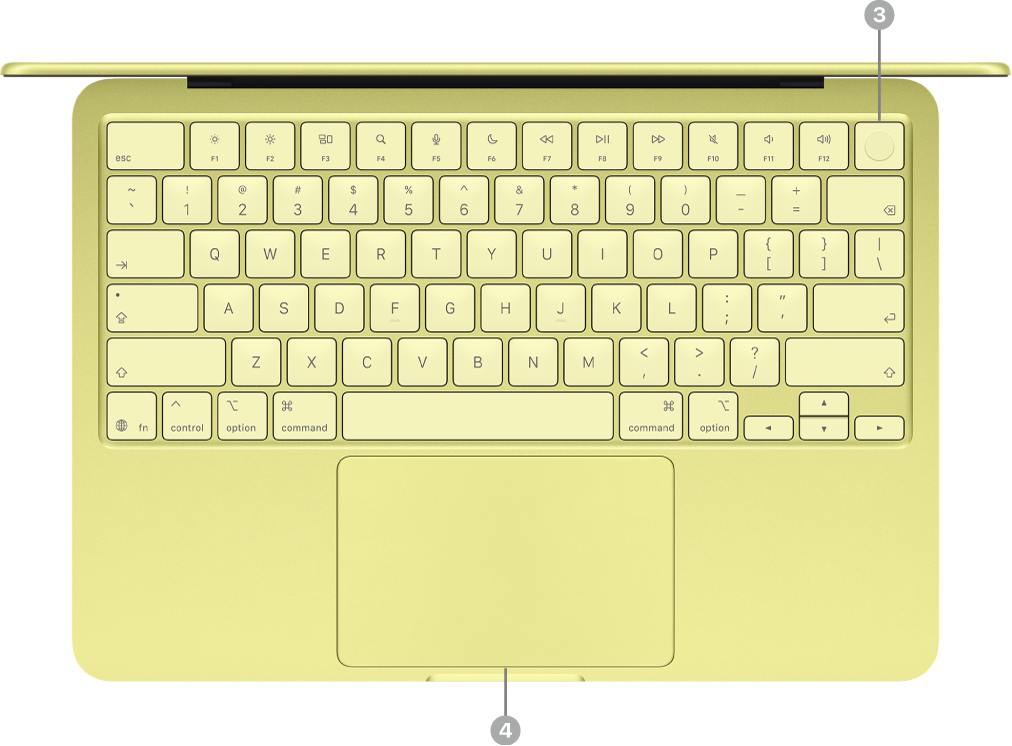 | |||||||||||
 | |||||||||||


Get to know your USB-C ports
Your MacBook Neo comes with two USB-C ports.

USB 3 and USB 2 ports. Your MacBook Neo comes with two USB-C ports. The left port can support one external display and transfers data at USB 3 speeds (up to 10 GB/s). The right port transfers data at USB 2 speeds (up to 480 MB/s). You can charge your MacBook Neo and connect accessories using either port.
Charge your MacBook Neo. You can use both ports to charge your computer with a USB-C Charge Cable and a compatible power adapter. See Charge the MacBook Neo battery.
Connect an accessory to your MacBook Neo. You can use both ports to connect accessories and charge devices, like an iPhone. Use the left port (USB 3) to transfer data at higher speeds. See Connect accessories to your MacBook Neo.
Connect an external display to your MacBook Neo. You can connect an external display, as well as a projector or HDTV, to the left port (USB 3). See Connect an external display to MacBook Neo.
Tip: As a best practice, charge your MacBook Neo using the right port (USB 2), which leaves the left port (USB 3) available for a display or for connecting accessories that can take advantage of the higher speeds.
If you need an adapter to connect a device. If your device has a connector that doesn’t match the port on your MacBook Neo, you can use an adapter. See the Apple Support article Adapters for the Thunderbolt or USB-C port on your Mac.
Note: Devices that use only Thunderbolt aren’t compatible with MacBook Neo. If your Thunderbolt device also uses another standard—like USB 2 or USB 3—it’s compatible with MacBook Neo. If you connect a device that uses only Thunderbolt, a notification appears.
What’s next?
Now that you’ve looked around your new MacBook Neo, see Set up your Mac to get up and running with Setup Assistant.
If you’ve already owned a Mac, check out Set up your accounts or Personalize the look of your Mac.
If you’re coming from a Windows PC, head over to Switched from Windows to Mac? for a guide on key differences and comparable apps between Windows and macOS. Then, explore Are you new to Mac? to learn about important macOS features.