
Gather information about a Mac
Overview
During the Investigate step of Systematic troubleshooting, information from the Mac often helps determine whether the focus should be on hardware, software, configuration, or user behavior. This article lists the information sources to gather and what each one reveals.
Isolating the issue
As you investigate, gather information from the following sources. Each one can help identify which technology layer the issue traces to: hardware, operating system, configuration, apps, peripherals, or user state.
About This Mac
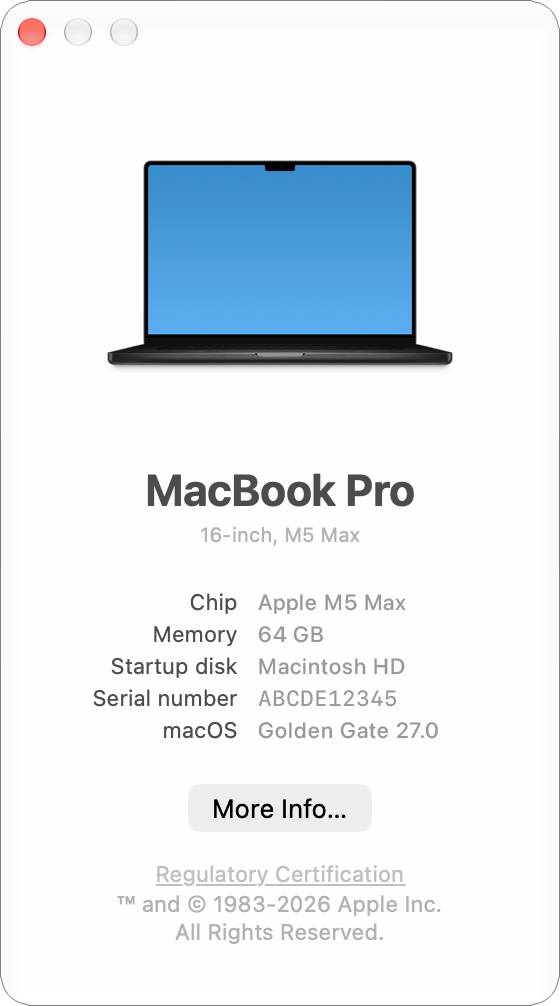
The Mac model, macOS version, and serial number establish the baseline for an investigation: whether the Mac is supported, whether macOS is current, and what hardware specs apply. The serial number is needed for AppleCare and service references.
Choose Apple menu > About This Mac. The summary shows model name, chip or processor, memory, macOS version, and serial number. To see the build number, click the version number. For comprehensive hardware and software detail, click More Info, then click System Report to open System Information.
System Information
System Information provides a comprehensive view of the hardware, software, and network state of a Mac. Many of the sources later in this article (app type, USB and Thunderbolt devices, power and battery details) are available in System Information.
To open System Information, hold the Option key while clicking the Apple menu, then choose System Information. (Without the Option key held, the same menu item is “About This Mac.”) System Information can also be opened from /Applications/Utilities or with Spotlight.
For the reports System Information can generate, see View configuration details with System Information and reports.
App type
macOS apps come in five types, reported in System Information. Open System Information > Software > Applications, then click the Kind column to sort by type:
Apple silicon: Runs natively on a Mac with Apple silicon.
iOS: An iOS or iPadOS app the developer has made available on a Mac with Apple silicon.
Universal: Runs natively on Apple silicon and Intel-based Mac computers.
Intel: Runs using Rosetta on a Mac with Apple silicon.
Web: Runs using WebKit.
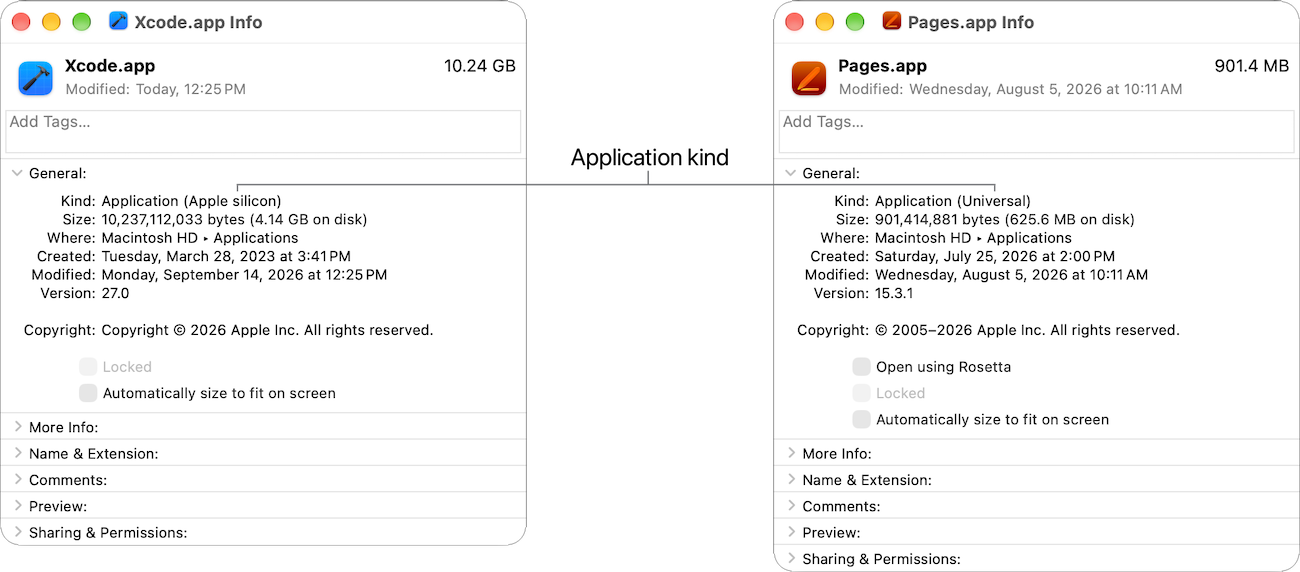
Note: Rosetta is a transition technology, available as a general-purpose way to run Intel apps through macOS 27. Beyond that, a subset of Rosetta will be available for older unmaintained gaming titles that rely on Intel-based frameworks. An Intel app that requires Rosetta won’t open in macOS 28, and Get Info reports that in the Kind field. A Universal app includes native Apple silicon code, so it runs natively on a Mac with Apple silicon. To confirm an app’s type, see Check app installation and processes on Mac.
App type affects performance, compatibility, and crash patterns. Intel apps using Rosetta can behave differently than native versions, and iPhone and iPad apps on a Mac sometimes present unfamiliar UI patterns or sizing, a common source of “Why does this app look odd on my Mac?” questions.
To check a single app, select it in the Finder and choose File > Get Info. The Kind field reports “Application (Apple silicon),” “Application (Universal),” “Application (Intel),” or “Application (Web).” Get Info doesn’t identify an iOS app, because it also reports “Application (Apple silicon).”
Default app for a file type
macOS may associate a file type with a different default app than the user expects, so the file opens in an unintended app. This is a default-app mismatch, not a broken app.
In the Finder, select a file of the type you want to change, then choose File > Get Info. Expand the “Open with” section, choose a new default app from the pop-up menu, then click Change All to set the new default for all files of that type.
Firewall status
macOS Firewall controls incoming connections on a per-app basis and allows signed software by default. Firewall configuration rarely causes an issue, but its state is worth checking in any connectivity or app-behavior investigation.
Choose Apple menu > System Settings, click Network in the sidebar, then click Firewall. Check whether the firewall is on and review allowed and blocked apps. For configuration details, see Manage Firewall.
USB and peripheral information
When a peripheral isn’t working, first determine whether the issue is the Mac port or the peripheral, such as a failing device or cable.
Open System Information > USB to see every device on the USB bus, the port speed, and the device tree. For Thunderbolt devices, open System Information > Thunderbolt. For peripheral troubleshooting steps, see Troubleshoot peripheral connections.
Battery health
Performance throttling, unexpected shutdowns, and reduced runtime can all indicate a battery in need of service. Even when the user reports software issues, battery condition can be a contributing cause on Mac laptops.
Choose Apple menu > System Settings, then click Battery in the sidebar. The Battery Health detail shows the condition, such as Normal or Service Recommended, and maximum capacity. System Information > Power shows cycle count, condition, full charge capacity, and design capacity.
Activity Monitor
Activity Monitor shows real-time CPU, memory, energy, disk, and network usage per process. Check it for any performance, thermal, or battery-life issue.
In the Finder, choose Go > Utilities, then open Activity Monitor. You can also find it with Spotlight. Tabs show CPU, Memory, Energy, Disk, and Network usage. Click a tab, then click a column to sort and find the top consumers of that resource.
For steps to gather details about a process or quit one, see Collect information or quit a process with Activity Monitor.
Storage status
A startup disk with little free space can cause unpredictable behavior. Apps may refuse to launch, system updates may fail, and performance may degrade. A storage check rules out a full disk before deeper troubleshooting.
Choose Apple menu > System Settings, click General in the sidebar, then click Storage. The view shows total used and free space, broken down by category, and is also the starting point for freeing space when needed.
Managed environments
A Mac reports installed configuration profiles in three places, each with more detail than the last. A user can install a profile manually, or a device management service can install it.
Choose Apple menu > System Settings, click General in the sidebar, then click Device Management. This view shows enrollment status and installed profiles, and it’s where a user can remove a profile when removal is allowed.
Open System Information > Software > Profiles for the details of each installed profile, shown as a document with the following:
Description
Organization
Installation Date
Identifier
UUID
Version
Verification State
Source
Removal Disallowed
Each profile expands to show its payloads.
Open System Information > Software > Managed Client to see what’s in effect. This view shows each managed payload’s current values, its state (such as “always” for a forced setting), and where it came from.
The same payload appears differently in each view. An SSO extension profile appears in Device Management as an installed entry, in Profiles as an artifact with an install date, and in Managed Client as the enforced TeamIdentifier and URL list.
Read together, the three views report what’s installed and what’s in effect.