Find the serial number, EID, or IMEI on your iPhone, iPad, or iPod touch
You can find the serial number, EID, IMEI/MEID, CDN, and ICCID in several places, including in Settings, on the device itself, in the Finder, or on the original packaging. You can use these numbers to identify your device when you contact Apple for support.
Find your iPhone serial number, EID, IMEI/MEID, or ICCID
The easiest place to look for these numbers is usually the Settings app. If you can't use your device, there are a few other places to check.
Look in Settings
Open the Settings app, then tap General.
Tap About.
Look for the serial number. You might need to scroll down to find the EID, IMEI/MEID, and ICCID.

To paste this information into Apple registration or support forms, touch and hold the number to copy.
Look on your iPhone or SIM tray
If your iPhone has a SIM tray and you need support but can't open the Settings app, you can use the IMEI/MEID instead of the serial number.*
On the following devices, find the serial number in Settings and the IMEI/MEID on the SIM tray:
iPhone 13
iPhone 13 mini
iPhone 13 Pro
iPhone 13 Pro Max
iPhone 12
iPhone 12 mini
iPhone 12 Pro
iPhone 12 Pro Max
iPhone SE (3rd generation)
iPhone SE (2nd generation)
iPhone 11
iPhone 11 Pro
iPhone 11 Pro Max
iPhone XS
iPhone XS Max
iPhone XR
iPhone X
iPhone 8
iPhone 8 Plus
iPhone 7
iPhone 7 Plus
iPhone 6s
iPhone 6s Plus

On the following devices, find the serial number in Settings and the IMEI/MEID (the MEID is the first 14 digits of the IMEI) on the back:
iPhone 6
iPhone 6 Plus
iPhone SE (1st generation)
iPhone 5s
iPhone 5c
iPhone 5

On the following devices, find the serial number and IMEI/MEID on the SIM tray:
iPhone 3G
iPhone 3GS
iPhone 4 (GSM model)
iPhone 4s
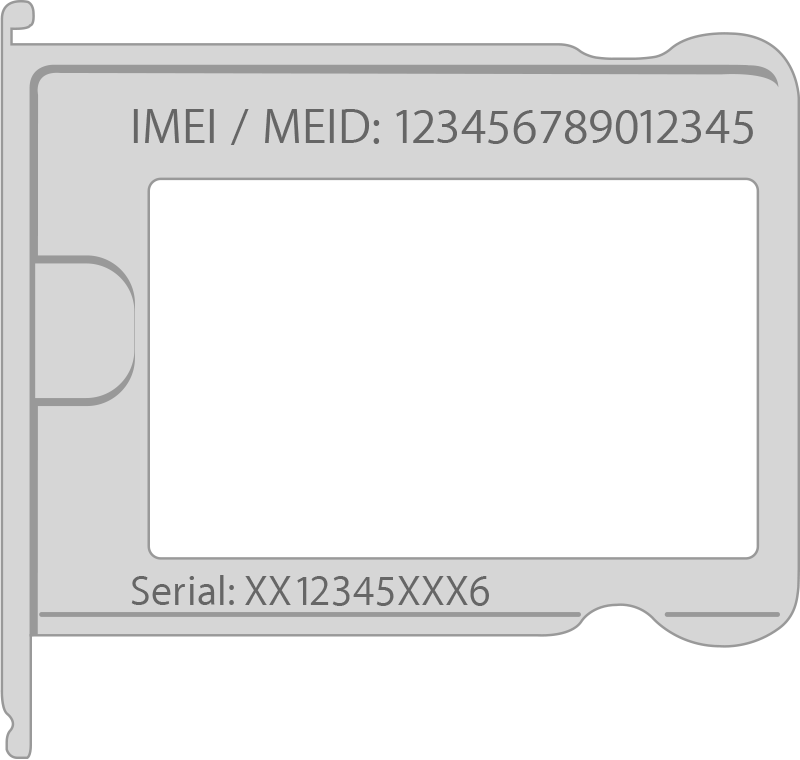
If you have an original iPhone, find the serial number and IMEI engraved on the back.
Look before setting up your iPhone
Turn on your device.
Press and hold the device's power button until you see the Apple logo. You'll then see "Hello" in many languages.
Tap the Info button
 in the bottom-right corner of the screen.
Find your iPad serial number, EID, IMEI/MEID, or ICCID
The easiest place to look for these numbers is usually the Settings app. If you can't use your device, there are a few other places to check.
Look in Settings
Open the Settings app, then tap General.
Tap About.
Look for the serial number. You might need to scroll down to find the EID, IMEI/MEID, and ICCID.
To paste this information into Apple registration or support forms, touch and hold the number to copy.
Look on your iPad
Find the serial number for your iPad on the back of the device. On an iPad (Wi-Fi + cellular model), you'll also find the IMEI.

Look for your serial number, EID, or IMEI before setting up your iPad
Turn on your device.
Press and hold the device's power button until you see the Apple logo. You'll then see "Hello" in many languages.
Tap the Info button
 in the bottom-right corner of the screen.
Find your iPod touch serial number, EID, IMEI/MEID, or ICCID
The easiest place to look for these numbers is usually the Settings app. If you can't use your device, there are a few other places to check.
Find in Settings
Open the Settings app, then tap General.
Tap About.
Look for the serial number. You might need to scroll down to find the EID, IMEI/MEID, and ICCID.
To paste this information into Apple registration or support forms, touch and hold the number to copy.
Find on your iPod touch
Find the serial number for your iPod touch on the back of the device.

Find your serial number, EID, or IMEI before setting up your iPod touch
Turn on your device.
Press and hold the device's power button until you see the Apple logo. You'll then see "Hello" in many languages.
Tap the Info button
in the bottom-right corner of the screen.
More ways to find your device's serial number, EID, or IMEI/MEID
There are several places to check that might show the serial number, EID, or IMEI/MEID.
Use the Finder, Apple Devices, or iTunes
You can find the serial number for your device in the Finder or, if you have a PC, the Apple Devices app or iTunes:
Connect your device to your computer.
On a Mac with macOS Catalina 10.15 or later, open the Finder. On a Mac with macOS Mojave or earlier, open iTunes. If you're using a PC, use the latest version of the Apple Devices app or iTunes.
Locate your device. In the Finder, make sure that you're under the General tab.
To find the serial number, click the model name (under your device name).
For iPhone, click Phone Number under your device name or the device model to find the EID, IMEI/MEID, and ICCID. For an iPad (cellular model), click Serial Number to find the CDN, EID, IMEI/MEID, and ICCID.

If you'd like to paste this information into Apple registration or support forms, choose Edit > Copy Serial Number.
Use your Apple Account
Go to account.apple.com in a web browser.
Sign in to the Apple Account that you use on your device.
Choose the Devices section. To see the serial number, EID, and IMEI/MEID, select the device.
Use your Apple Account with a different device
Do you have a different device with iOS 10.3 or later that's signed in to your Apple Account?
On the other device, open the Settings app, then tap [Your name].
Scroll down to see any devices signed in to your Apple Account.
Tap the device name.
Use your device's original packaging
Do you still have your device's original packaging? Find the serial number, EID, and IMEI/MEID on the barcode on the original packaging:
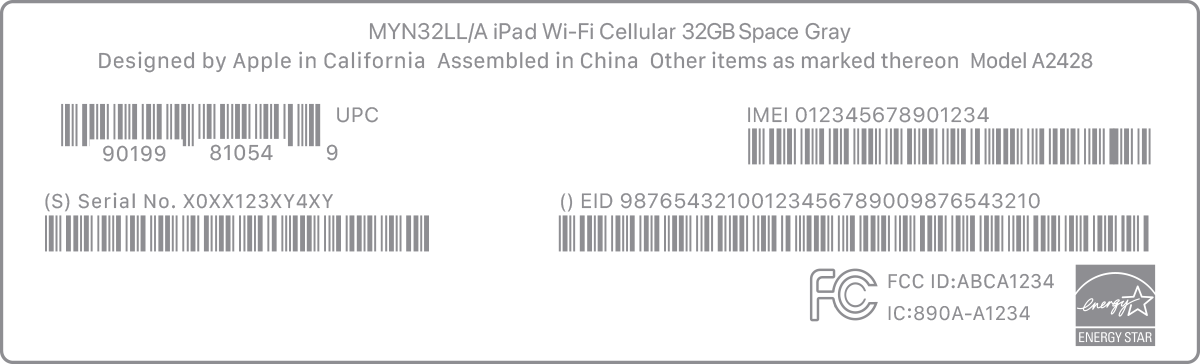
* iPhone 14 models and later don't have an IMEI/MEID engraving.
Information about products not manufactured by Apple, or independent websites not controlled or tested by Apple, is provided without recommendation or endorsement. Apple assumes no responsibility with regard to the selection, performance, or use of third-party websites or products. Apple makes no representations regarding third-party website accuracy or reliability. Contact the vendor for additional information.
