Restore your iPhone, iPad, or iPod to factory settings
A factory restore erases the information and settings on your iPhone, iPad, or iPod and installs the latest version of iOS, iPadOS, or iPod software.
Get your device ready
Make sure that your Mac or PC is updated. If you're using iTunes, make sure that you have the latest version.
If you want to save the information on your iPhone, iPad, or iPod, make a backup.
Go to Settings > [your name] > Find My, tap Find My iPhone, then turn it off. Learn what to do for an unresponsive device or one that won't turn on. Get help if you forgot your passcode.
Restore your device to factory settings
Open the Finder on your Mac, or open the Apple Devices app on your PC. If your PC doesn't have the Apple Devices app, or your Mac is using macOS Mojave or earlier, open iTunes instead. Find out which macOS your Mac is using.
Connect your device to your computer.
If a message asks for your device passcode or to Trust This Computer, follow the onscreen steps. Get help if you forgot your passcode.
Select your device when it appears on your computer. Learn what to do if your iPhone, iPad, or iPod touch is unresponsive or won't turn on. Or get help if your device doesn't appear on your computer.
Click Restore [device]*. If you're signed into Find My, you need to sign out before you can click Restore.
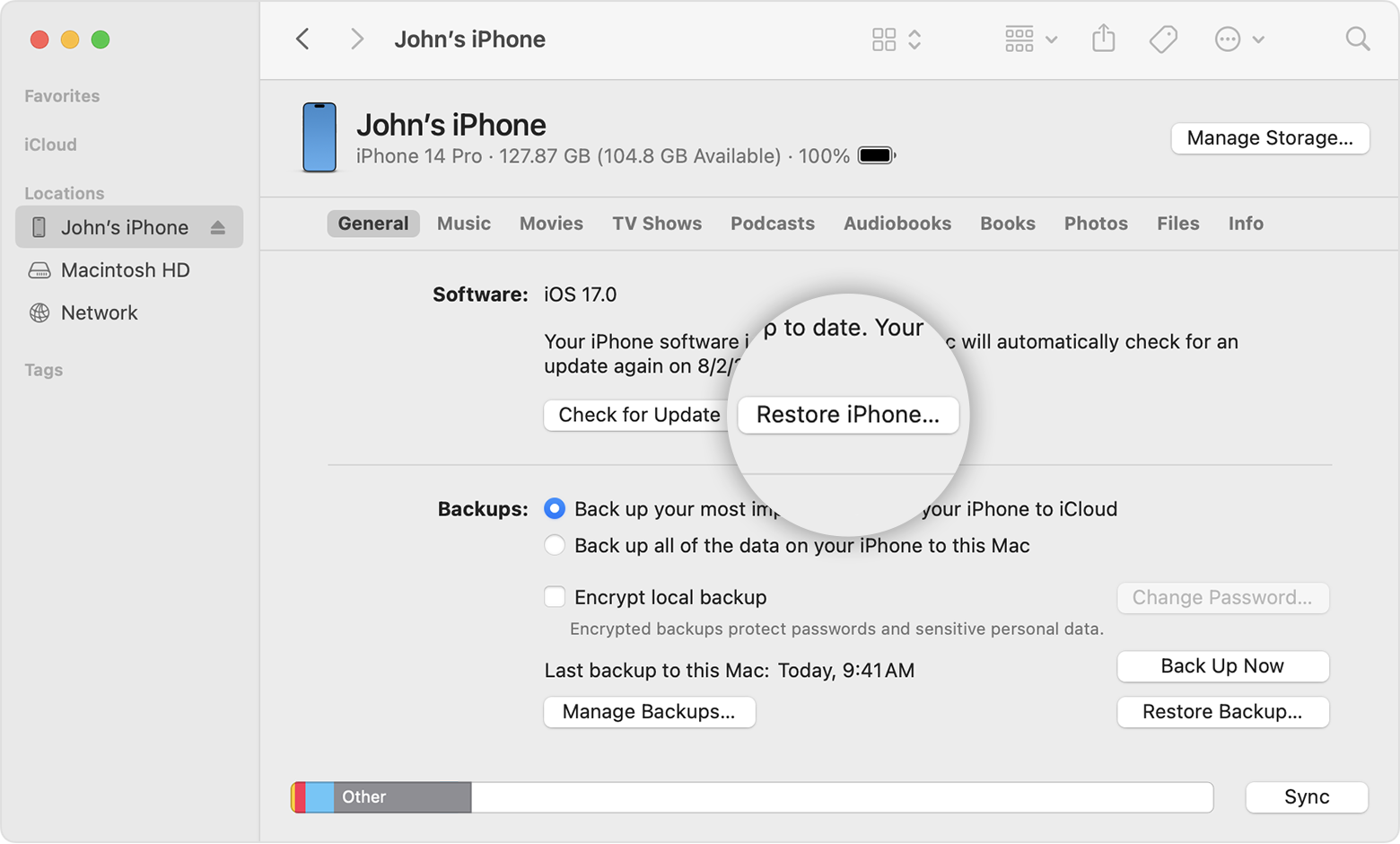
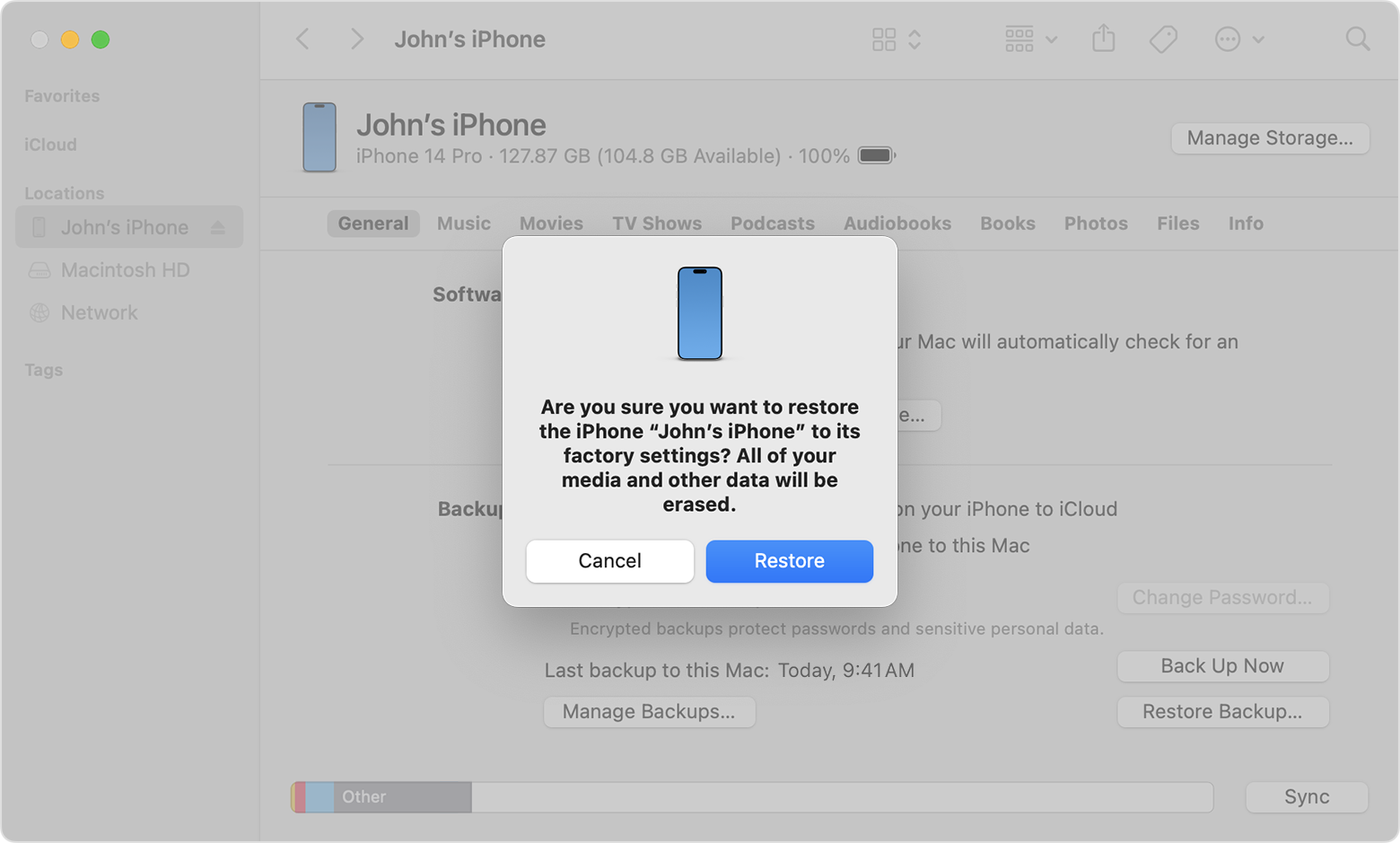
Click Restore again to confirm. Your computer erases your device and installs the latest iOS, iPadOS, or iPod software.
After your device restores to factory settings, it restarts.
* Restoring an iPhone does not delete your eSIM. Learn how to erase your eSIM, if you need to.
If you can't access a computer
If you can't access a computer and your device still works, you can erase and restore your device without a computer.
Get help
Learn what to do if you see an error message.
Learn how to restore your device from a backup.
Contact Apple Support if you need more help.

