Connect external displays to MacBook Pro
The HDMI and Thunderbolt ports on your MacBook Pro support video output, so you can connect external displays, a projector, or a high-resolution TV.
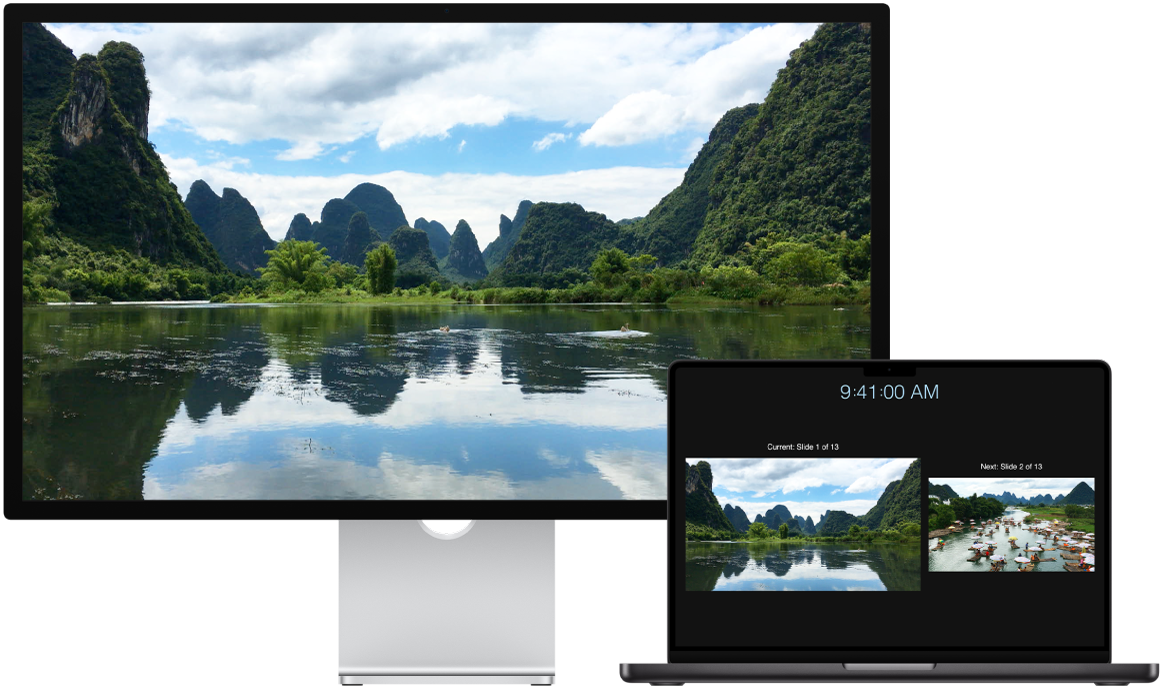
Before you begin
Connect your display to power before you connect it to MacBook Pro.
Step 1: Identify the video ports on your Mac
The Thunderbolt  and HDMI
  ports on your MacBook Pro support video.
For more information on the different ports available on your MacBook Pro, see Take a tour of MacBook Pro.
Step 2: See how many displays your Mac supports
The number of displays your MacBook Pro supports depends on the chip inside your MacBook Pro.
 MacBook Pro with M5 Connect up to two external displays in the following configurations using the Thunderbolt or HDMI ports:
Supports up to two external displays over a single Thunderbolt port. |
 MacBook Pro with M5 Pro Connect up to three external displays in the following configurations using the Thunderbolt or HDMI ports:
Supports up to three displays over a single Thunderbolt port. |
 MacBook Pro with M5 Max Connect up to four external displays in the following configurations using the Thunderbolt or HDMI ports:
Supports up to four displays over a single Thunderbolt port. |
To learn more about using an 8K display with your MacBook Pro, see the Apple Support article Use an 8K display with your Mac.
Note: Enabling scaled resolutions higher than the native resolution of the external display may impact availability of some refresh rate modes or HDR modes in display preferences
Step 3: Make sure you have the correct cables and adapters
If you have display cables that match the ports you want to use on your MacBook Pro, proceed to the next step.
If you have display cables, but their connectors don’t match the ports you want to use on your MacBook Pro, you may be able to use an adapter (sold separately). See Adapters and cables for your MacBook Pro and visit apple.com, your local Apple Store, or other resellers for more information and availability.
Review the display’s documentation or check with the display’s manufacturer to make sure you choose the right product.
See the Apple Support article Adapters for the Thunderbolt or USB-C port on your Mac to identify what type of adapter you need, see what it looks like, and learn what it can be used for.
If you don't have display cables, obtain the required cables. If you have a third-party display, check the documentation that came with the display to get more information on the display’s video ports and cables.
Step 4: Connect your displays
Connect your displays to your MacBook Pro using the identified video ports, cables, and adapters (if needed). When connecting multiple displays, connect the display with the highest resolution first.
Step 5: Adjust display settings
After your displays are connected, you may want to adjust their settings. Open System Settings, then click Displays in the sidebar to see your displays’ settings, including resolution, brightness, and color profile. You can set your display to extend or mirror your Mac desktop across your external displays.
After you connect an external display to your MacBook Pro, you can use the display and accessories to use your MacBook Pro, even when the lid is closed.
Need more help?
For troubleshooting information, see If the external display isn’t working in Connect one or more external displays with your Mac.
If the display has a blank or black screen or you can’t use its highest resolutions or refresh rates, see the Apple Support article If your external display is dark or low resolution.
If you have an older model and want information on the number of displays it supports, see the Apple Support article How many displays can be connected to MacBook Pro.
For information on the ports on your Mac, see Take a tour of MacBook Pro or the Apple Support article Identify the ports on your Mac.
MacBook Pro can support Apple Pro Display XDR, Apple Studio Display XDR, and Apple Studio Display. To set up, see the Getting Started Guide for your Apple display or the Apple Support articles Set up and use Apple Pro Display XDR and Set up and use Apple Studio Display.