இந்தக் கட்டுப்பாட்டை மாற்றினால் இந்தப் பக்கம் தானாக மாற்றப்படும்
Final Cut Pro User Guide for Mac
- Welcome
- What’s new
-
- Intro to importing media
- If it’s your first import
- Organize files during import
-
- Import from Image Playground
- Import from iMovie for macOS
- Import from iMovie for iOS or iPadOS
- Import from Final Cut Pro for iPad
- Import from Final Cut Camera
- Import from Photos
- Import from Music
- Import from Apple TV
- Import from Motion
- Import from GarageBand and Logic Pro
- Import using workflow extensions
- Record into Final Cut Pro
- Memory cards and cables
- Supported media formats
-
-
- Intro to captions
-
- Closed captions workflow
- Create closed captions
- Import closed captions
- Show or hide closed captions
- Edit closed caption text
- Adjust and arrange closed captions
- Format closed caption text
- Create multilingual closed captions
- Convert closed captions to another format
- Convert closed captions to subtitles
- Export closed captions
- Generate subtitles automatically
-
- Intro to effects
-
- Intro to transitions
- How transitions are created
- Add transitions and fades
- Quickly add a transition with a keyboard shortcut
- Set the default duration for transitions
- Delete transitions
- Adjust transitions in the timeline
- Adjust transitions in the inspector and viewer
- Merge jump cuts with the Flow transition
- Adjust transitions with multiple images
- Modify transitions in Motion
- Add adjustment clips
-
- Add storylines
- Use the precision editor
- Conform frame sizes and rates
- Use XML to transfer projects
-
- Intro to sharing projects
- Share to Apple devices
- Share on the web
- Send a video frame to Pixelmator Pro
- Share in email
- Share stereo or spatial video
- Batch sharing
- Share using Compressor
- Create share destinations
- Change metadata for shared items
- View the status of shared items
- Speed up exports with simultaneous processing
- Glossary
- Copyright and trademarks
Download a demo project in Final Cut Pro for Mac
You can download a sample library and projects to explore features in Final Cut Pro for Mac.
Choose Final Cut Pro > Download Demo Project, navigate to a location on your Mac or storage device where you want to save the library, then click Save.
The downloaded library appears in the Libraries sidebar, and two projects appear in the browser.
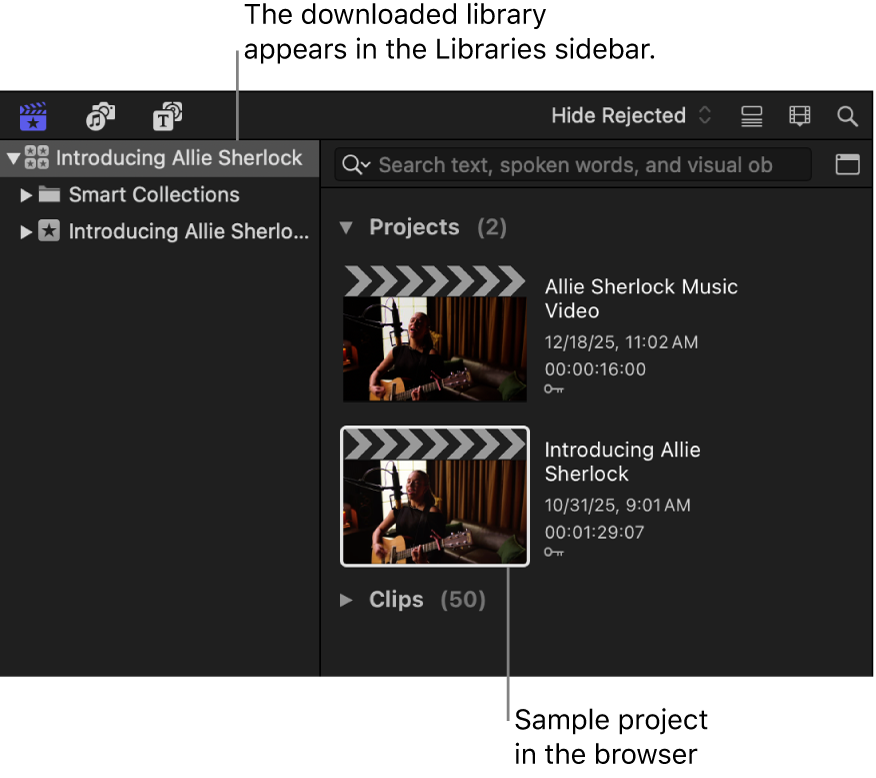
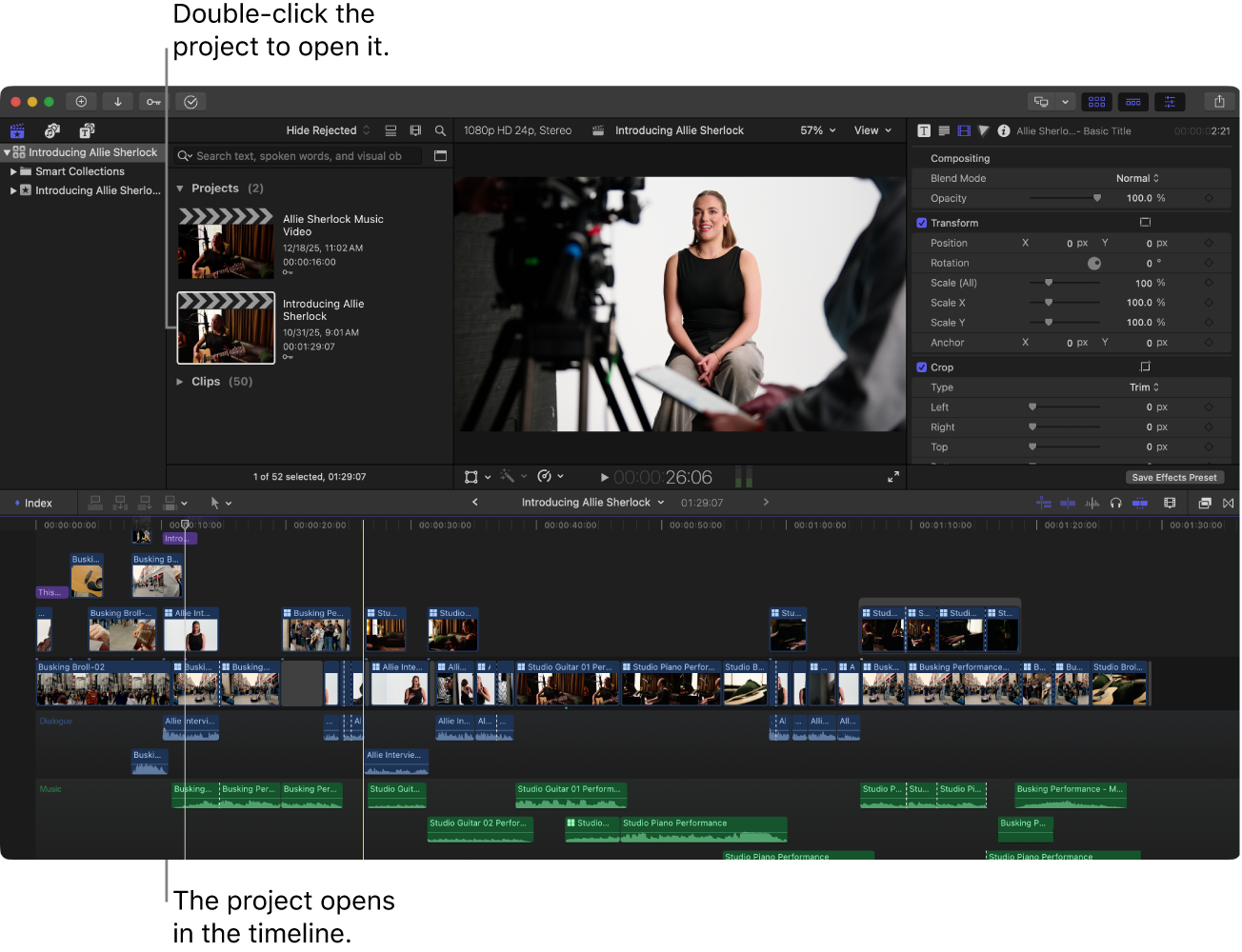
Double-click a project in the browser (Allie Sherlock Music Video or Introducing Allie Sherlock).
The project opens in the timeline at the bottom of the Final Cut Pro window.


The library contains Keyword Collections and Smart Collections created using Transcript Search and Visual Search. To learn more, see Add keywords to clips, Find clips and projects, and Create Smart Collections.
Download this guide: PDF
உங்கள் கருத்திற்கு நன்றி.