Add a family member to your shared subscriptions
After you set up Family Sharing, you can share subscriptions like iCloud+, Apple TV and Apple Fitness+ with members of your family.
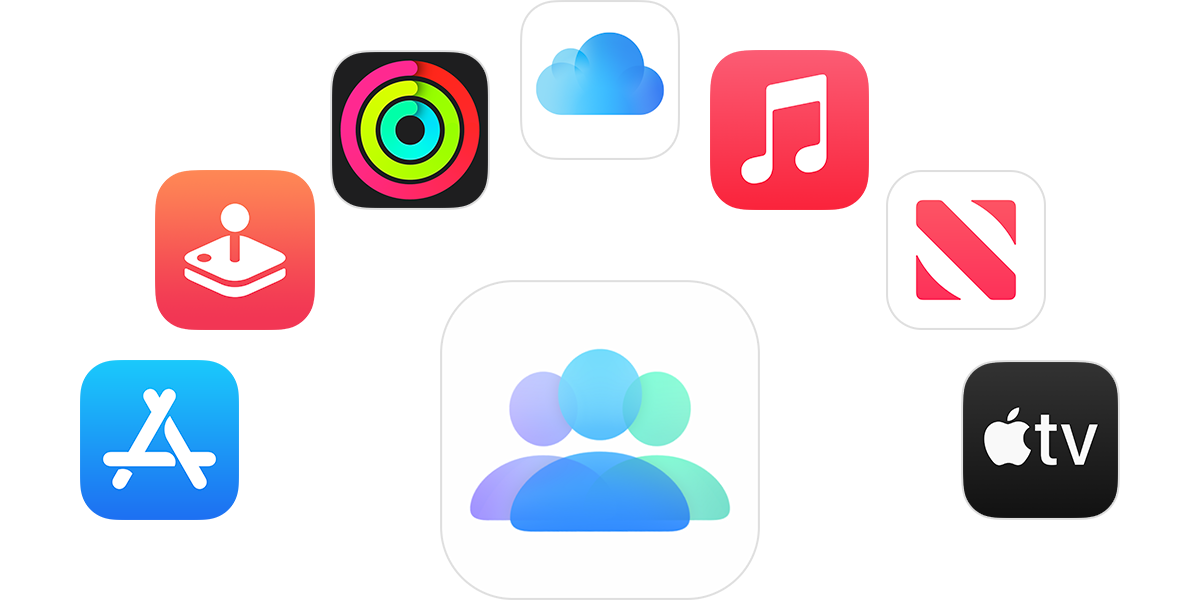
When you share a subscription with your family
You and up to five family members can enjoy access to content on Apple TV, Apple Music, Apple Arcade, Apple News+ and more. When you share subscriptions, each person sees their own preferences, recommendations and shared content. When you share an iCloud+ plan, family members can’t see each others’ photos, files or documents.
If you have already set up Family Sharing
After you've set up Family Sharing, eligible subscriptions are shared with your family members automatically. If your family members can't access a subscription:
On your iPhone or iPad, open the Settings app, then tap your name.
Tap Subscriptions.
Scroll down and tap Manage Family Access.
Turn on Share Eligible Subscriptions.
Find out what types of content you can share with your Family Sharing group
If you haven’t set up Family Sharing
On your iPhone or iPad, open the Settings app.
Tap your name, tap Family, then tap Continue.
Follow the onscreen instructions to set up your Family Sharing group and invite your family members.
Eligible subscriptions are shared with your family members automatically.
Who is charged for the subscription?
If Purchase Sharing is turned on, by default, the Family Sharing organiser pays for everyone's purchases. However, a family member can choose to put their payment method first so the family organiser isn't paying for their purchases.*
If you're the Family Sharing organiser and you don't want to pay for other family members' purchases and subscriptions, you can turn off Purchase Sharing. When Purchase Sharing is turned off, everyone must use their own payment method to make purchases. When Purchase Sharing is turned off, family members can share subscriptions, but they can't share individual purchases like apps or books, or non-consumable in-app purchases billed by Apple. Find out more about in-app purchases, subscriptions and non-consumable in-app purchases.
Apple Media Services and features may vary by country or region. Find out more about what’s available in your country or region.