Final Cut Pro Logic Effects
- Welcome
-
- Intro to echo effects
-
- Intro to Delay Designer
- Delay Designer interface
- Main display controls
- View buttons
- Navigate the Tap display
- Create taps
- Select taps
- Move and delete taps
- Use the tap toggle buttons
- Edit taps in the Tap display
- Align tap values
- Edit filter cutoff
- Edit pan
- Tap parameter bar
- Tap shortcut menu
- Reset tap values
- Master section controls
- Use Delay Designer in surround
- Modulation Delay
- Stereo Delay
- Tape Delay
- Copyright
Use the Delay Designer tap toggle buttons in Final Cut Pro for Mac
In the Delay Designer effect, each tap has its own toggle button in the Toggle bar. These buttons offer you a quick way to graphically activate and deactivate parameters. The specific parameter being toggled by the toggle buttons depends on the current view button selection.
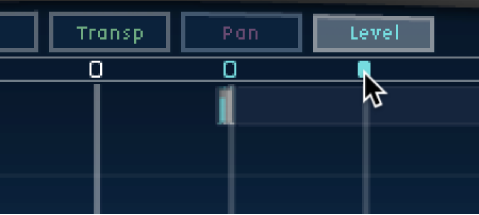
Cutoff view: Toggle buttons turn the filter on or off.
Reso view: Toggle buttons switch the filter slope between 6 dB and 12 dB.
Pitch view: Toggle buttons switch pitch transposition on or off.
Pan view: Toggle buttons switch between the Flip modes.
Level view: Toggle buttons mute or unmute the tap.
Temporarily switch the mute state of taps
In the Final Cut Pro timeline, select a clip with the Delay Designer effect applied, then open the effect’s settings in the Audio inspector.
To add the effect and show its controls, see Add Logic effects to clips in Final Cut Pro for Mac.
Option-Command-click a toggle button, regardless of the current view mode.
When you release the Option and Command keys, the toggle buttons return to their standard functionality in the active view mode.
Note: The first time you edit a filter or pitch transpose control, the respective module automatically turns on. This saves you the effort of manually turning on the filter or pitch transposition module before editing. After you manually turn either of these modules off, however, you need to manually switch it back on.
Download this guide: PDF